Ansible Playbooks
The Playbooks section (/playbooks) under Automation catalogs and manages the Ansible playbooks registered within PixelView.
Playbooks define idempotent infrastructure-as-code automation tasks—such as package installation, service orchestration, security patching, and configuration management—that execute across target hosts via dedicated Ansible Runners.
Architecture & GitOps Runner Mounts
PixelView is an orchestration and execution engine, not a raw code repository. Because of this, Ansible playbooks are not stored directly inside PixelView's database. Instead, they are maintained externally on your host filesystem and mounted into runner environments.
How Playbook Execution Works
- External Storage: Playbook files (
.ymlor.yaml) reside on the runner host's local filesystem or shared network storage. - Container Volume Mounting: When an Ansible Runner worker daemon container starts up, the host's playbook directory is volume mounted into the container under the
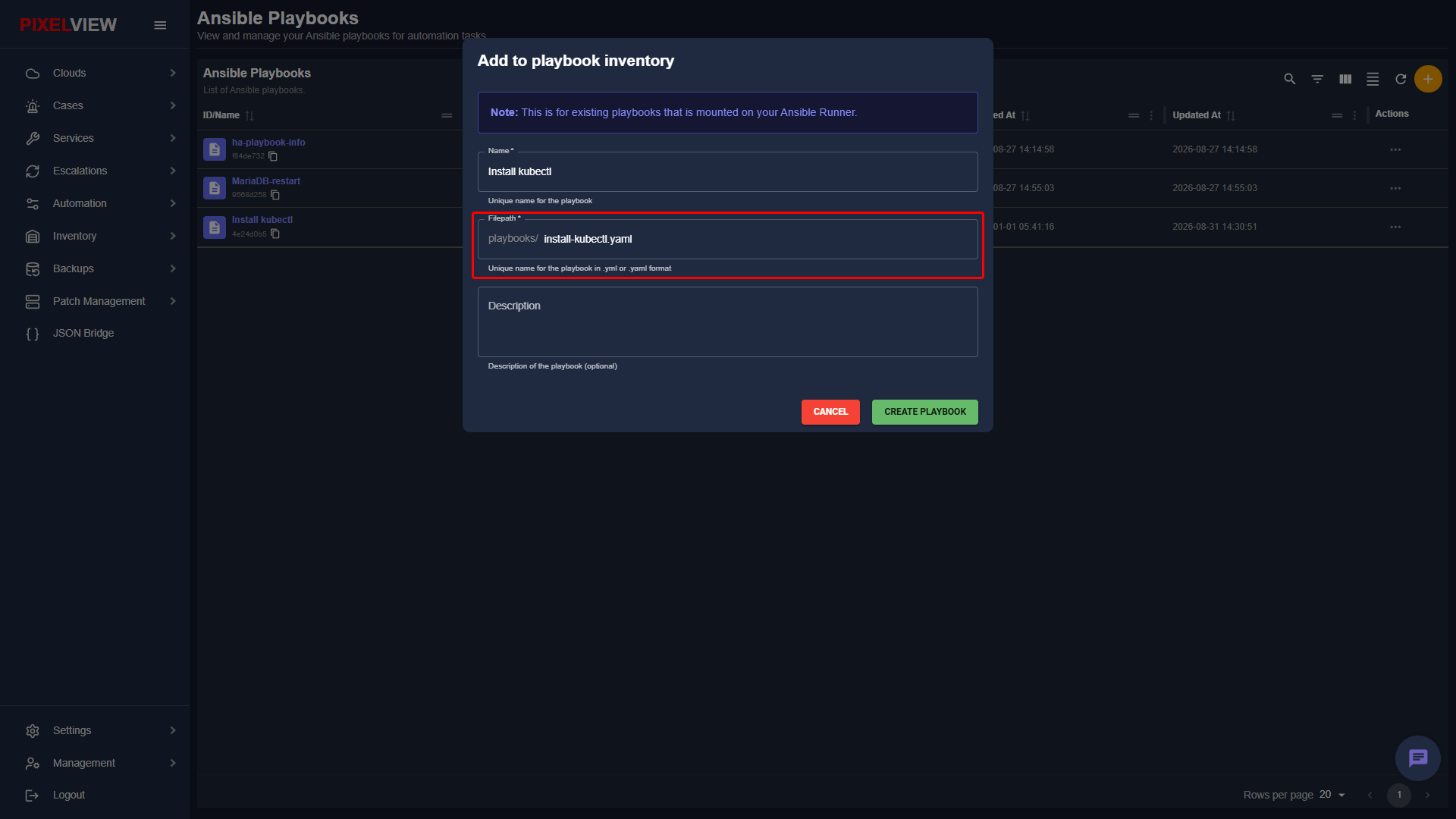
/playbooks/path (for example,/opt/pixelvirt/playbooksmounted to/playbooks). - Catalog Pointer in PixelView: Registering a playbook in the PixelView UI does not upload the file. It simply creates a catalog definition that points to the mounted file path on the runner. As shown in the modal above, the Filepath field explicitly references the target file within the mounted
playbooks/volume (for example,install-kubectl.yamldirects the runner to execute/playbooks/install-kubectl.yaml).
Architectural Rationale & Benefits
This decoupled architecture was intentionally chosen for several major operational advantages:
- Version Control & GitOps: You can maintain all your playbooks in a private GitHub or GitLab repository with complete version history, branch protection, pull request reviews, and auditing.
- Zero Database Bloat: PixelView remains lightweight and fast, eliminating the risk of database bloat or synchronization conflicts from storing raw executable code blobs.
- Seamless Updates Without Platform Restarts: When you update or patch a playbook in your Git repository, pulling the changes onto the runner host updates the automation code immediately. You do not need to reconfigure or restart PixelView.
- Separation of Concerns: DevOps engineers and system administrators write, test, and version-control infrastructure playbooks using familiar IDEs and Git workflows, while operations teams execute, monitor, and correlate them inside PixelView.
Recommended Deployment Pattern (GitOps Setup)
To establish a production-ready playbook management workflow, we recommend cloning your playbook repository directly onto the runner host and mounting it as a read-only volume.
Step: Prepare the Host Directory
Create a dedicated storage directory on the host machine running your Ansible Runner:
Step: Clone Your Git Repository
Clone your team's playbook repository from GitHub into the host directory:
Step: Mount Directory into the Runner Container
In your Ansible Runner docker-compose.yml or container startup command, mount the host directory into /opt/playbooks:
services:
  ansible-runner:
    image: ghcr.io/pixelvirt/ansible-runner:latest
    container_name: ansible-runner
    environment:
      - AGENT_ID=runner-1
      - RABBITMQ_HOST=localhost
      - RABBITMQ_PORT=5672
      - RABBITMQ_USER=alertagility
      - RABBITMQ_PASSWORD=dcW41MPUlM54uw2
      - JOB_INPUT_QUEUE=automation
      - JOB_OUTPUT_QUEUE=ansible_output
      - PREFETCH_COUNT=1
      - HEARTBEAT_INTERVAL=60
      - DEFAULT_MAX_RETRIES=3
      - LOG_LEVEL=INFO
      - ANSIBLE_HOST_KEY_CHECKING=false
      - STATIC_AUTH_KEY=6c673f51-6045-47b0-8745-eef9d165a310
    volumes:
      - ./playbooks:/opt/playbooks
      - ./inventory:/opt/inventory
      - ./logs:/var/log/ansible-runner
    restart: unless-stopped
    network_mode: host
Step: Synchronize Updates
To update playbooks across your runners whenever changes are merged into your GitHub repository, pull the latest revisions on the host:
Tip
You can automate this synchronization by setting up a GitHub Actions workflow that executes git pull over SSH on runner nodes, or by configuring a periodic cron job on the runner host.
Navigating to Playbooks
To view and manage your registered playbooks:
- In the left navigation sidebar under Automation, click Playbooks:
Playbooks Table Overview
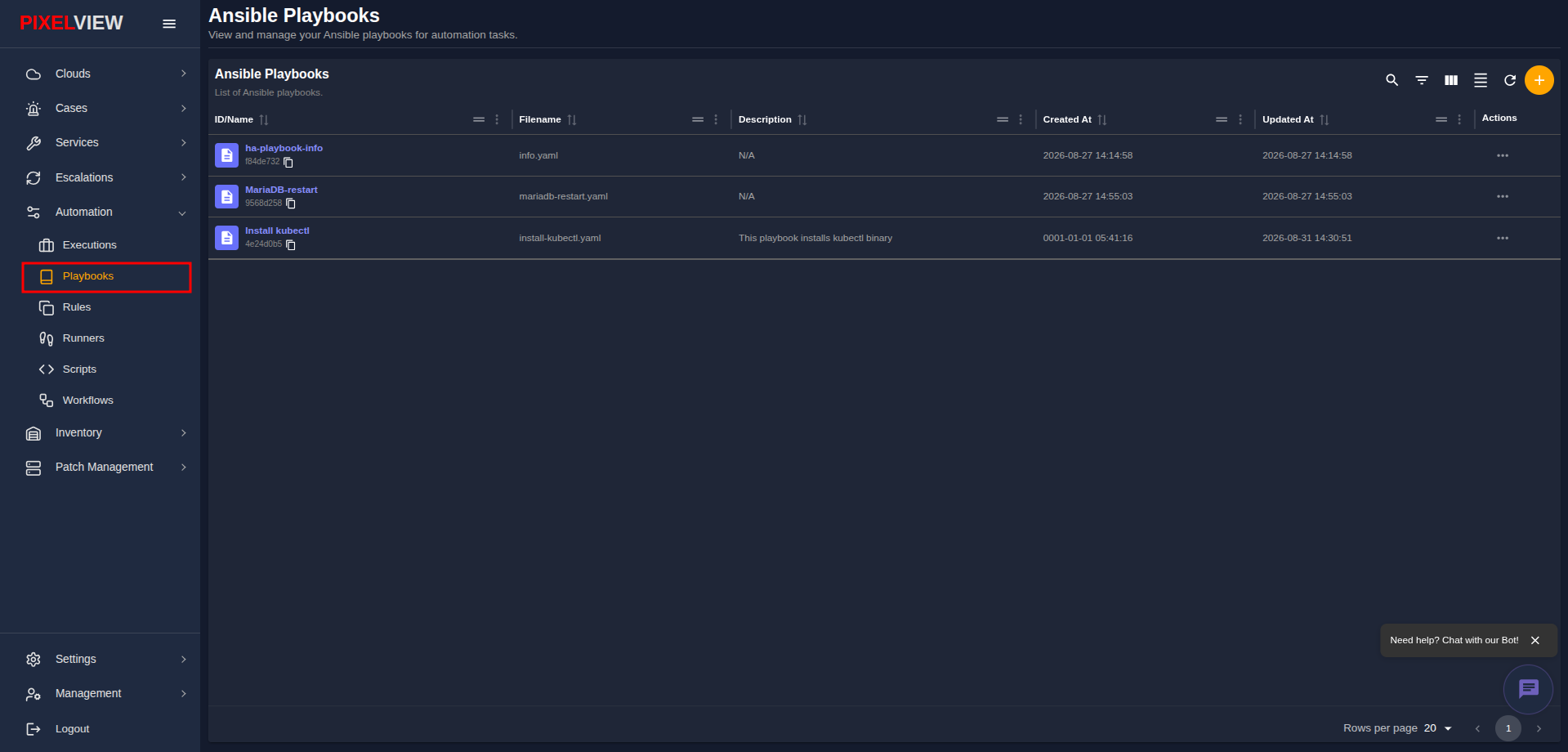
The main table lists all registered playbooks and their underlying script files:
| Column | Description |
|---|---|
| ID/Name | Playbook display name (e.g., Install kubectl, MariaDB-restart) with a document icon, clickable link to inspect details, and a copyable UUID chip. |
| Filename | Name of the YAML playbook file mounted on the runner (e.g., install-kubectl.yaml, mariadb-restart.yaml, info.yaml). |
| Description | Human-readable explanation of what the playbook automates, or N/A if unassigned. |
| Created At | Timestamp when the playbook was first registered (YYYY-MM-DD HH:mm:ss). |
| Updated At | Timestamp of the most recent metadata modification (YYYY-MM-DD HH:mm:ss). |
| Actions | Context menu button (...) providing editing and deletion options. |
Table Toolbar Controls
- Search / Global Filter: Quickly filter playbooks across names, filenames, and descriptions.
- Column Filters: Filter rows by specific table attributes.
- Show/Hide Columns: Customize visible table headers.
- Density Toggle: Toggle between compact and spacious row heights.
- Refresh: Re-fetch the playbook catalog from the backend API.
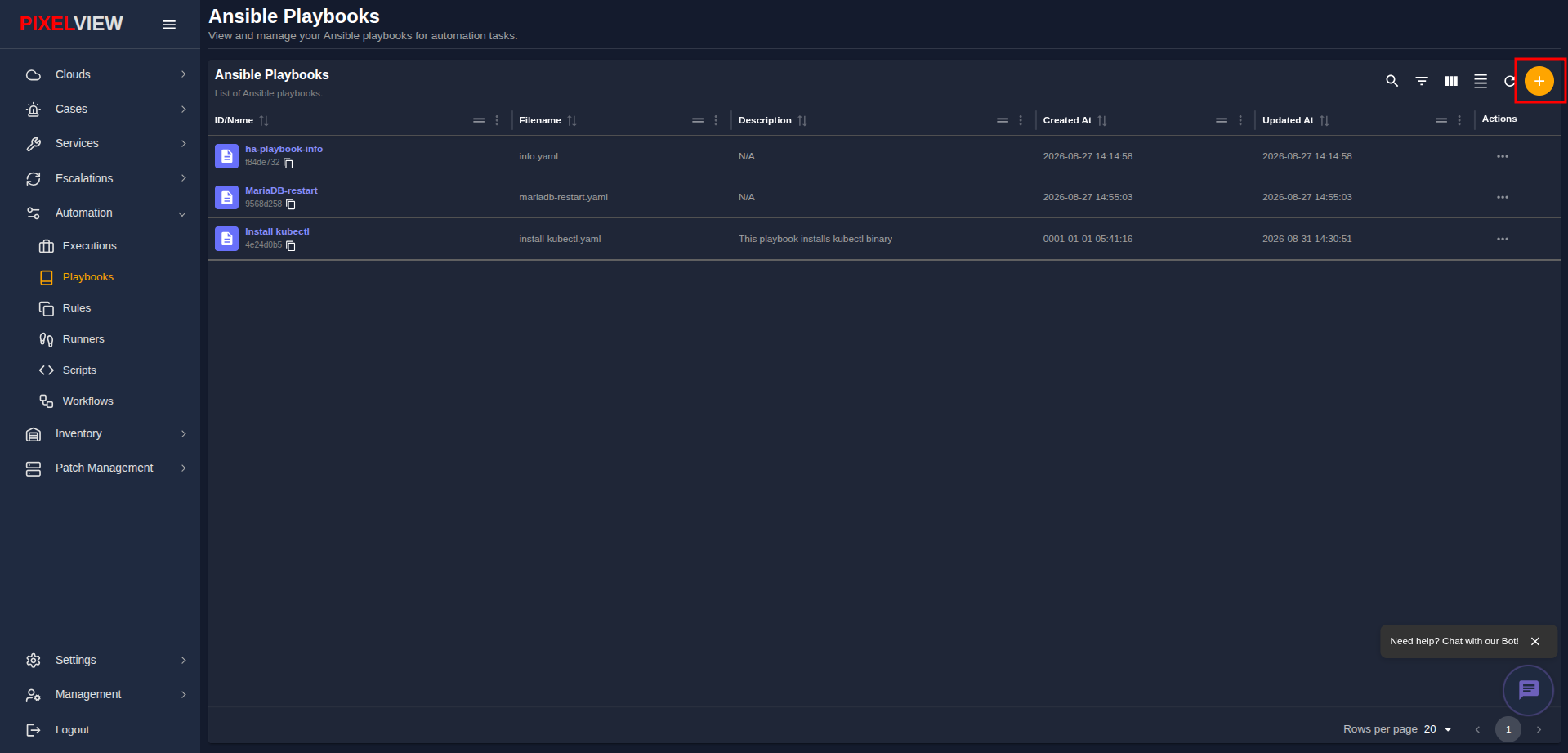
- Add Playbook (
+): Open the inventory registration modal.
Adding a Playbook (Add to Playbook Inventory)
To register an existing runner playbook into the PixelView catalog:
- Click the orange
+(Add Playbook) button on the table toolbar:
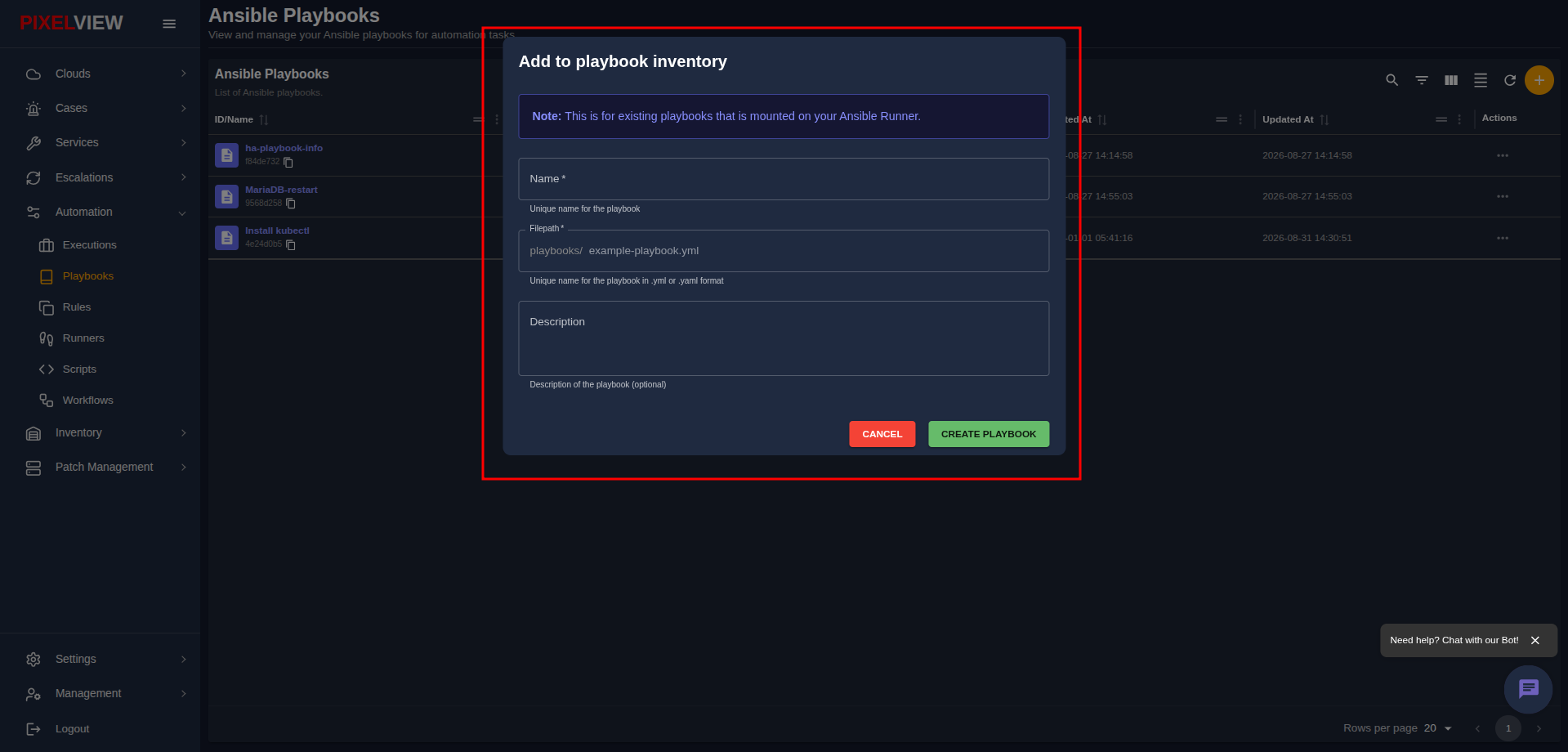
- The Add to playbook inventory modal dialog will appear:
Configuration Fields
- Name (Required): A unique, descriptive title for the playbook (e.g.,
Install kubectl). - Filepath (Required): The filename of the playbook file residing inside the runner mount. The
playbooks/directory prefix is automatically prefixed by PixelView. The filename must end in.ymlor.yaml(e.g.,install-kubectl.yaml). - Description (Optional): Explanatory notes documenting the purpose, required variables, or target operating systems for the playbook.
Dialog Actions
- CANCEL: Abort registration and close the modal.
- CREATE PLAYBOOK: Register the playbook into PixelView's inventory.
Managing Playbooks (Edit & Delete)
To modify or delete an existing playbook:
- In the table row, click the Actions menu (
...):
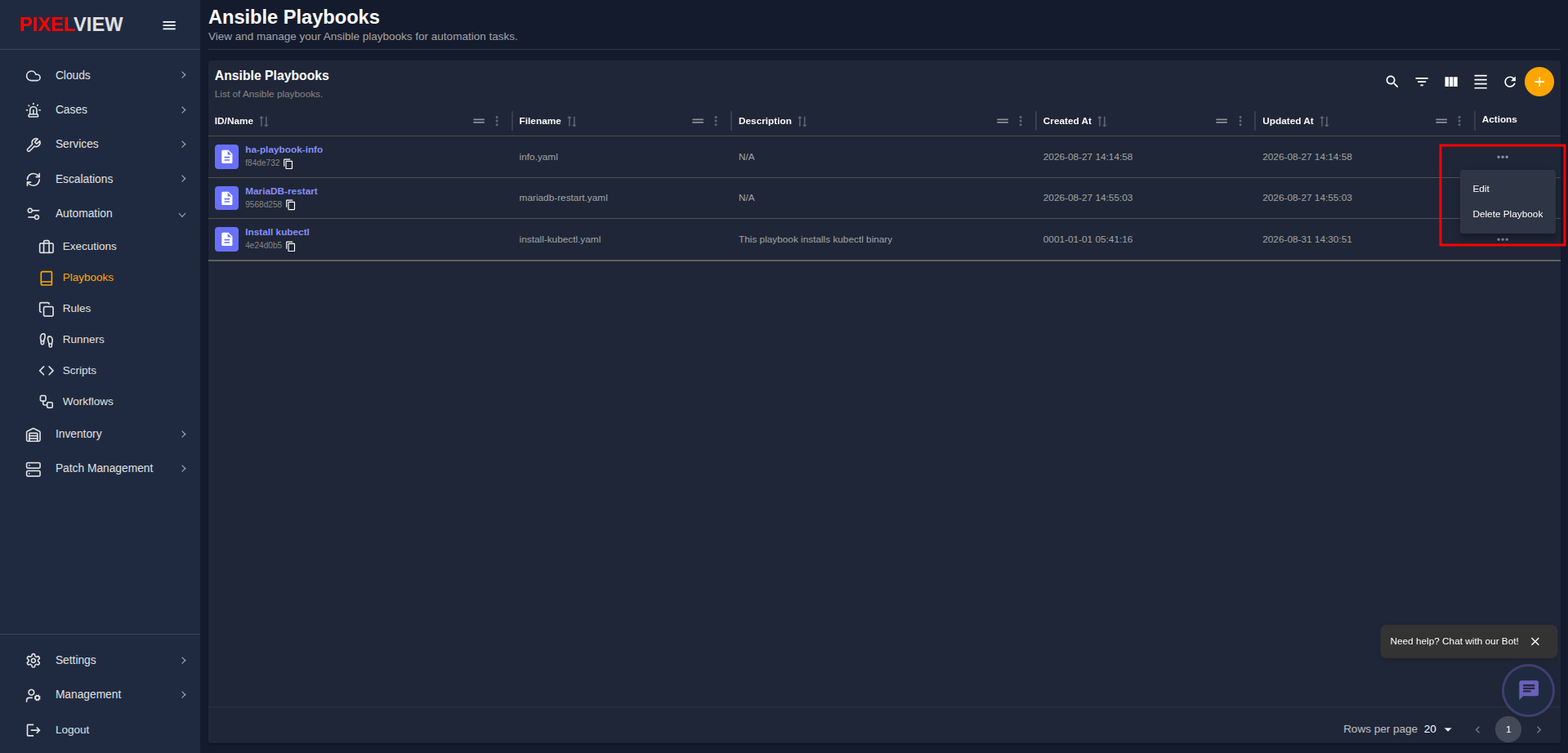
Editing Playbook Metadata
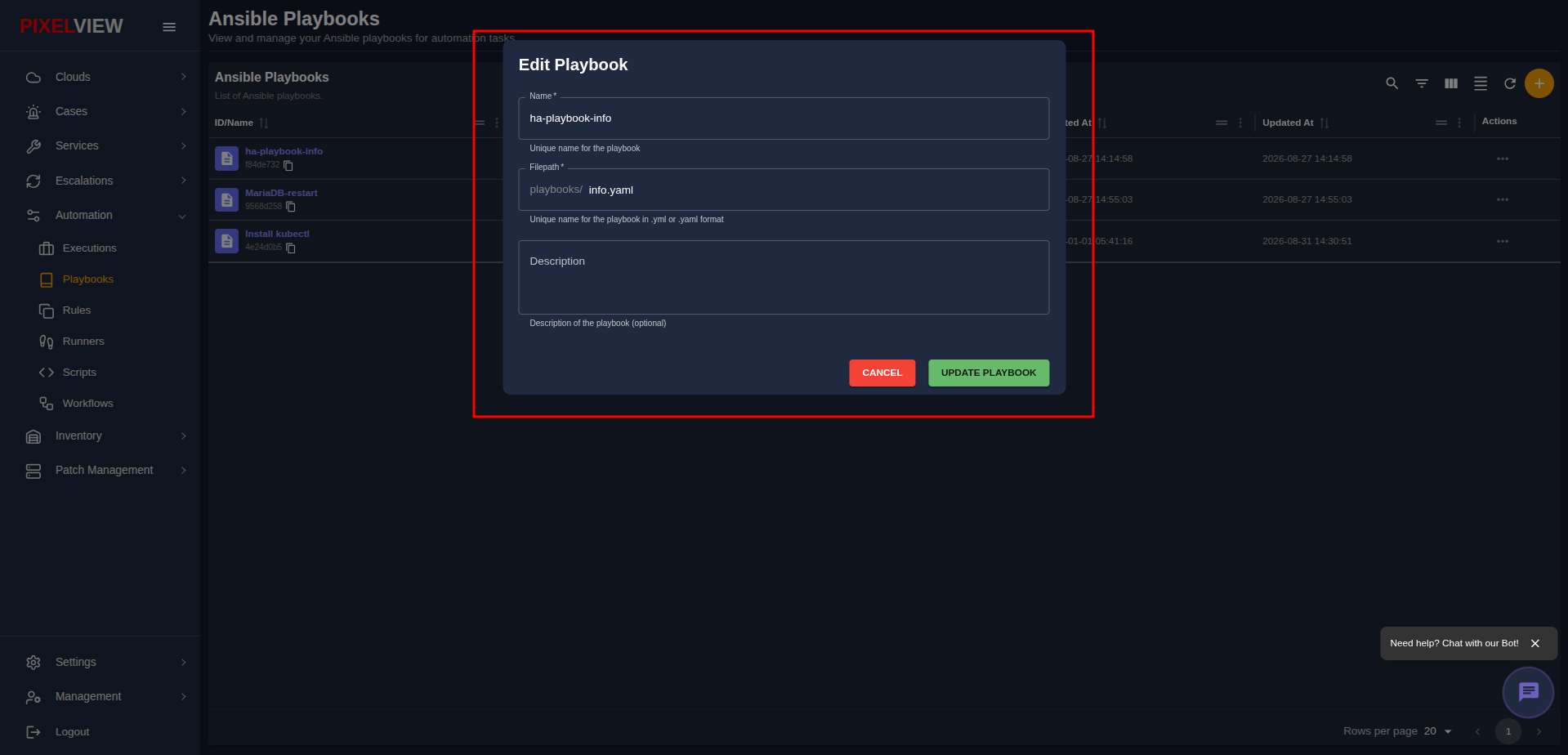
- Click Edit from the actions menu to open the Edit Playbook modal:
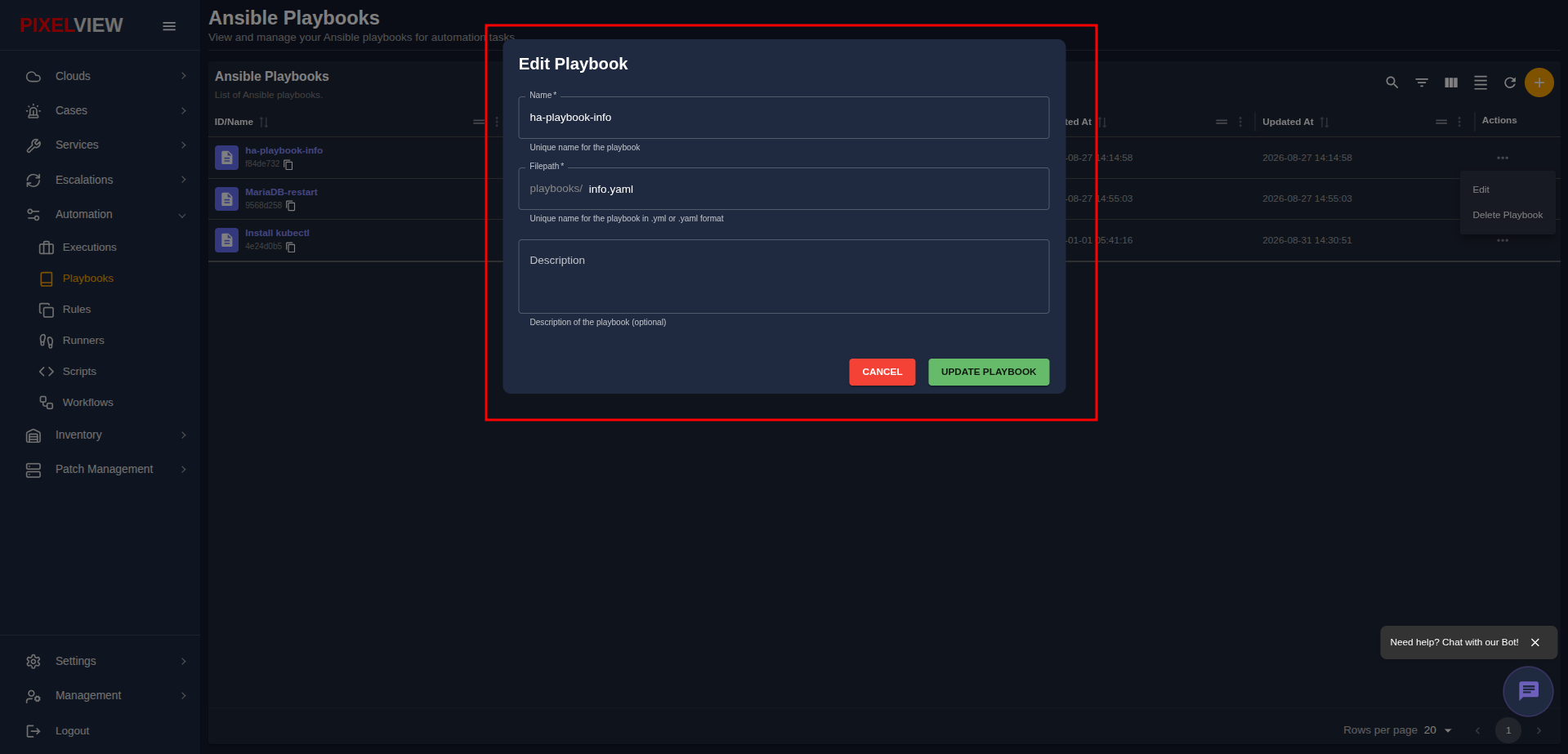
- Update the Name, mounted Filepath, or Description.
- Click UPDATE PLAYBOOK to save changes.
Deleting a Playbook
- Click Delete Playbook from the actions menu.
- A browser confirmation dialog will prompt:
- Click OK to confirm. The playbook reference will be removed from the catalog.
Warning
Deleting a playbook removes its registration from PixelView. Workflows or automated execution jobs that depend on this playbook reference will fail if invoked.
Inspecting Playbook Details
To inspect the full metadata of a playbook:
- Click directly on the playbook row or display name link in the table (e.g.,
ha-playbook-info):
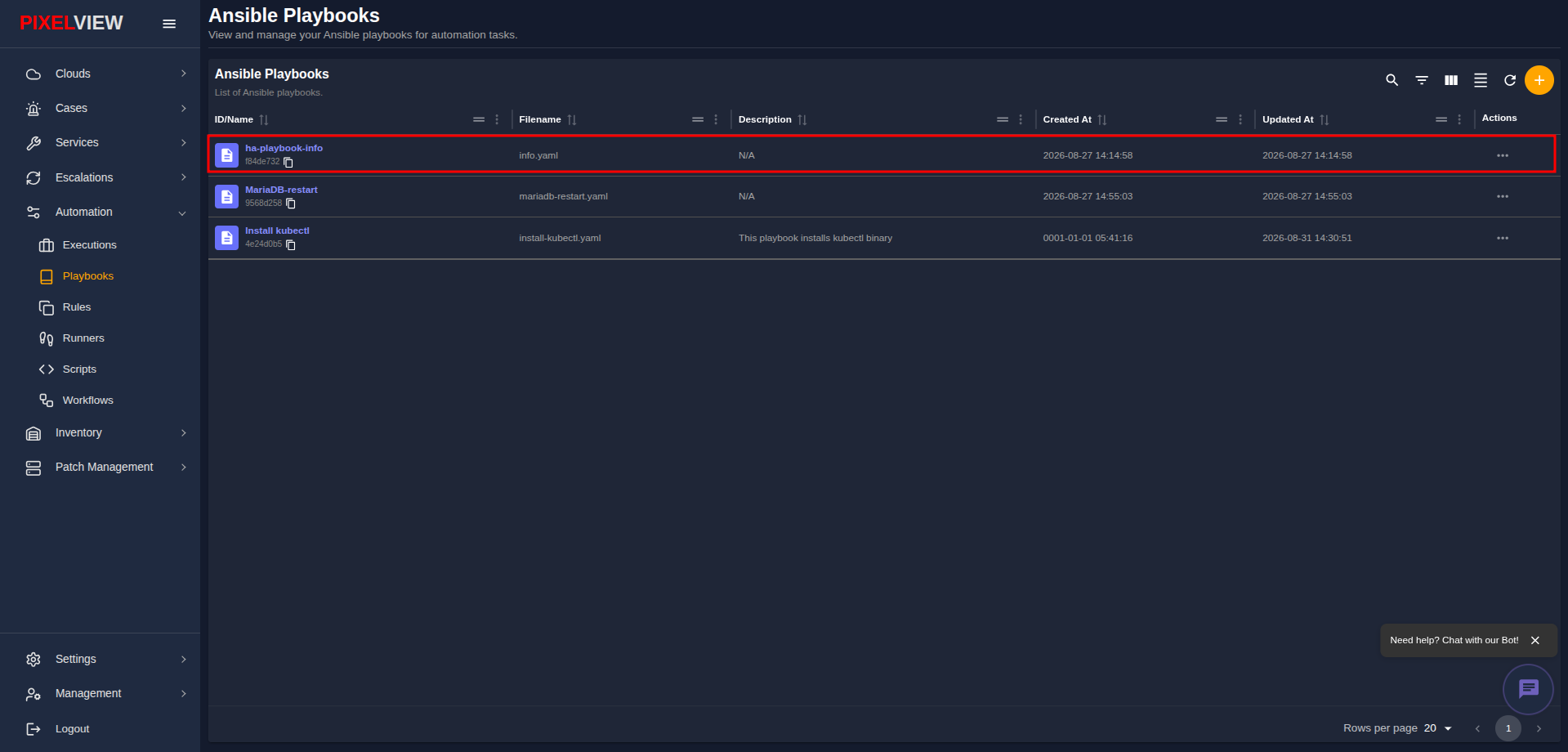
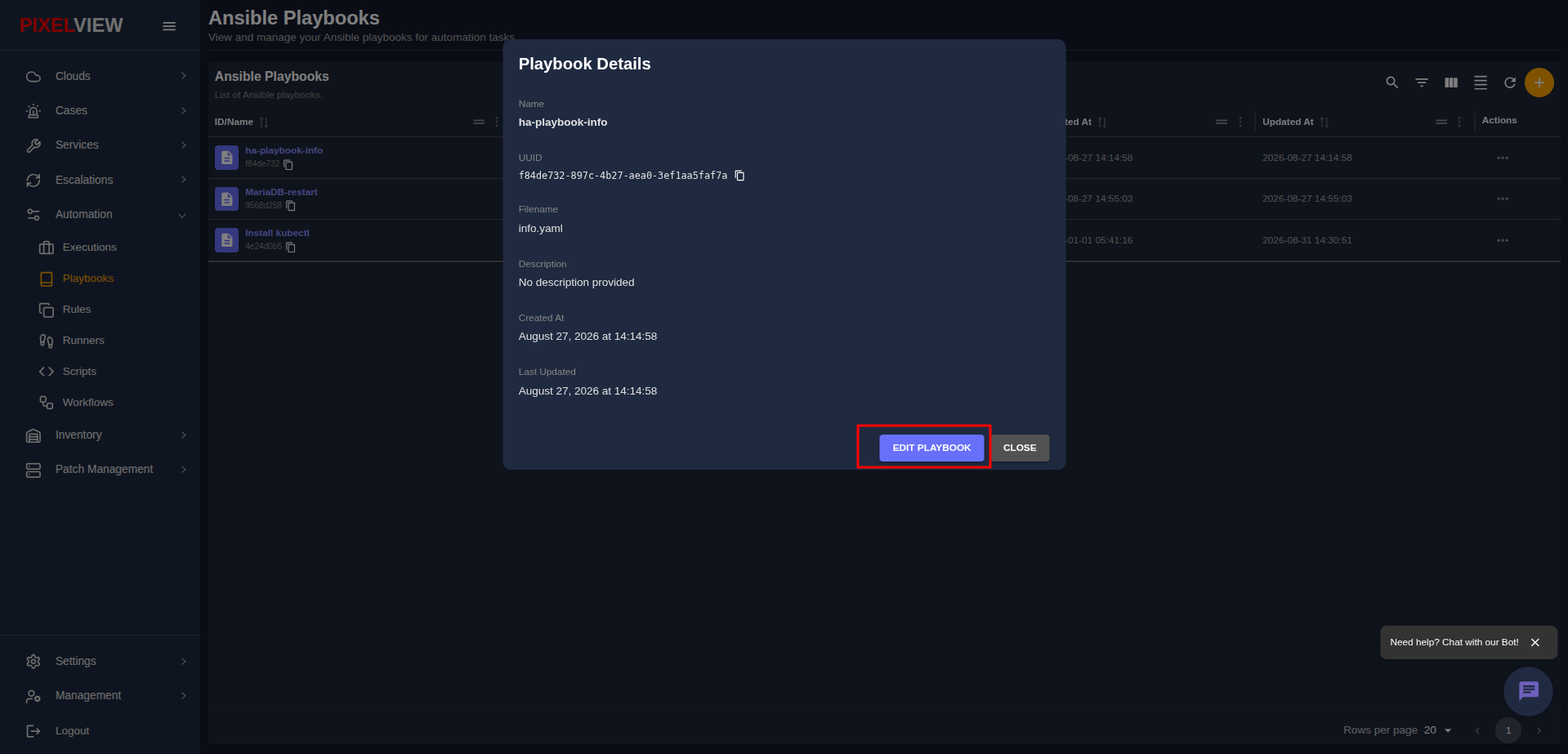
- The Playbook Details modal will open:
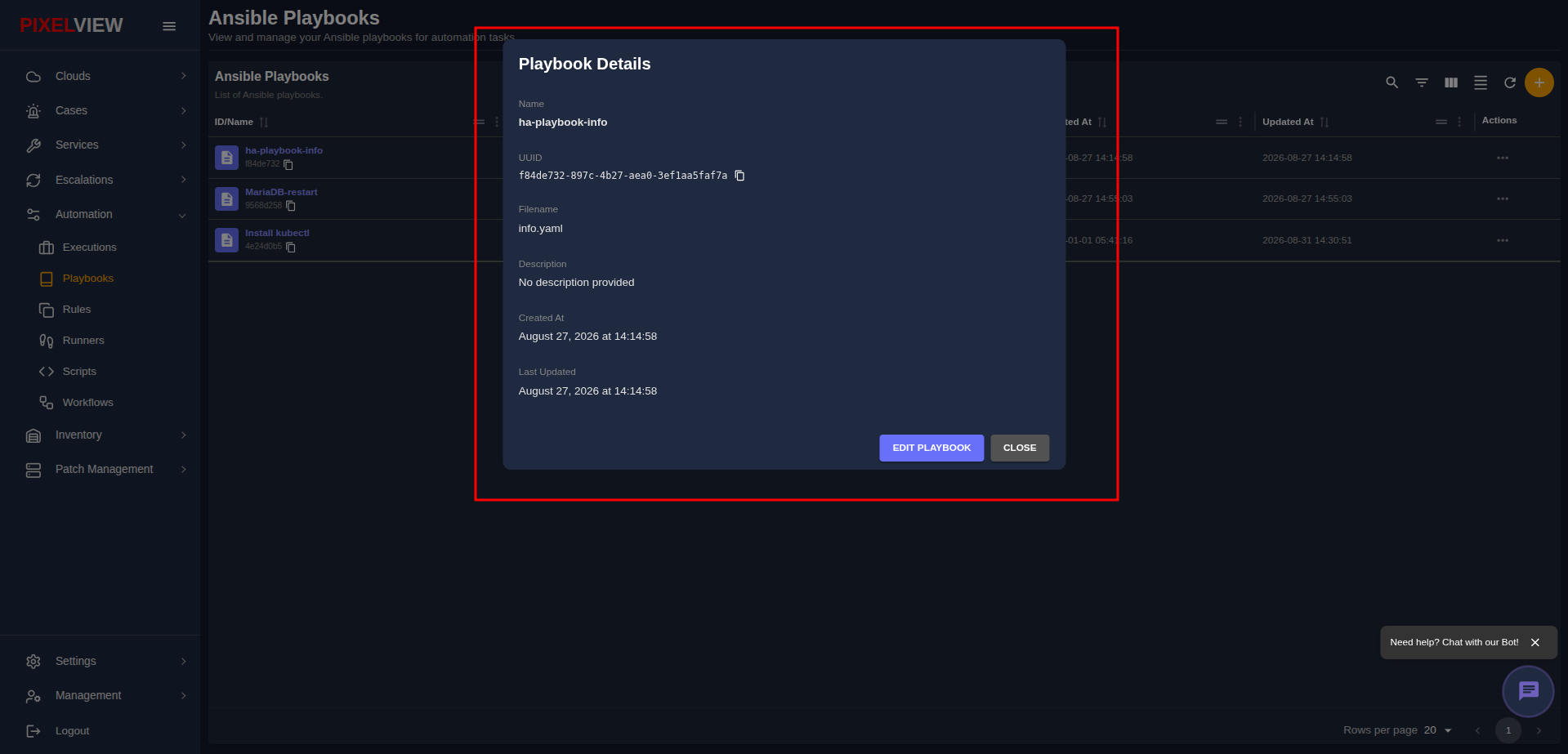
Displayed Information
- Name: Display name of the playbook.
- UUID: System-assigned unique identifier with a one-click clipboard copy icon.
- Filename: The underlying YAML playbook filename.
- Description: Detailed summary of playbook functionality.
- Created At & Last Updated: Complete timestamps marking initial registration and last revision.
Quick Edit from Details
- From the details modal, click the purple EDIT PLAYBOOK button:
- The Edit Playbook dialog opens directly with pre-populated values, allowing operators to make rapid updates without returning to the main table:
Curated Operational Playbook Library
The following production-tested Ansible playbooks represent common operational templates designed for mounting into /opt/pixelvirt/playbooks/ and registering into PixelView.
Automated SSL/TLS Certificate Renewal (renew-ssl-cert.yaml)
Renews Let's Encrypt certificates using Certbot, verifies web server syntax, and reloads active reverse proxy daemons without dropping client sessions:
---
- name: Automate SSL/TLS Certificate Renewal
  hosts: all
  become: true
  vars:
    web_server_service: nginx
    cert_domain: "{{ domain_name | default('api.example.com') }}"

  tasks:
    - name: Ensure Certbot is installed
      ansible.builtin.package:
        name:
          - certbot
          - python3-certbot-nginx
        state: present

    - name: Execute certificate dry-run verification
      ansible.builtin.command:
        cmd: certbot renew --dry-run
      register: dry_run_result
      changed_when: false

    - name: Renew expiring certificates
      ansible.builtin.command:
        cmd: certbot renew --non-interactive --quiet
      register: renewal_output
      when: dry_run_result.rc == 0

    - name: Validate web server configuration syntax
      ansible.builtin.command:
        cmd: "{{ web_server_service }} -t"
      changed_when: false

    - name: Reload web server daemon
      ansible.builtin.systemd:
        name: "{{ web_server_service }}"
        state: reloaded
Zero-Downtime Rolling Service Restart (rolling-service-restart.yaml)
Restarts backend microservices sequentially across fleet hosts while validating health probe endpoints before proceeding to subsequent cluster nodes:
---
- name: Zero-Downtime Rolling Service Restart
  hosts: all
  become: true
  serial: 1
  vars:
    target_service: "{{ service_name | default('pixelview-worker') }}"
    health_endpoint_url: "http://127.0.0.1:8080/healthz"
    max_health_retries: 12
    health_retry_delay_seconds: 5

  tasks:
    - name: Pre-restart health verification
      ansible.builtin.uri:
        url: "{{ health_endpoint_url }}"
        status_code: 200
        timeout: 5
      register: pre_check
      ignore_errors: true

    - name: Gracefully restart systemd service unit
      ansible.builtin.systemd:
        name: "{{ target_service }}"
        state: restarted

    - name: Await service health endpoint recovery
      ansible.builtin.uri:
        url: "{{ health_endpoint_url }}"
        status_code: 200
        timeout: 5
      register: post_check
      until: post_check.status == 200
      retries: "{{ max_health_retries }}"
      delay: "{{ health_retry_delay_seconds }}"

    - name: Report successful node recycling
      ansible.builtin.debug:
        msg: "Successfully recycled {{ target_service }} on {{ inventory_hostname }}"
Emergency Disk Space Reclamation (reclaim-disk-space.yaml)
Safely purges rotated logs, vacuums systemd journal archives older than 7 days, cleans package manager caches, and prunes dangling container images:
---
- name: Emergency Disk Space Reclamation
  hosts: all
  become: true
  vars:
    journal_retention_days: 7

  tasks:
    - name: Vacuum systemd journald archives
      ansible.builtin.command:
        cmd: "journalctl --vacuum-time={{ journal_retention_days }}d"
      changed_when: true

    - name: Purge APT package manager cache on Debian/Ubuntu
      ansible.builtin.apt:
        autoclean: true
        autoremove: true
      when: ansible_os_family == "Debian"

    - name: Clean DNF package manager cache on RHEL/Rocky
      ansible.builtin.dnf:
        clean: all
      when: ansible_os_family == "RedHat"

    - name: Check for Docker daemon availability
      ansible.builtin.command:
        cmd: docker info
      register: docker_check
      ignore_errors: true
      changed_when: false

    - name: Prune orphaned Docker container resources
      ansible.builtin.command:
        cmd: docker system prune -af --volumes
      when: docker_check.rc == 0
      changed_when: true