Credentials Management
The Credentials section (/creds) under Inventory provides a secure authentication vault for storing, organizing, and linking administrative access profiles (passwords and SSH keys) to servers, network devices, applications, and automation tasks across PixelView.
Navigating to Credentials
To access stored credentials and authentication profiles:
- In the left navigation sidebar under Inventory, click Credentials:
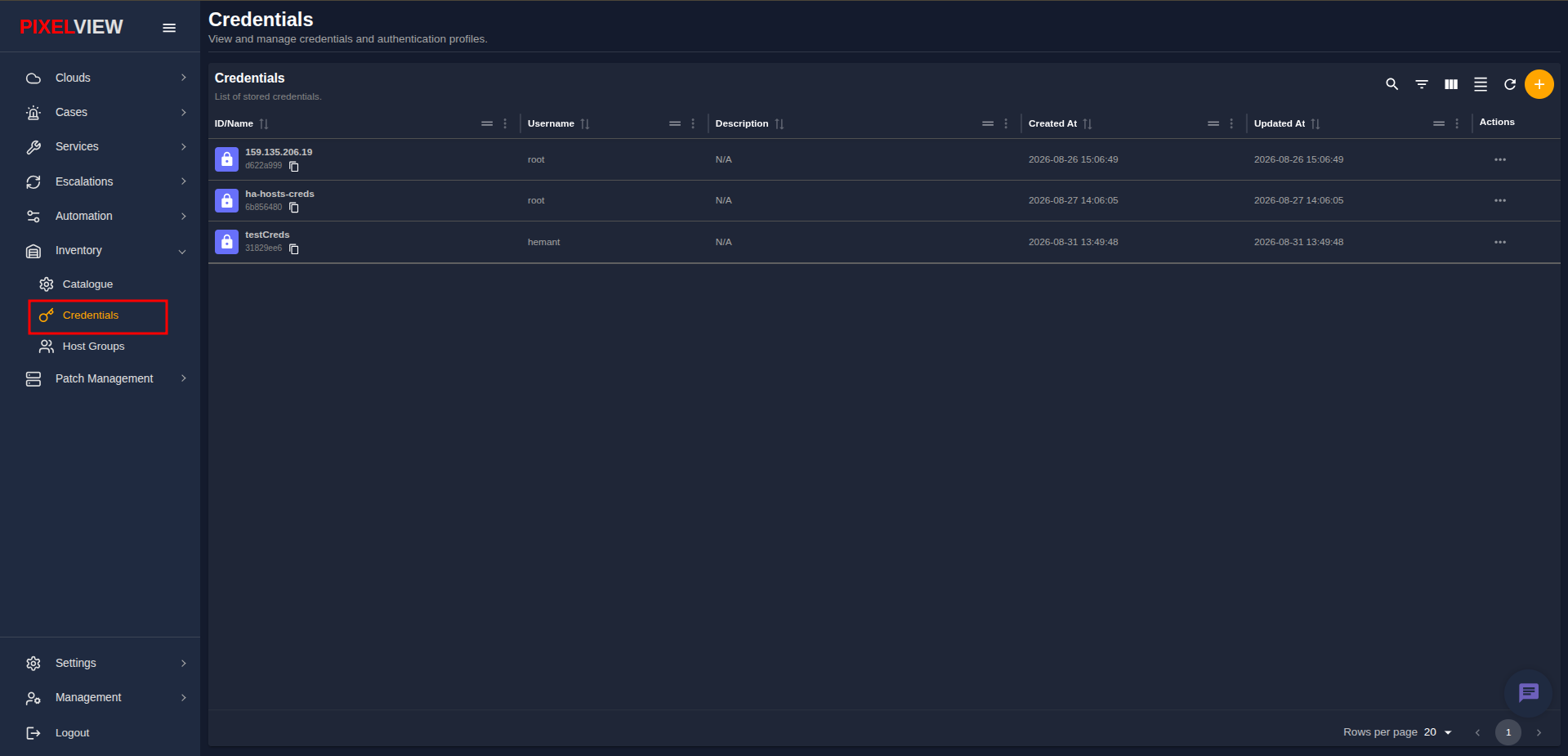
Credentials Table Overview
The main table lists all active and stored credential profiles with 60-second background polling for real-time synchronization:
| Column | Description |
|---|---|
| ID/Name | Display profile name (e.g., 159.135.206.19, ha-hosts-creds, testCreds) with a blue lock icon and copyable UUID chip. |
| Username | Administrative login user account (e.g., root, hemant, admin@localhost). |
| Description | Operational context or target environment label (e.g., N/A, datacenter cluster). |
| Created At | Timestamp marking when the credential entry was first registered (YYYY-MM-DD HH:mm:ss). |
| Updated At | Timestamp tracking the most recent modification to the credential. |
| Actions | Context action menu (...) for editing or deleting credential profiles. |
Table Toolbar Controls
The top-right toolbar provides dynamic Material React Table controls:
* Search / Global Filter: Real-time filtering across all credential records.
* Column Filters: Filter records by specific field values.
* Show/Hide Columns: Toggle visibility of individual table columns.
* Density Toggle: Switch between compact and expanded row padding.
* Refresh: Instantly fetch the latest credential definitions.
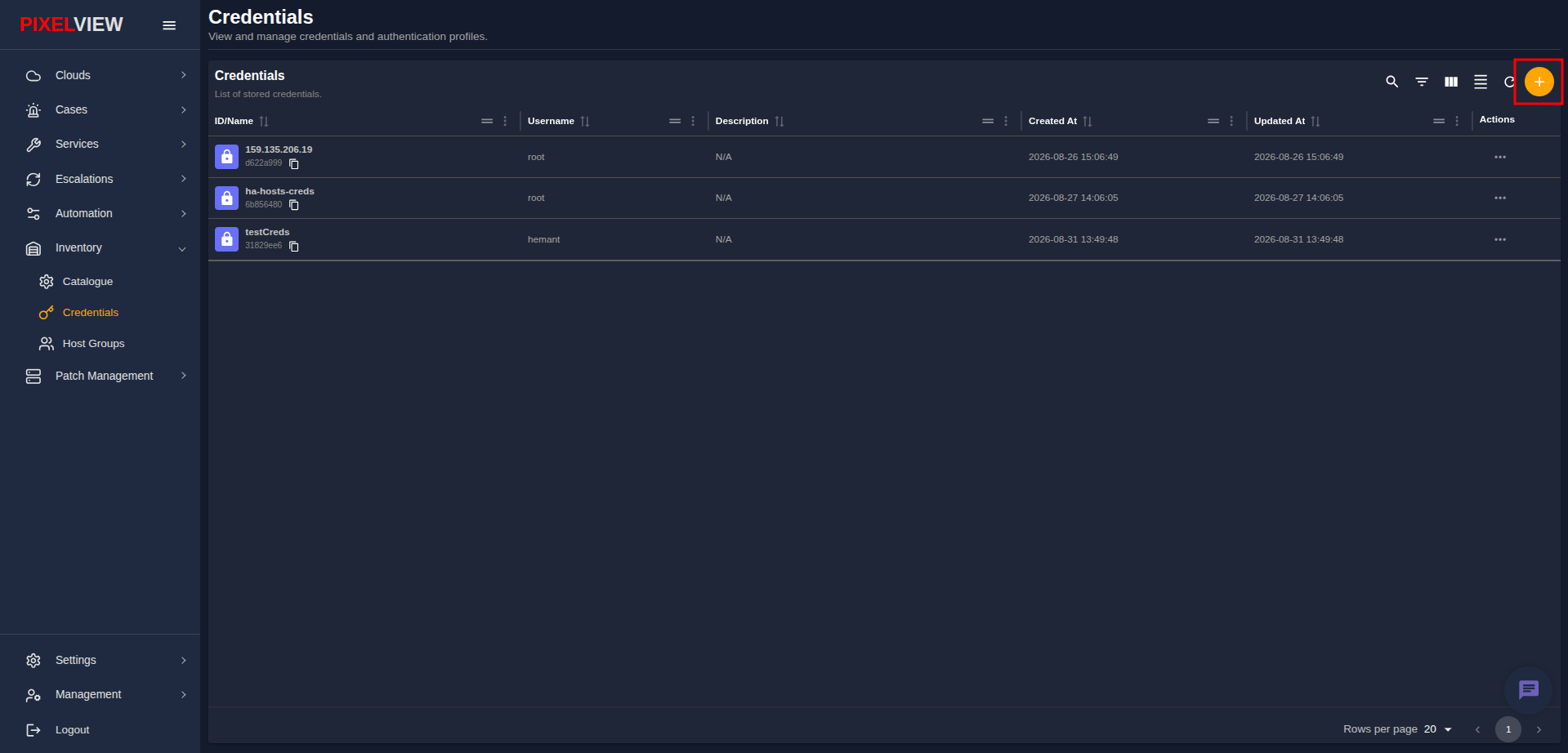
* Add Credential (+): Launch the credential creation dialog.
Creating Credentials
To register a new authentication profile:
- Click the orange
+(Add Credential) button on the table toolbar:
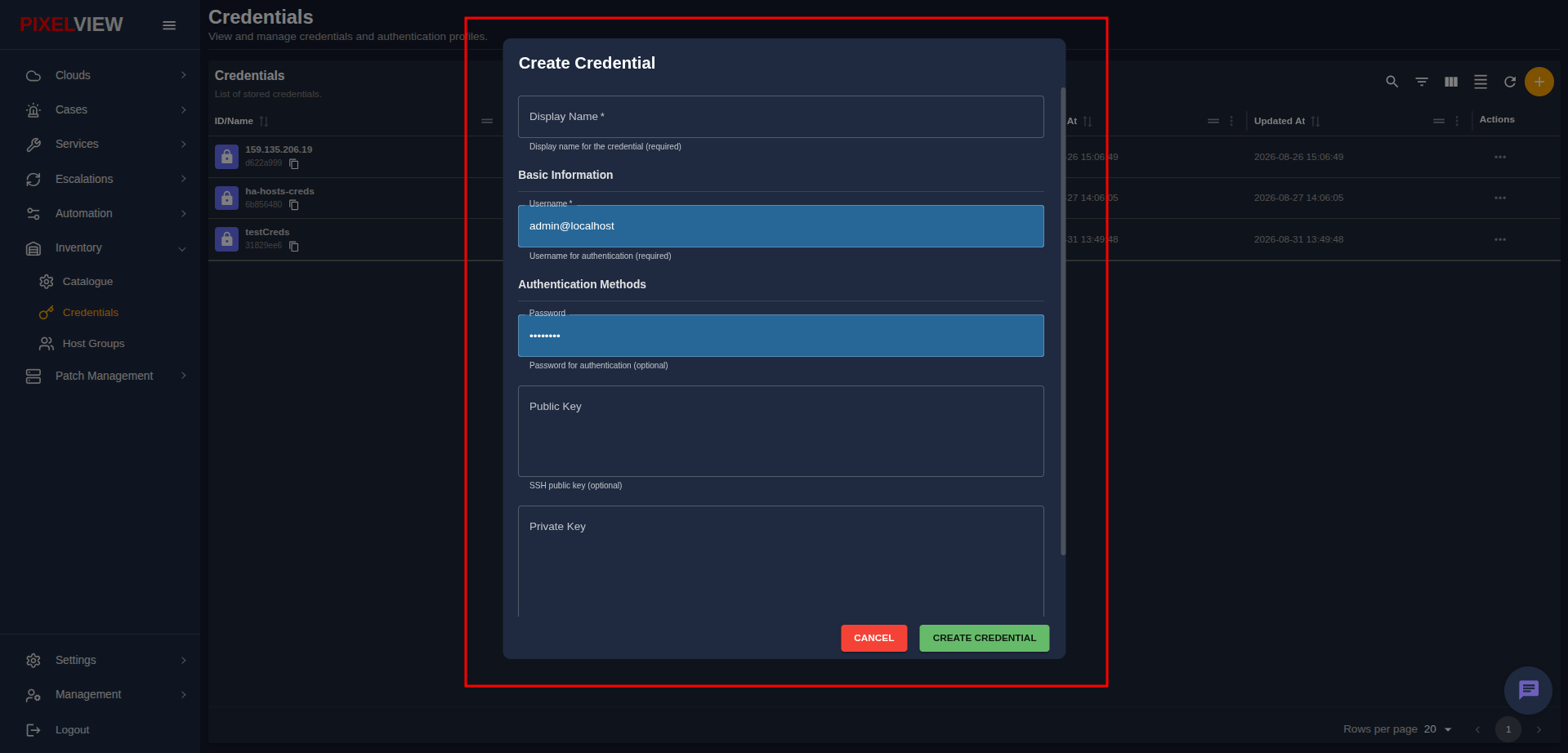
- The Create Credential dialog will open:
Configuration Fields
- Display Name (Required): A friendly, recognizable identifier for the credential profile (e.g.,
ha-hosts-creds,production-bastion). - Username (Required): The remote system login user account (e.g.,
root,admin@localhost). - Authentication Methods:
- Password: Plaintext or masked password for password-based SSH/API authentication.
- Public Key: The OpenSSH public key string (e.g.,
ssh-ed25519 AAAAC3...orssh-rsa AAAAB3...). - Private Key: The matching OpenSSH or RSA private key block for key-based authentication.
Important
At least one valid authentication secret (Password or Private Key) must be provided when creating a credential profile.
- Click CREATE CREDENTIAL to securely store the profile in the vault.
Inspecting & Selecting Credentials
- Select any credential row in the table to review its attributes and quick-copy the unique UUID:
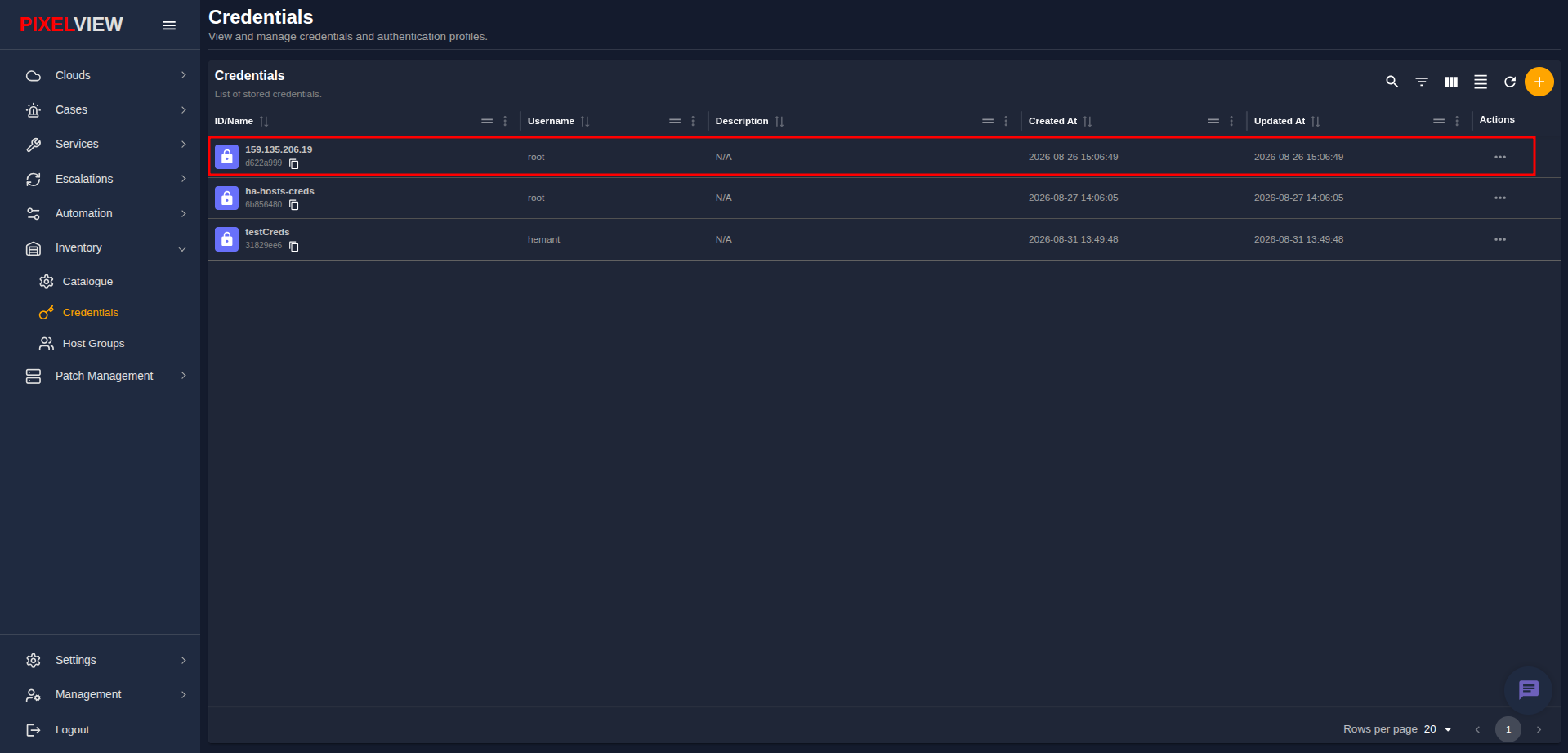
- Click the Copy UUID icon beside the credential name to copy the system identifier for use in API calls, automation workflows, or backend integrations.
Editing Credentials
To update an existing credential profile or rotate secrets:
- Click the context action menu (
...) in the Actions column of the target credential:
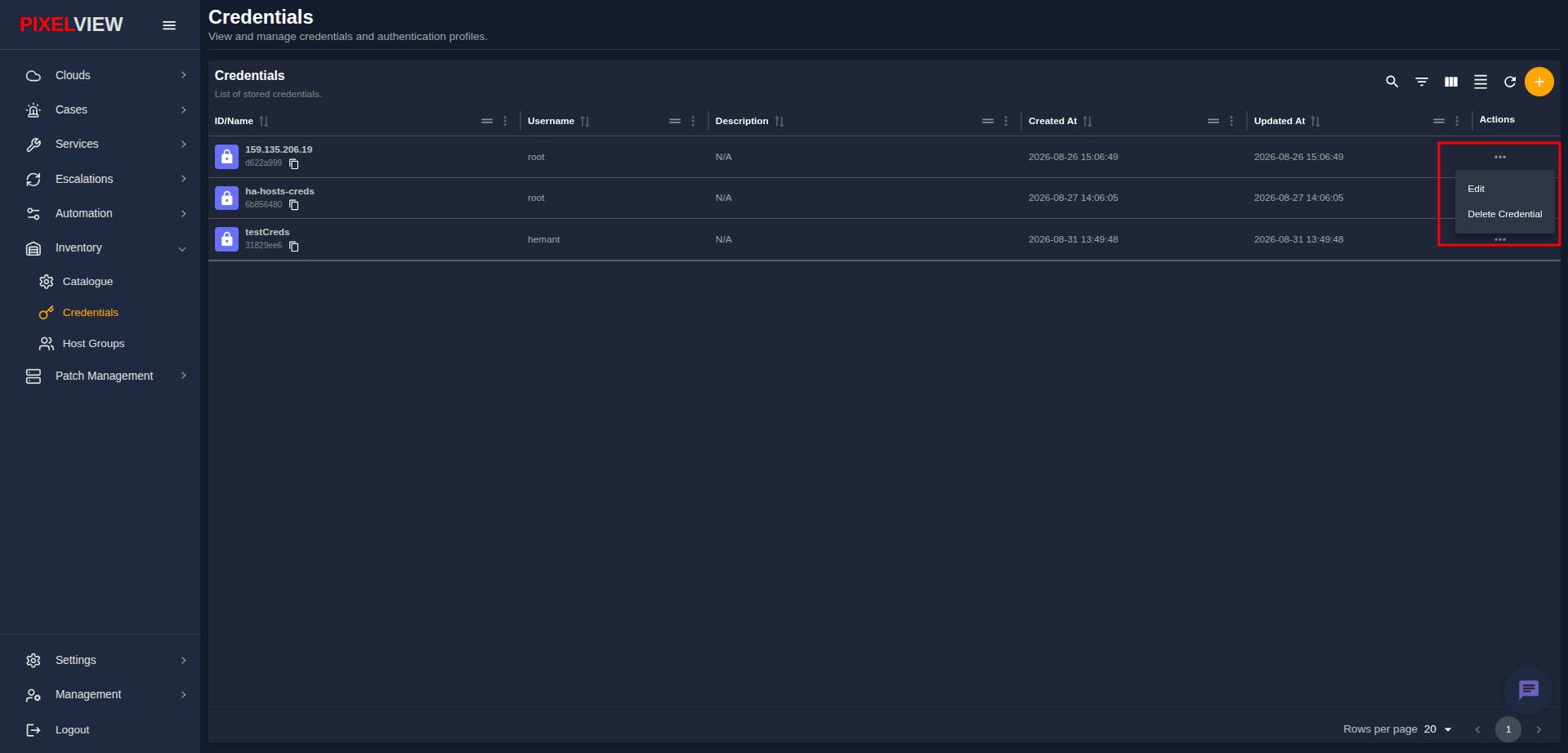
- Select Edit from the menu. The Edit Credential dialog will appear:
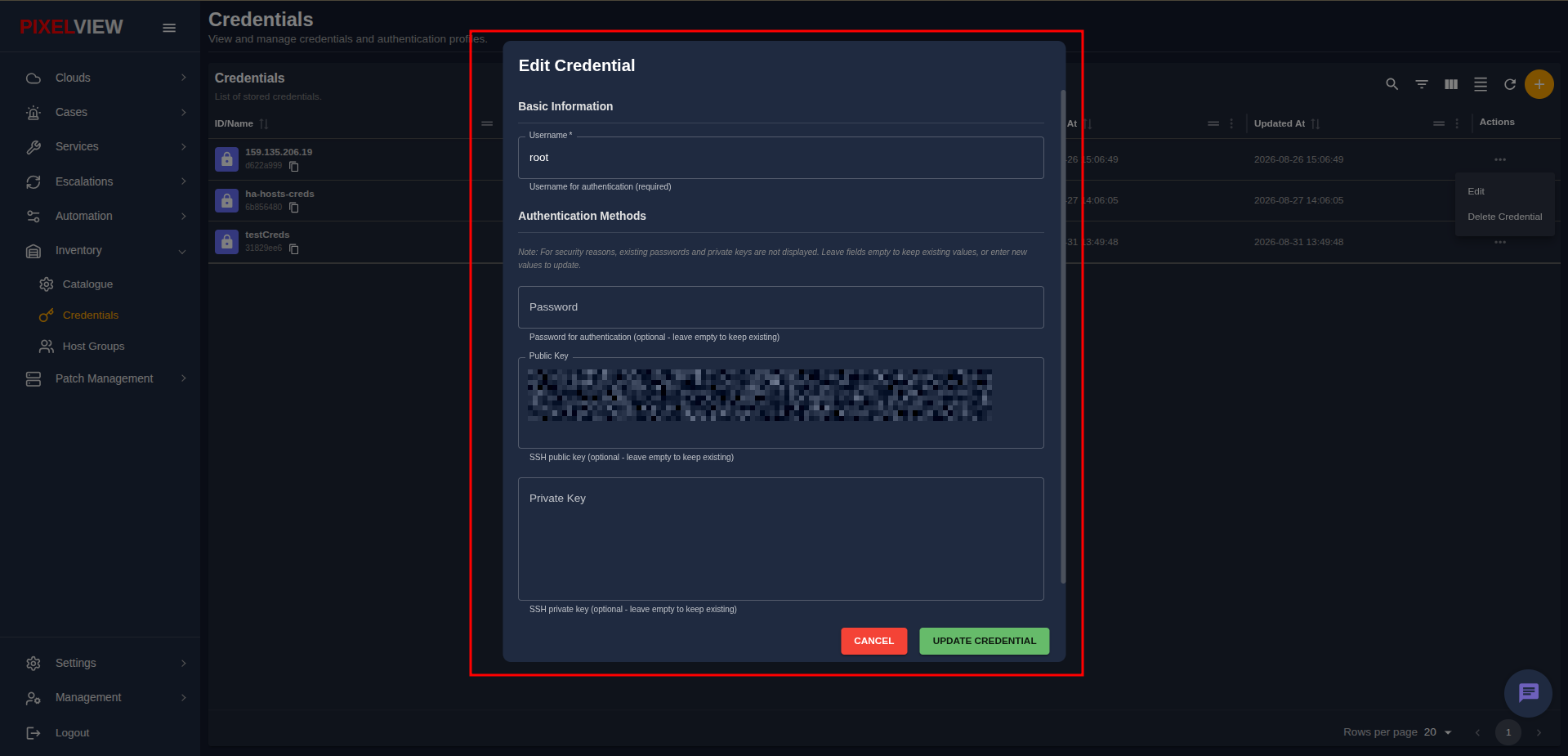
Security and Secret Rotation Rules
- Username: Update the associated username if required.
- Secret Fields (Password & Private Key): For security reasons, existing passwords and private keys are never pre-populated or exposed in the UI.
- Leave these fields blank to retain the current active password or private key.
- Enter new values only when rotating or replacing secrets.
- Public Key: Displays the configured public key string for inspection and editing.
- Click UPDATE CREDENTIAL to save changes.
Automation & Patch Management Integration
Stored credential profiles provide the seamless authentication layer connecting PixelView execution runners to remote target hosts:
- Automated Runner Execution: When an Ansible playbook or patching workflow executes against a target host, runner daemons retrieve the bound SSH keypair or password directly from the encrypted credential vault.
- Non-Interactive Sudo Escalation: If the automation task requires administrative privileges, the credential profile supplies the necessary elevation secrets without requiring operator intervention.
- Key Management Standards:
- Modern Linux Environments: Standardize on
ed25519keypairs (ssh-keygen -t ed25519) for superior cryptographic performance, smaller key sizes, and enhanced security. - Legacy Host Compatibility: Standardize on RSA 4096-bit keypairs for older enterprise distributions that lack OpenSSH 6.5+ ed25519 support.
- Modern Linux Environments: Standardize on
- Non-Disruptive Secret Rotation: Operators can rotate SSH keys or passwords on remote fleets and update the corresponding credential profile in PixelView without needing to re-create scheduled patch plans or automation workflows.
Deleting Credentials
- In the Actions context menu (
...), select Delete Credential. - Confirm the prompt to permanently delete the profile from the system vault.
Warning
Ensure the credential is not actively attached to critical production servers, network devices, or scheduled automation playbooks before deleting.