Automation Workflows
The Workflows section (/workflows) under Automation provides a visual pipeline orchestration engine in PixelView.
Workflows allow operators to chain multiple Ansible Playbooks and Python Scripts into sequential, automated execution pipelines. These workflows can be triggered manually on demand via Executions, automatically invoked by event-driven Rules for incident self-healing, or scheduled across multi-cloud infrastructure via Patch Management.
Navigating to Workflows
To view and manage your automation pipelines:
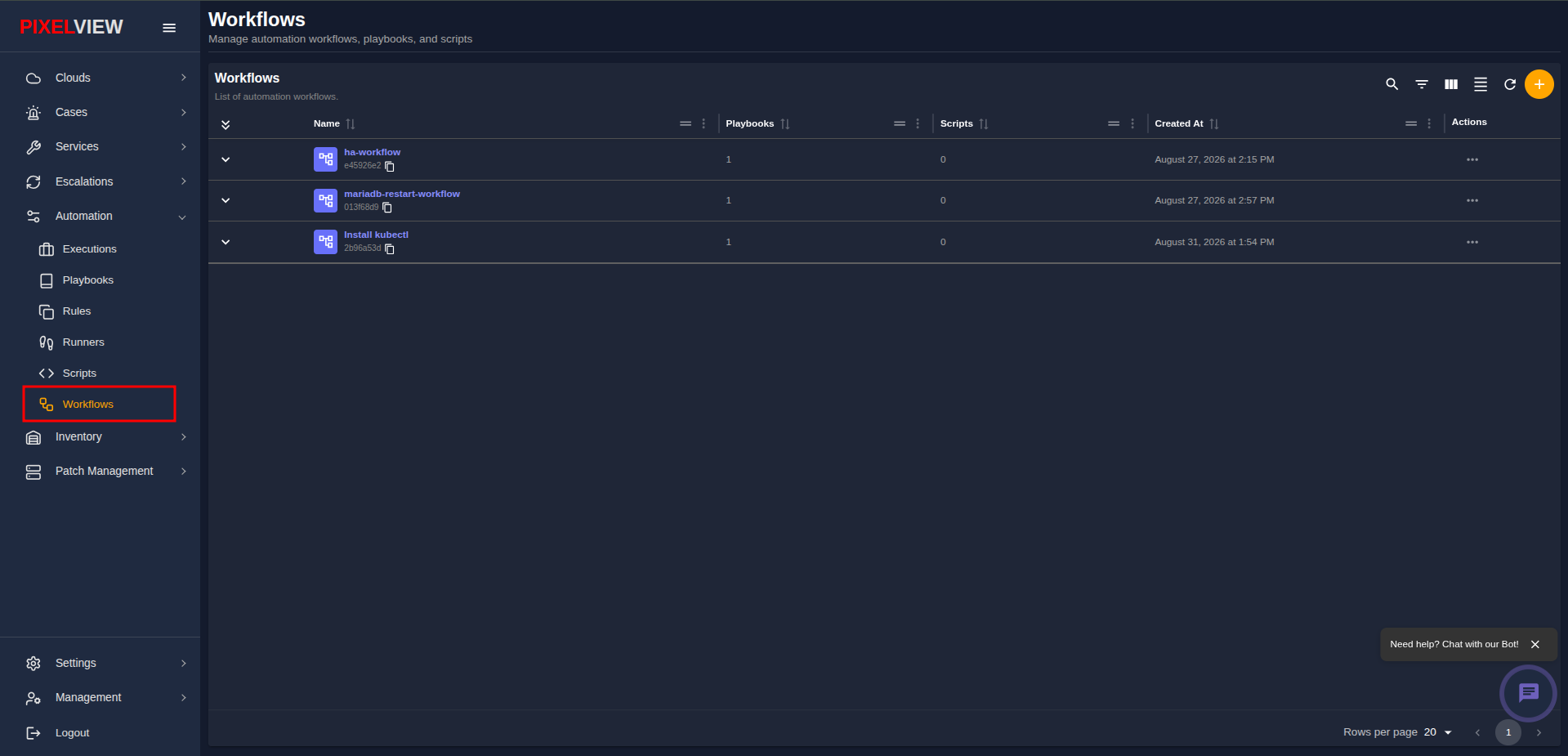
- In the left navigation sidebar under Automation, click Workflows:
Workflows Table Overview
The main table lists all configured automation workflows:
| Column | Description |
|---|---|
Expand (v) |
Chevron toggle that expands the row to display associated playbooks, scripts, and descriptions. |
| Name | Workflow name (e.g., ha-workflow, mariadb-restart-workflow) with a flowchart icon and an 8-character copyable UUID chip with clipboard utility. |
| Playbooks | Number of Ansible playbooks included in this workflow pipeline. |
| Scripts | Number of Python automation scripts included in this workflow pipeline. |
| Created At | Timestamp marking when the workflow was created (Month DD, YYYY at HH:MM AM/PM). |
| Actions | Context action menu (...) providing deletion controls. |
Table Toolbar Controls
- Search / Global Filter: Full-text filter across workflow names, IDs, and timestamps.
- Column Filters: Filter rows by specific columns.
- Show/Hide Columns: Customize table column visibility.
- Density Toggle: Toggle between compact and spacious row padding.
- Refresh: Re-fetch the latest workflows list from the backend API.
- Add Workflow (
+): Navigate to the visual workflow builder.
Inspecting Workflow Components (Row Expansion)
To view the exact sequence of playbooks and scripts contained within a workflow:
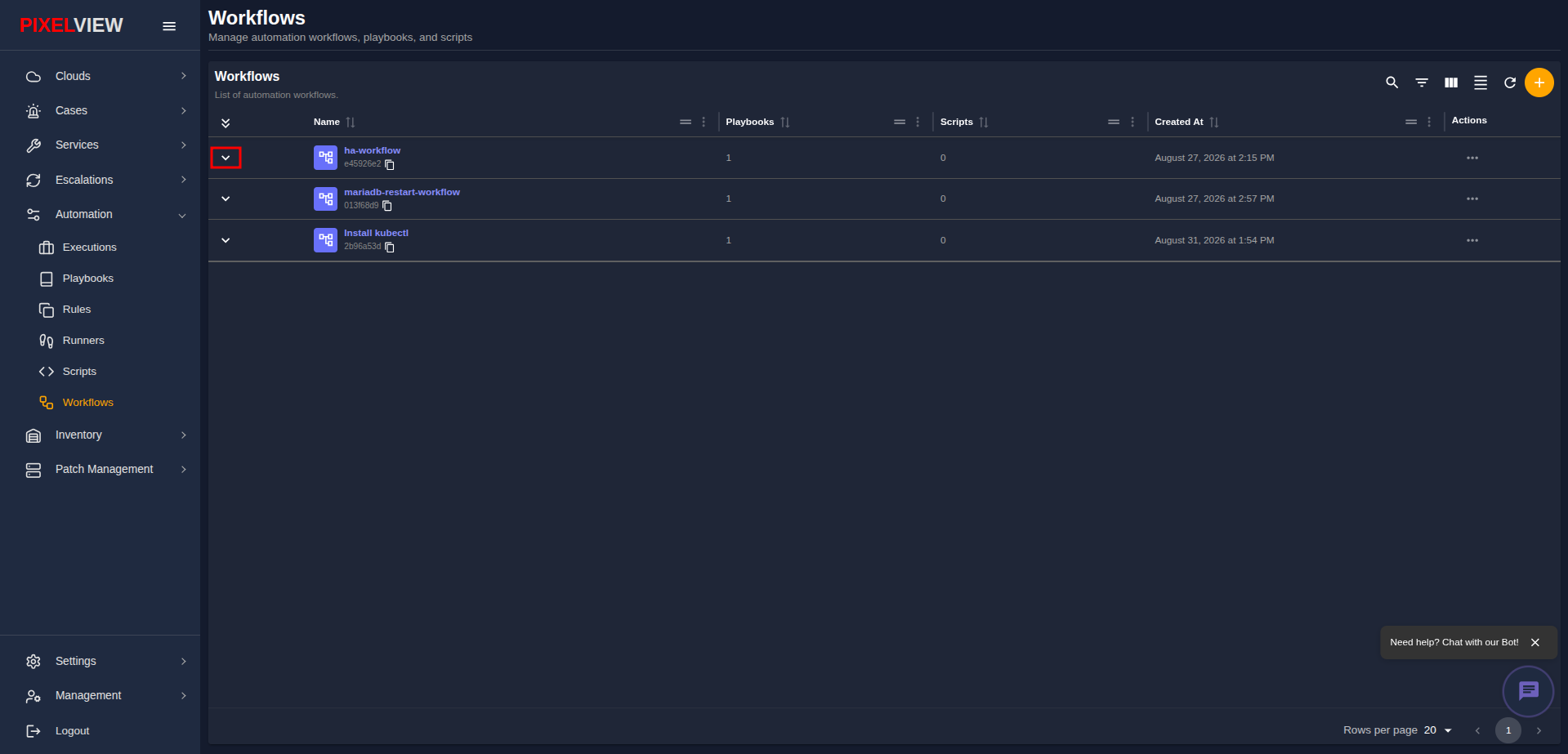
- Click the expand chevron (
v) next to any workflow row (e.g.,ha-workflow):
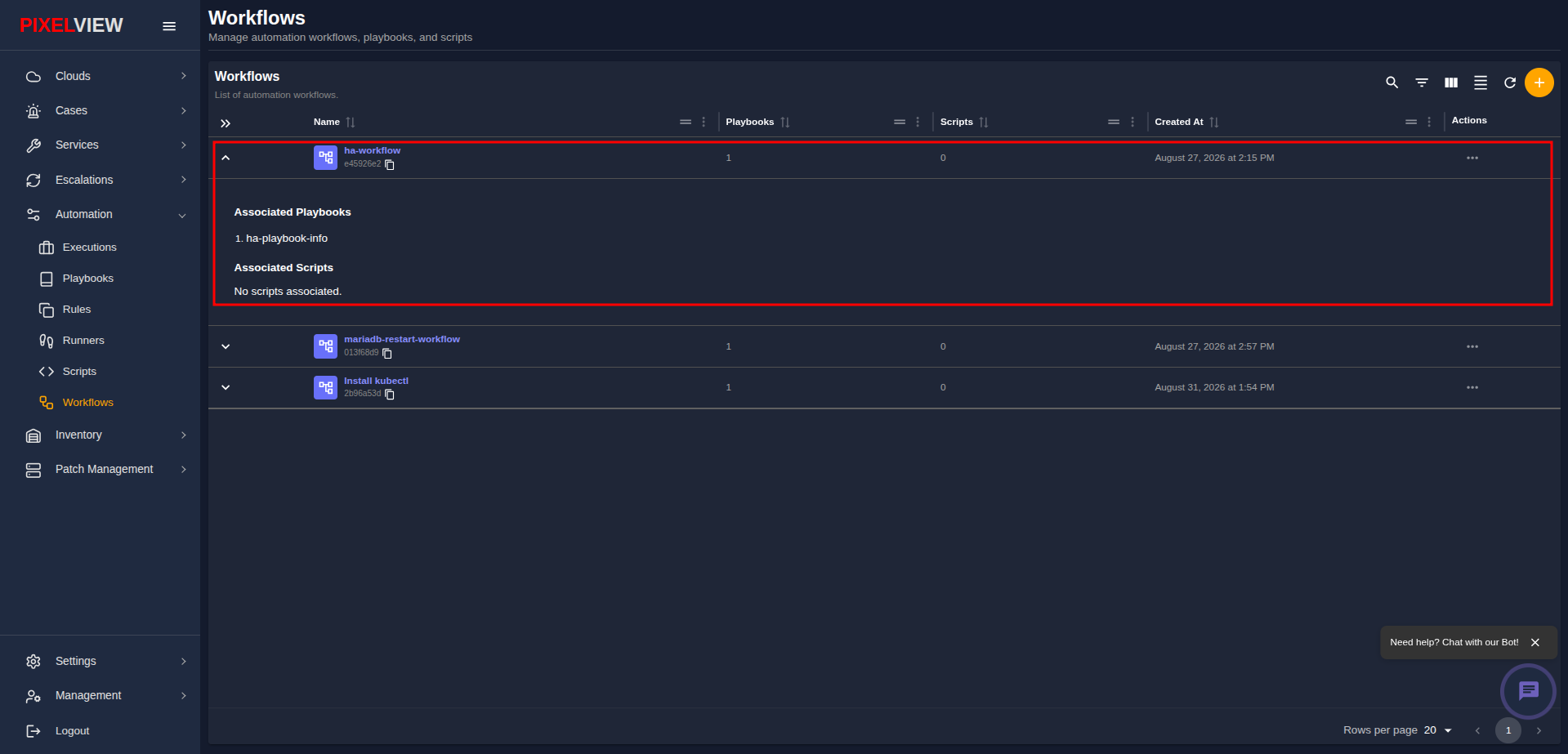
- The row expands inline to reveal its underlying tasks:
Details Breakdown
- Associated Playbooks: An ordered sequence of all Ansible playbooks executed in sequential pipeline progression, accompanied by their registered operational descriptions.
- Associated Scripts: An ordered sequence of all Python scripts executed within the workflow, or a note indicating No scripts associated.
- Description: Custom workflow notes and documentation explaining the pipeline's operational purpose.
- Deep-Link URL Support: Workflows support direct contextual navigation via
/workflows?expand=<uuid>. When referenced from Patch Management or external case runbooks, PixelView navigates directly to the target page and automatically expands the workflow's detail panel.
Creating an Automation Workflow
To build a new multi-step automation pipeline:
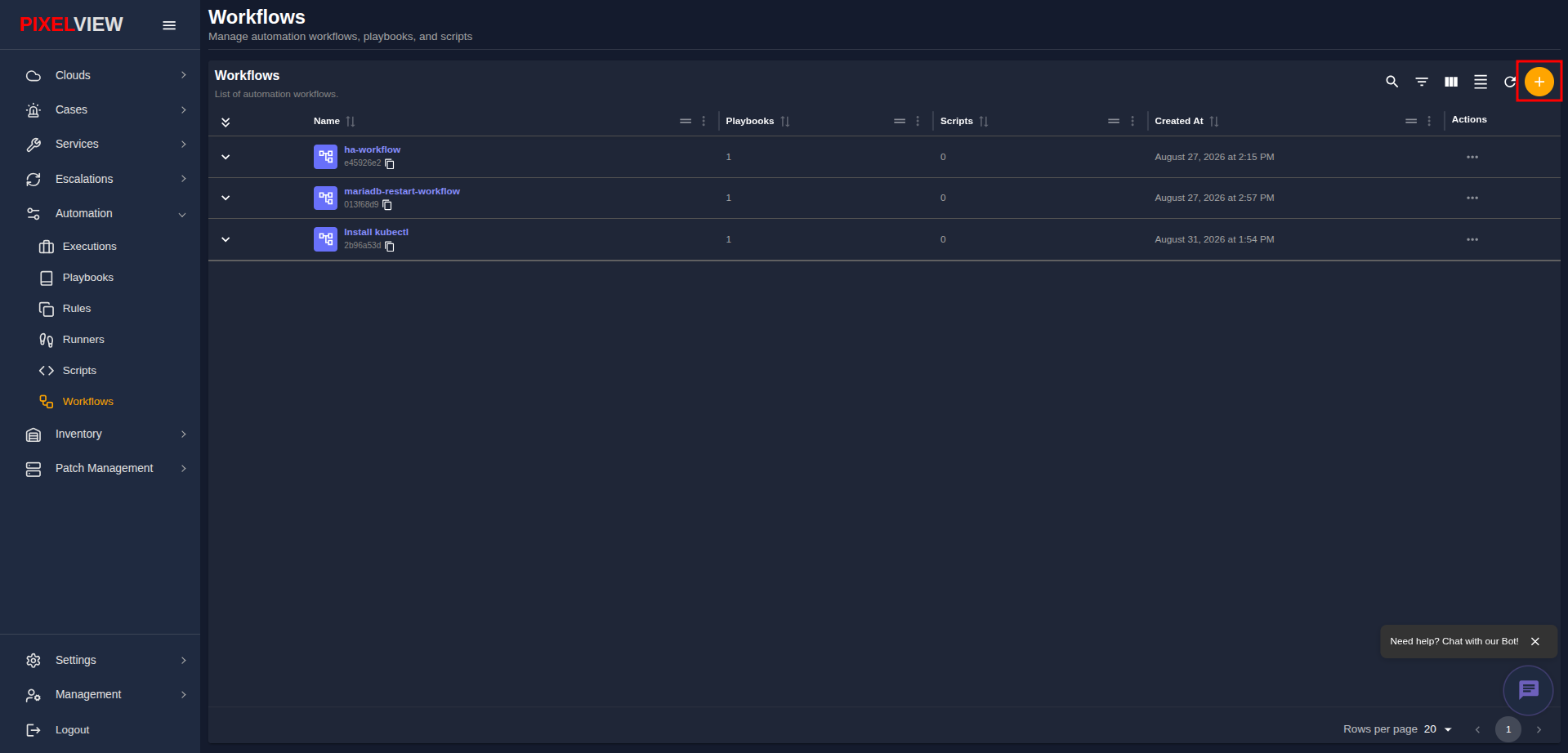
- Click the orange
+(Add Workflow) button on the table toolbar:
- The visual Create Workflow page will open:
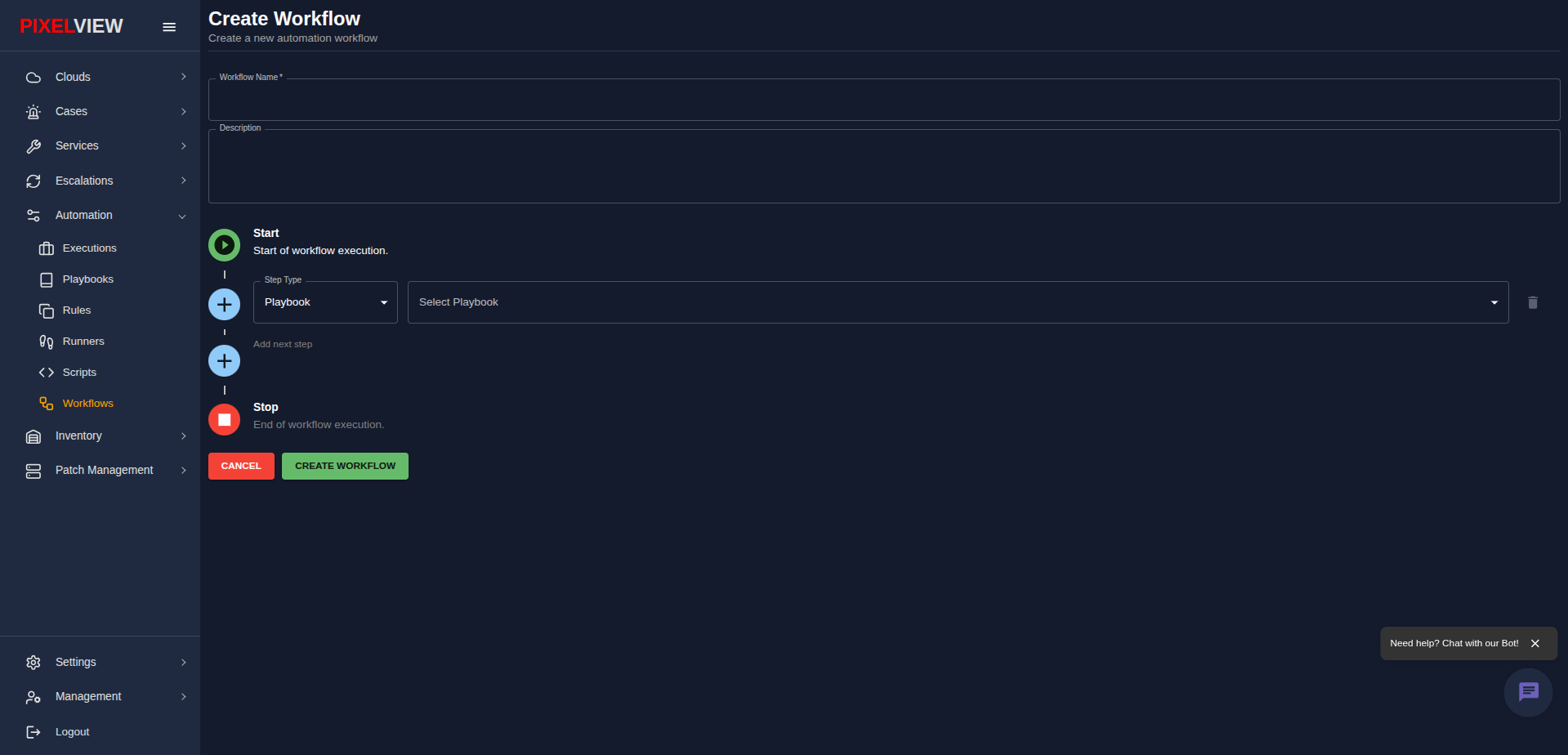
Pipeline Configuration
- Workflow Name (Required): Enter a unique, recognizable title for the workflow (e.g.,
mariadb-restart-workflow,Install kubectl). - Description (Optional): Provide an operational summary explaining the sequence of tasks performed by the pipeline.
Visual Flow Builder
PixelView provides a vertical timeline builder to sequence automated tasks between execution boundaries:
- Start: Green play indicator marking the entry point of the workflow.
- Step Type: Select whether the step executes an Ansible Playbook or a Python Script:
- Add Next Step (
+): Click the+Add next step button along the timeline to append additional sequential steps. - Delete Step: Click the trash can icon on any step row to remove it from the pipeline.
- Stop: Red indicator marking the successful conclusion of the workflow run.
Page Actions
- CANCEL: Discard the pipeline and return to the workflows table.
- CREATE WORKFLOW: Validates all step configurations and saves the new workflow to the catalog.
Managing Workflows (Delete)
To remove an obsolete workflow from the platform:
- In the table row, click the Actions menu (
...):
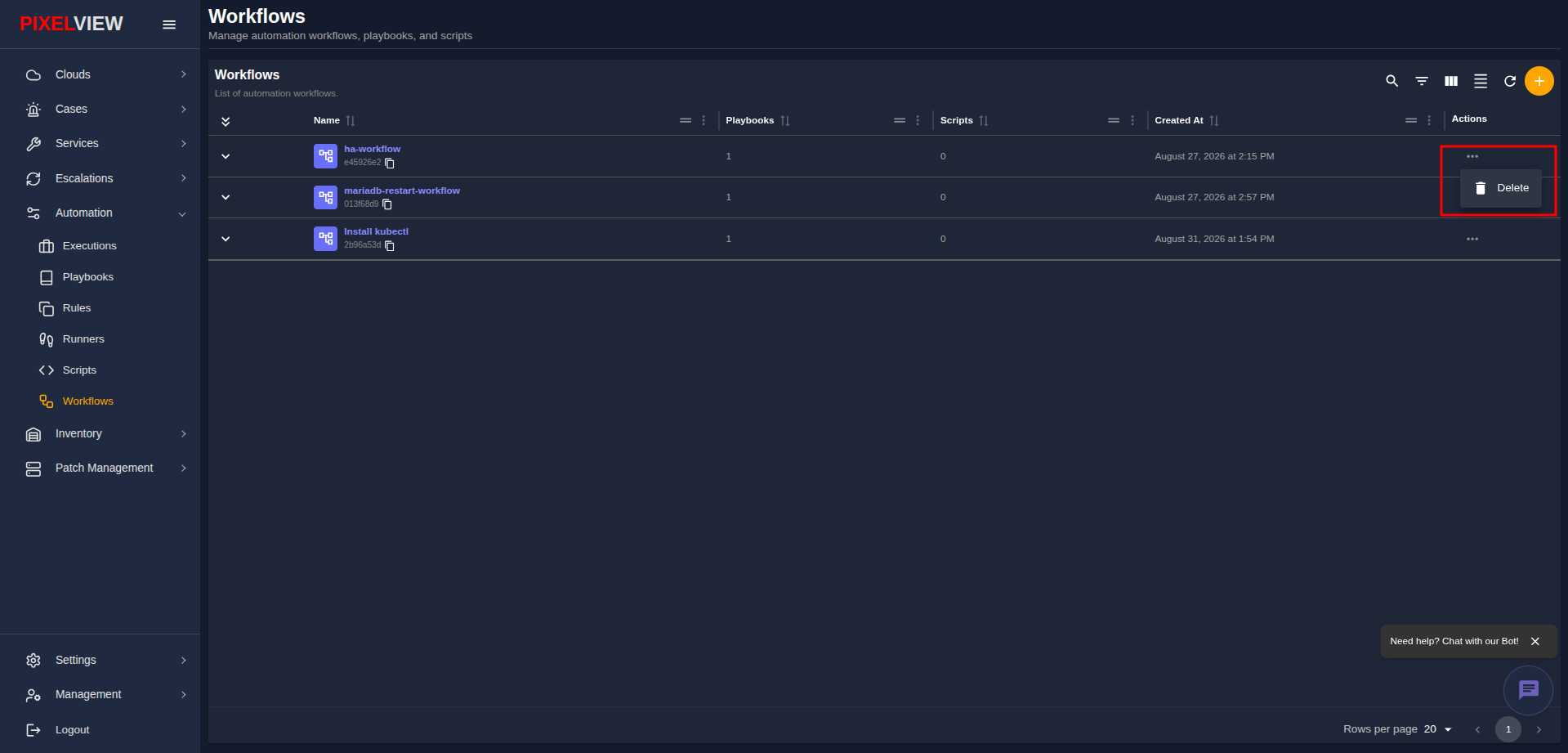
- Click Delete.
- A browser confirmation dialog will prompt:
- Click OK to permanently remove the workflow.
Warning
Deleting a workflow removes its pipeline definition permanently. Any event-driven Rules, patchsets, or automated triggers linked to this workflow will no longer be able to execute.
Workflow Composition Patterns & Best Practices
Designing reliable multi-step automation pipelines requires structuring individual tasks into clean operational phases:
- Triage & Diagnostic First: Begin the workflow with a lightweight Python probe script (such as
db_health_check.py) to gather node telemetry, verify reachability, and confirm fault symptoms before attempting invasive modifications. - Idempotent Remediation Execution: Leverage Ansible playbooks for system changes. Playbooks ensure changes are only made when necessary, preventing duplicate reconfigurations or accidental data corruption if rerun.
- Post-Remediation Health Validation: Conclude the workflow with a verification step that queries application health endpoints, restarts background workers, and ensures full operational recovery.
- Fail-Fast Safety Boundary: If any playbook or script step returns a non-zero exit code, PixelView halts the remaining execution sequence immediately. This prevents secondary deployment steps from executing against broken or partitioned hosts.