Automation Rules
The Rules section (/rules) under Automation defines event-driven routing logic in PixelView.
Rules bridge incoming system events, monitoring alerts, or webhook triggers with automated execution workflows. When an external trigger (such as mariadb-down or host_failure) is received, an active rule immediately invokes its bound workflow without requiring manual intervention.
Navigating to Rules
To access and manage your event-driven rules:
- In the left navigation sidebar under Automation, click Rules:
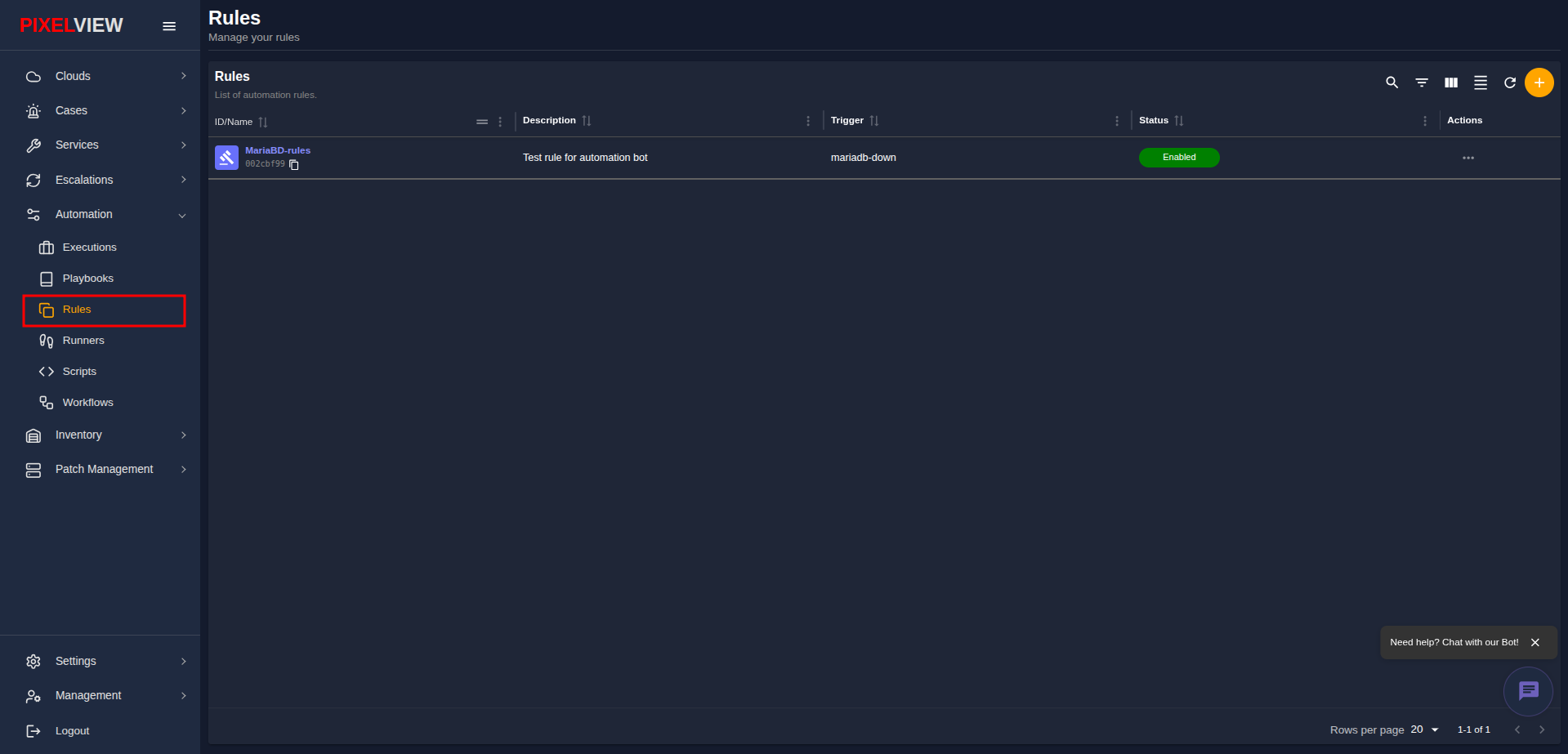
Rules Table Overview
The main table lists all configured automation rules:
| Column | Description |
|---|---|
| ID/Name | Name of the rule (e.g., MariaBD-rules) with an icon, and a copyable 8-character UUID chip with clipboard utility. |
| Description | Contextual explanation of the rule's purpose (e.g., Test rule for automation bot). |
| Trigger | Unique event trigger identifier (e.g., mariadb-down) that initiates workflow execution. |
| Status | Current operational status displayed as a colored badge (Enabled in green or Disabled). |
| Actions | Row context menu (...) providing editing and deletion options. |
Table Toolbar Controls
- Search / Global Filter: Perform rapid full-text filtering across all rule names, triggers, and descriptions.
- Column Filters: Filter rows by specific attribute criteria.
- Show/Hide Columns: Customize table column visibility.
- Density Toggle: Switch between compact and comfortable row spacing.
- Refresh: Re-fetch the latest rules list from the backend API.
- Add Rule (
+): Launch the rule creation modal.
Creating an Automation Rule
To register a new trigger-to-workflow rule:
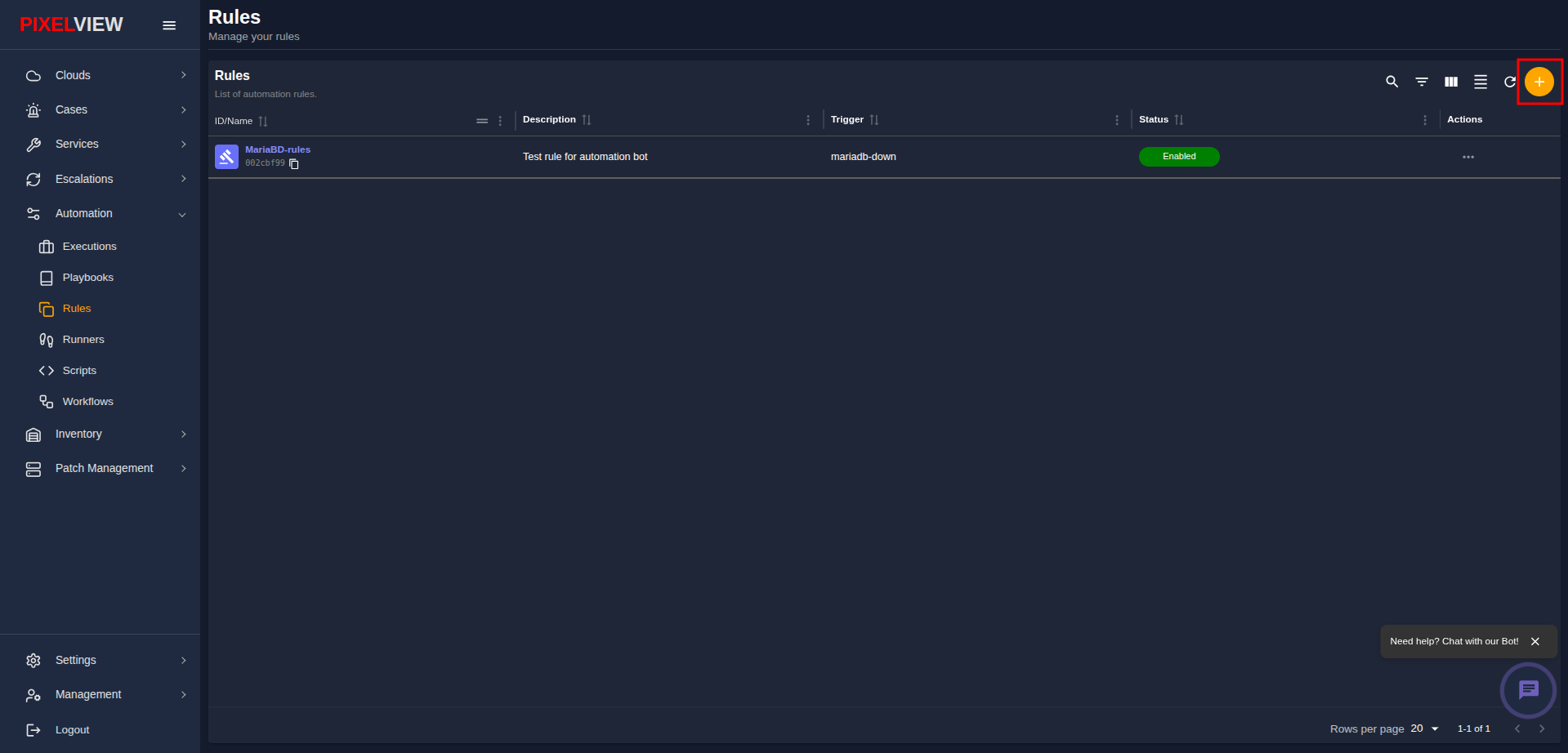
- Click the orange
+(Add Rule) button in the top-right table toolbar:
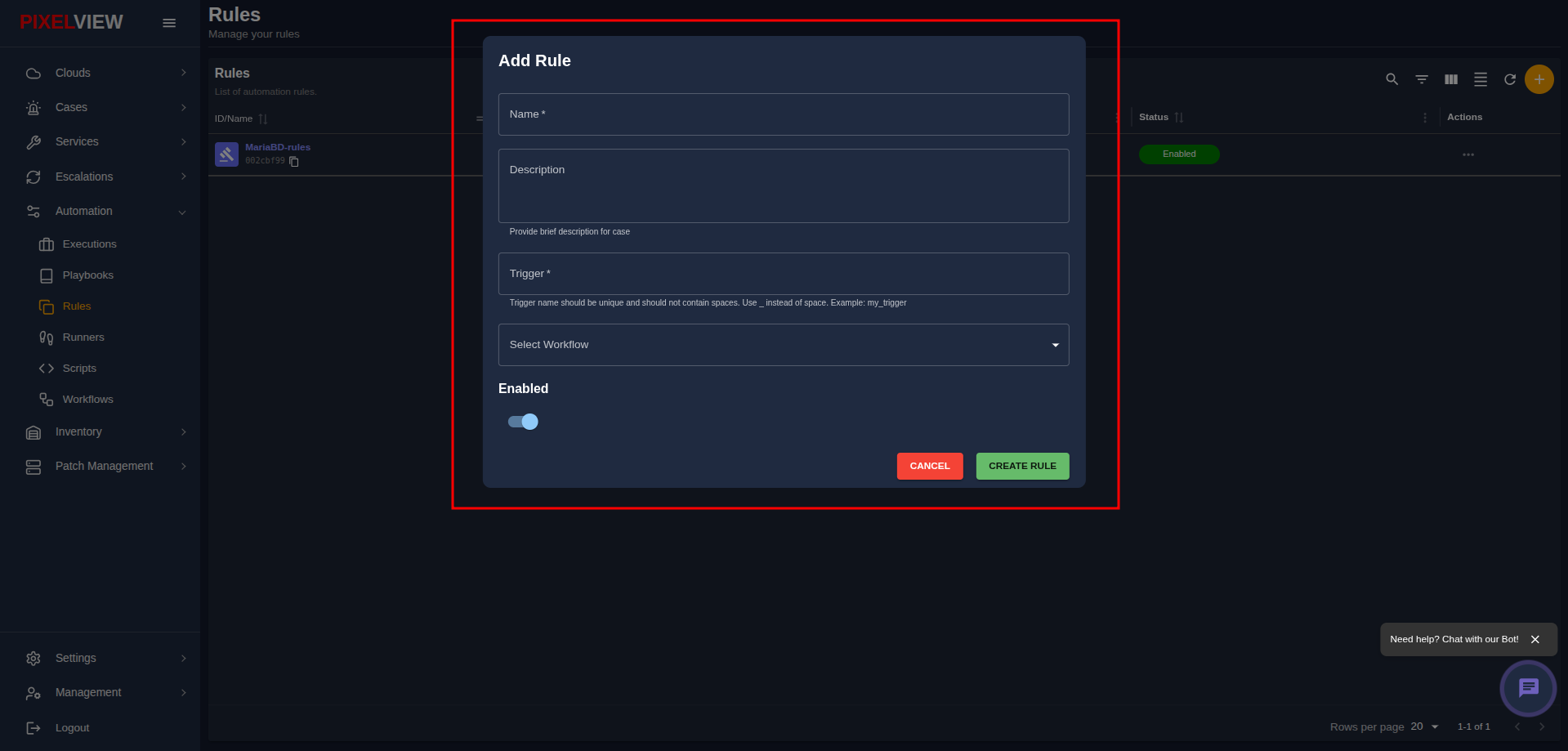
- The Add Rule modal dialog will open:
Configuration Fields
- Name (Required): Enter a distinctive name for the automation rule (e.g.,
MariaBD-rules). - Description (Optional): Provide an operational summary explaining what event this rule responds to and its target remediation path.
- Trigger (Required): The event identifier that triggers this rule.
!!! warning "Important"
Trigger names must be unique across your environment and must not contain spaces (e.g., use snake_case or kebab-case like
mariadb-downorservice_failure). - Select Workflow (Required): Select the target automated workflow from the dropdown that should execute when the trigger occurs.
- Enabled (Toggle): Toggle the switch to activate or deactivate the rule upon creation (default: active).
Dialog Actions
- CANCEL: Dismiss the dialog without creating the rule.
- CREATE RULE: Save the rule and activate event-driven routing.
Managing Rules (Edit & Delete)
To modify an existing rule or remove it:
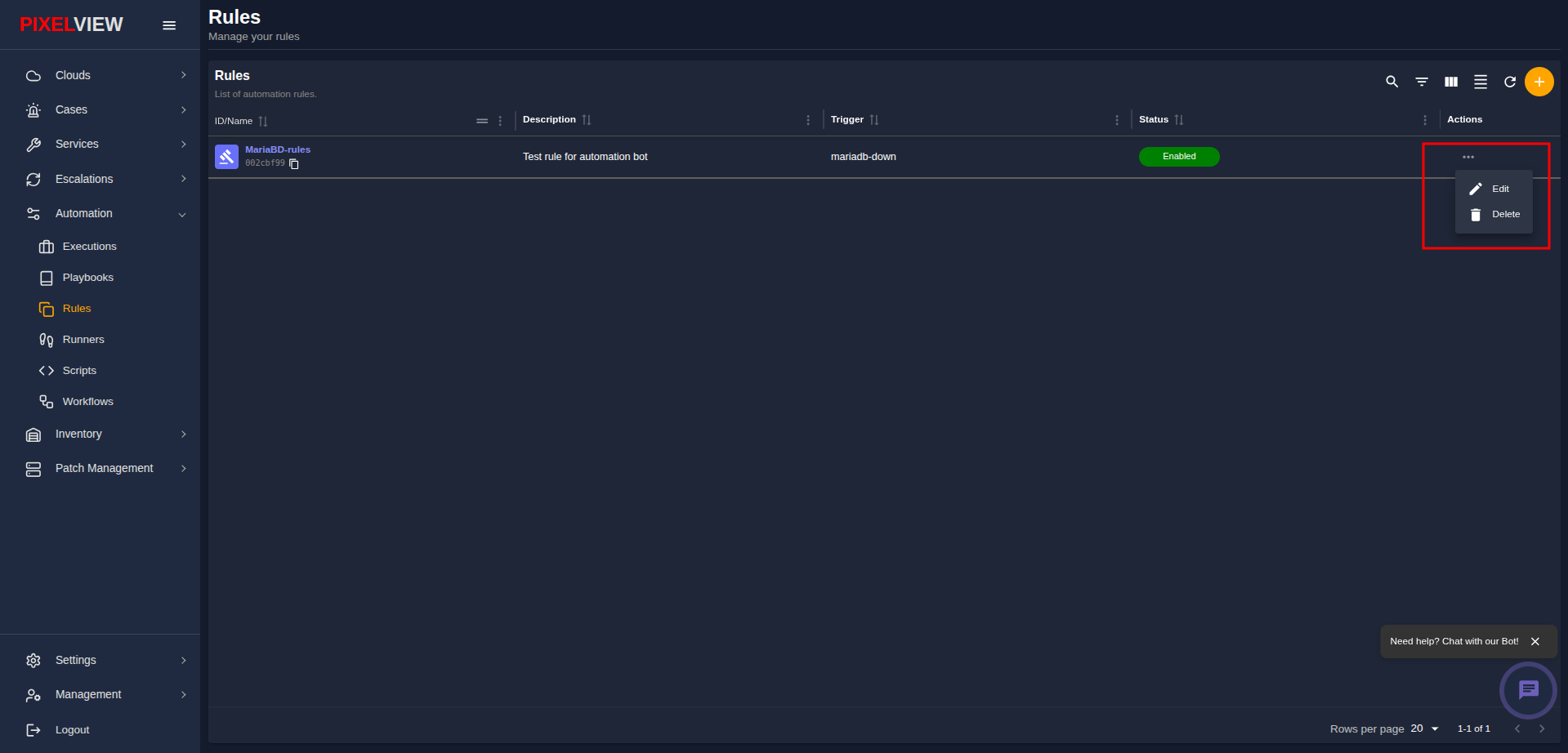
- Click the Actions menu (
...) on the target rule row:
Editing a Rule
- Click Edit from the actions menu:
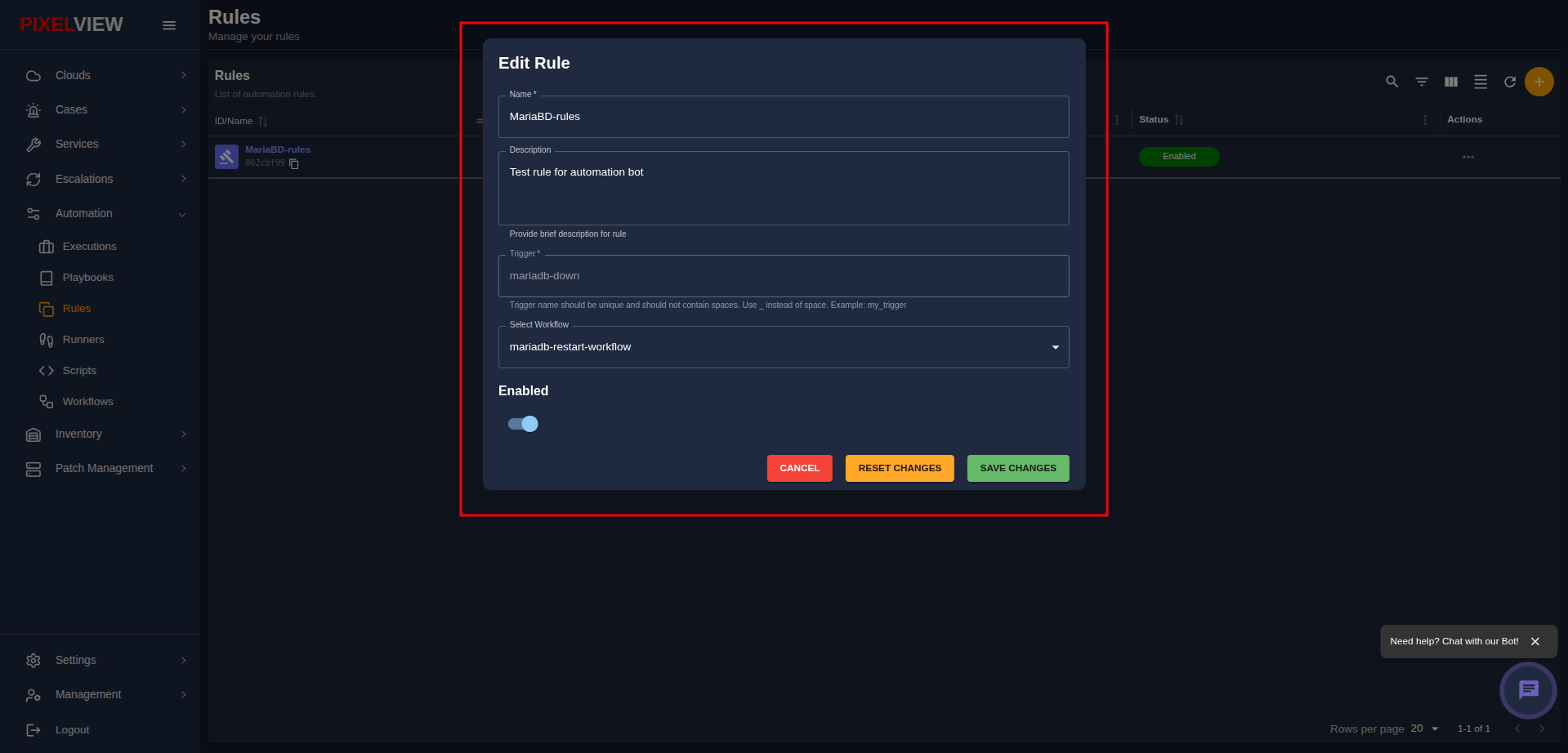
- Editable Fields: You can update the Name, Description, bound Workflow, or toggle the Enabled switch to pause or resume automated execution.
- Immutable Trigger: Notice that the Trigger field is locked and disabled during edits to preserve routing consistency for existing webhooks and external event sources.
- Actions:
- CANCEL: Close the editor without modifying values.
- RESET CHANGES: Discard unsaved changes and reset inputs back to their saved state.
- SAVE CHANGES: Persist updates to the rule.
Deleting a Rule
- Click Delete from the actions menu.
- A browser confirmation prompt will appear:
- Click OK to permanently remove the rule.
Warning
Deleting a rule immediately ceases automated responses for its configured trigger. Any incoming alerts or bot events matching this trigger will no longer initiate remediation workflows.
Event-Driven Triggers & Webhook Integration
Automation rules provide the automated bridge between monitoring alerts and hands-free remediation:
- Trigger Identification Standards:
- Trigger keys must follow predictable, space-free naming patterns (such as
mariadb-down,disk-threshold-critical, orssl-cert-expiring). - The trigger identifier acts as the lookup key matched against inbound event webhooks.
- Trigger keys must follow predictable, space-free naming patterns (such as
- Inbound Alert Matching:
- When an external monitoring system (such as Prometheus Alertmanager or Zabbix) posts an alert payload to a PixelView Service endpoint (
?servicekey=<key>), the ingestion engine extracts the event name. - If the event name matches an active, enabled rule trigger, PixelView automatically instantiates an execution run for the bound workflow.
- When an external monitoring system (such as Prometheus Alertmanager or Zabbix) posts an alert payload to a PixelView Service endpoint (
- Audit & Execution Tracing:
- Jobs triggered via automation rules appear in Executions with
Source: Automation. - If a rule is temporarily Disabled, incoming events are logged in case history but do not spawn automated executions, giving operators the flexibility to perform manual maintenance without automated interference.
- Jobs triggered via automation rules appear in Executions with