Planner Management
The Planner module (/patch-management/planners) in PixelView serves as the core orchestration and scheduling engine for executing patchsets across defined host groups.
Planners provide granular rollout control, automated safety policies, dependency resolution, manual intervention mechanisms, and real-time hierarchical telemetry down to individual hosts and automation workflow steps.
Navigating to Planners
To access the Planner management dashboard:
- In the left navigation sidebar under Patch Management, click Planner:
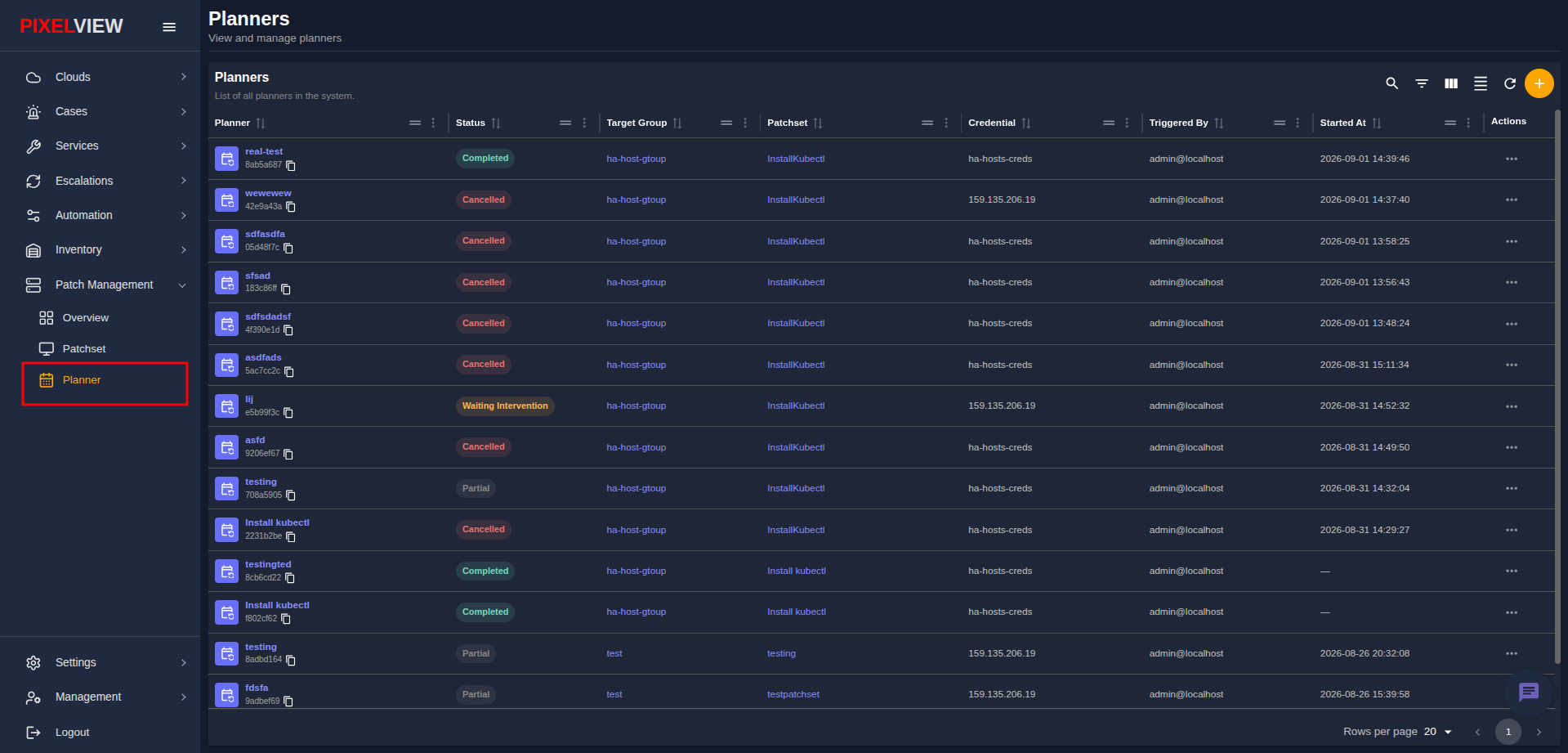
The Planners table displays all configured patch execution runs:
| Column | Description |
|---|---|
| Planner | Display name of the planner run (e.g., real-test, wewewew) along with its system UUID and copy-to-clipboard button. |
| Status | Live status badge indicating execution state (Completed, Running, Cancelled, Partial, Waiting Intervention, Failed). |
| Target Group | Clickable link to the assigned target host group (e.g., ha-host-gtoup, test). |
| Patchset | Clickable link to the applied patchset definition (e.g., InstallKubectl, Install kubectl). |
| Credential | Associated SSH / authentication credential profile used to connect to target hosts (e.g., ha-hosts-creds). |
| Triggered By | User account or automation bot that initiated the run (admin@localhost). |
| Started At | Timestamp indicating when the execution was dispatched. |
| Actions | Context menu (...) for editing or taking action on the planner run. |
Creating a New Planner
To schedule or trigger a new patching rollout:
- Click the orange
+(Create planner) button in the top-right table toolbar:
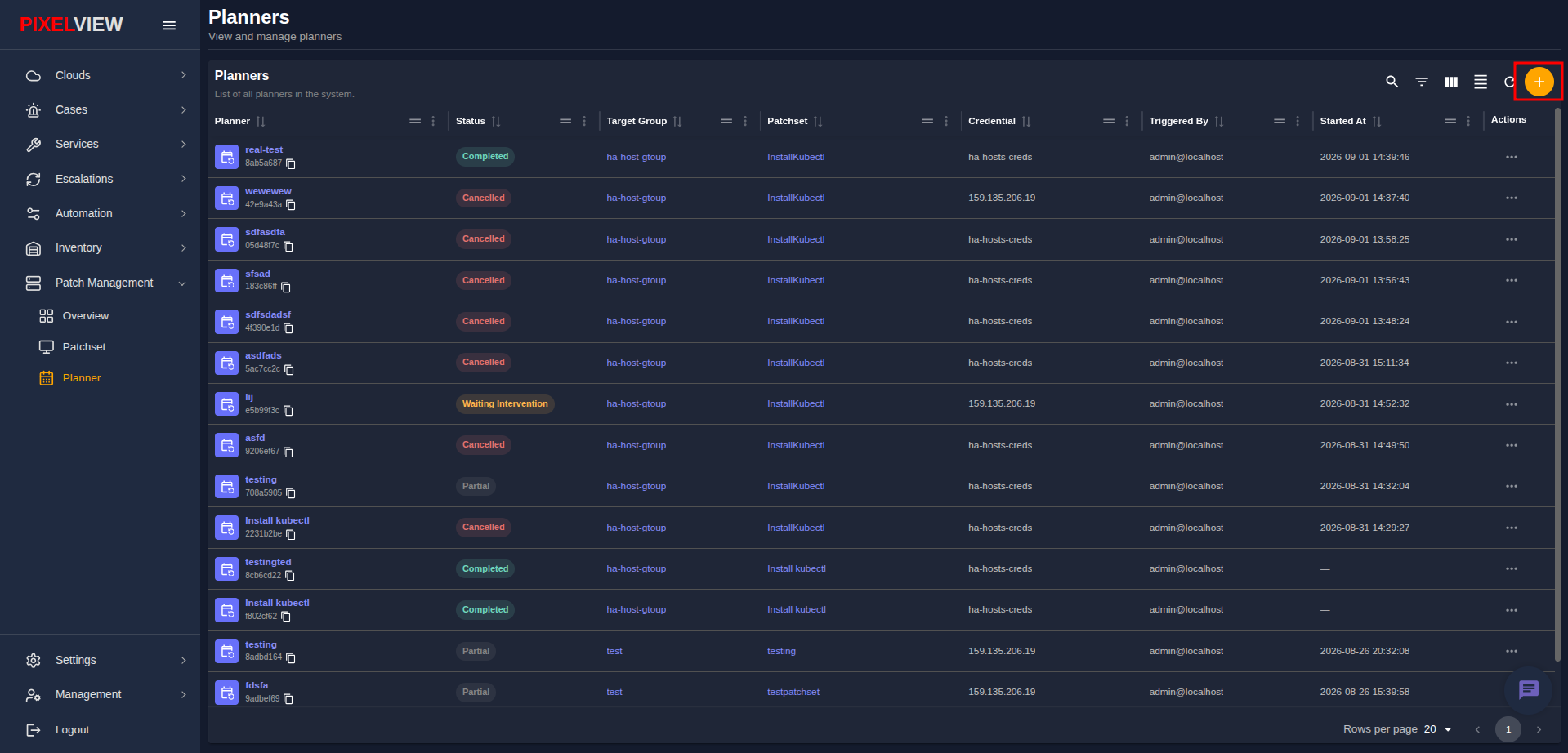
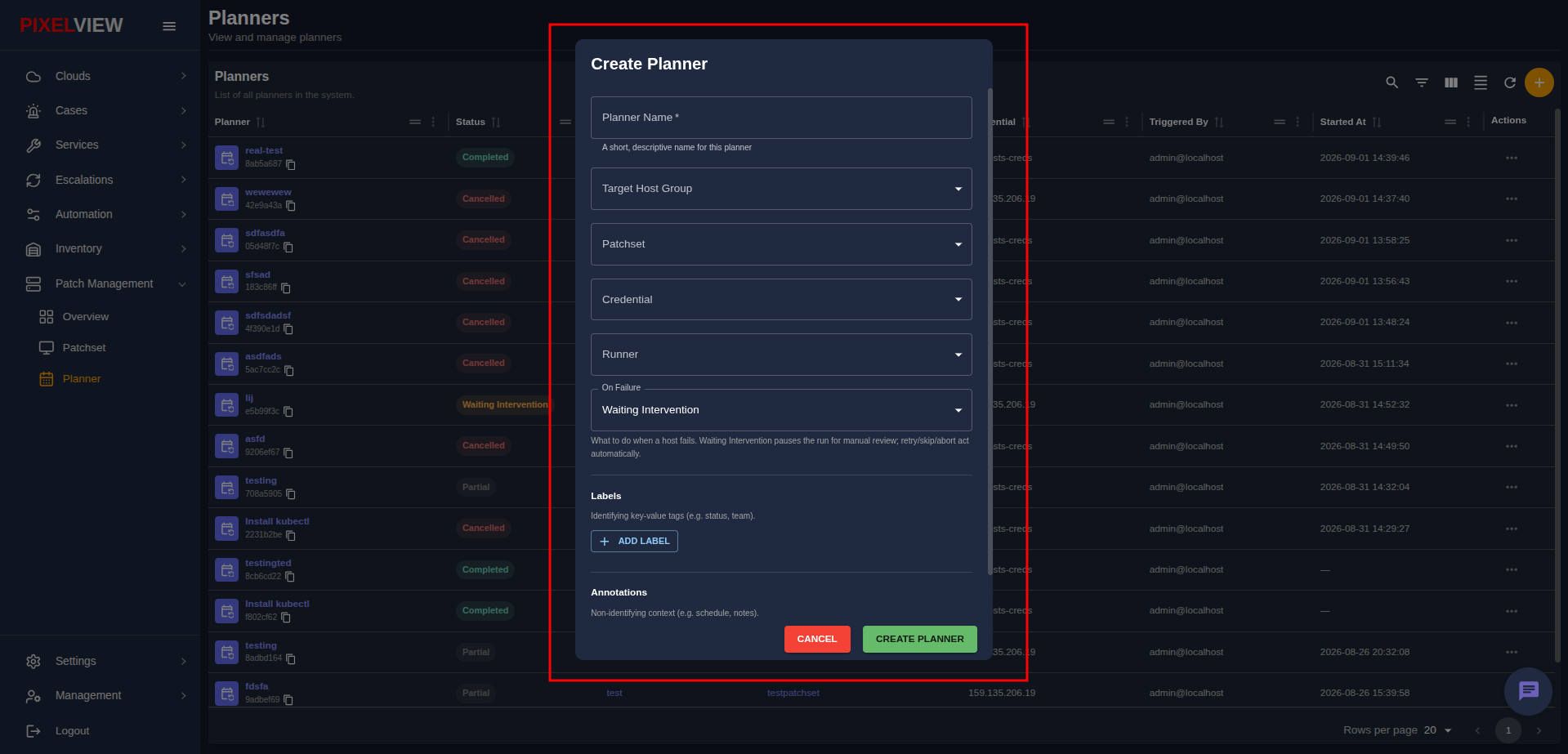
- The Create Planner modal dialog opens:
Configuration Parameters
Configure the following deployment parameters:
- Planner Name (Required): Enter a short, descriptive identifier for this rollout run (placeholder
weekly-security-rollout). - Target Host Group (Required): Select the Host Group containing all target compute nodes, virtual machines, or bare-metal servers.
- Patchset (Required): Choose the target Patchset package containing the automation workflows, package lists, and dependency rules to apply.
- Credential (Required): Select the Credential Profile required to authenticate against target hosts.
- Runner (Optional): Select a dedicated Automation Runner queue (
automation) or leave blank for automatic source-based queue routing. - On Failure Policy: Define system behavior when an execution step fails on a host:
- Waiting Intervention (Default): Automatically pauses the run upon failure, notifying administrators and allowing manual intervention (
Retry,Skip, orAbort) before continuing. - Retry: Automatically retries the failed workflow on the target host.
- Skip: Bypasses the failed step/host and continues rollout to remaining hosts.
- Abort: Immediately halts the entire planner execution across all hosts.
- Waiting Intervention (Default): Automatically pauses the run upon failure, notifying administrators and allowing manual intervention (
- Labels: Click ADD LABEL to attach key-value pairs (e.g.,
team: devops,env: production) for ownership and dynamic filtering. - Annotations: Click ADD ANNOTATION to include non-identifying metadata, schedule notes, or change ticket references.
- Click CREATE PLANNER to register and dispatch the execution plan.
Inspecting Planner Details
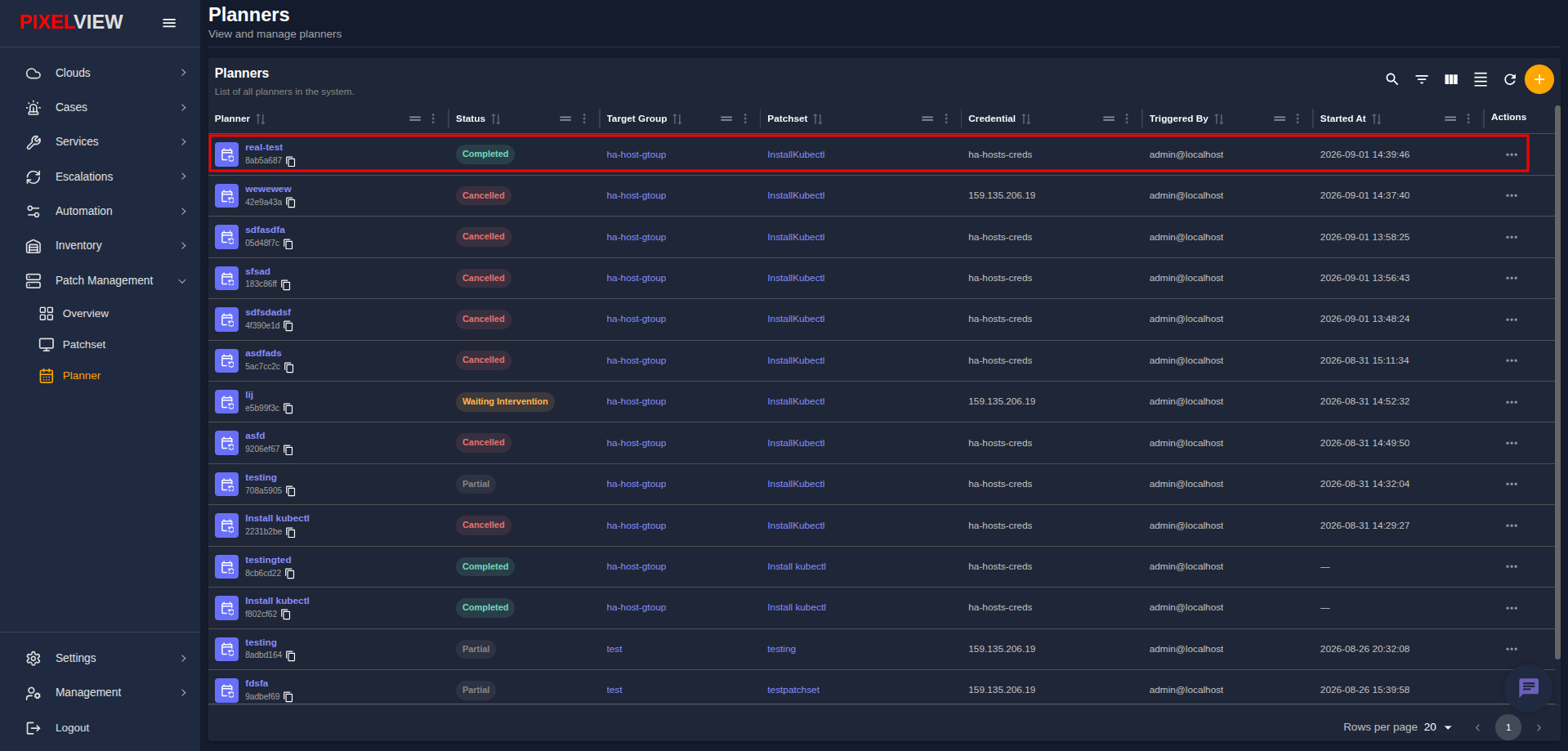
From the Planners table, click on any planner name (such as real-test) to navigate to its detailed execution dashboard:
Header Metadata & Live Metrics
The header card displays complete run configuration and real-time execution statistics:
- Header Identity: Displays Planner Name (
real-test), status badge (Completed), and system UUID with copy button. - Configuration Metadata:
- Target Group: Assigned host group (
ha-host-gtoup). - Patchset: Clickable link to the applied patchset (
InstallKubectl). - Credential: Attached credential profile (
ha-hosts-creds). - Runner Queue: Active runner queue (
automation). - Triggered By & Started At: Operator username (
admin@localhost) and start timestamp.
- Target Group: Assigned host group (
- Progress Badges: Real-time counter chips summarizing component execution states (e.g.,
applications: 1 completed,hosts: 3 completed). - Labels: Attached key-value metadata tags.
Applications Tab
The APPLICATIONS tab provides visibility into the patchset execution queue:
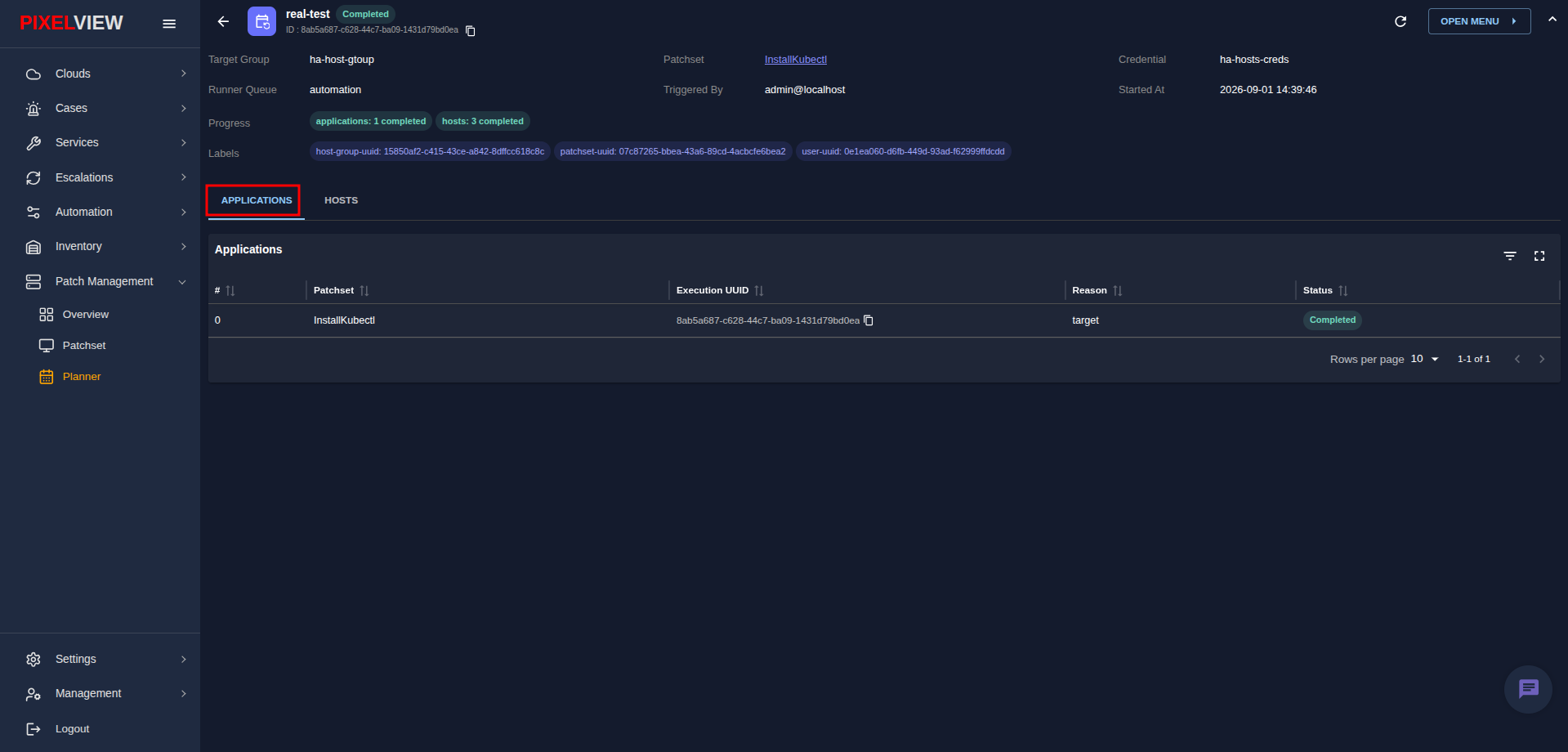
| Column | Description |
|---|---|
| # | Sequential application execution order (e.g., 0). |
| Patchset | Display name of the patchset package applied in this stage. |
| Execution UUID | Unique execution UUID with copy-to-clipboard control. |
| Reason | Dispatch reason (e.g., target for directly assigned patchsets, or dependency for prerequisite patchsets). |
| Status | Stage execution outcome badge (Completed, Running, Failed). |
Hosts Tab
Switch to the HOSTS tab to monitor per-host hierarchical execution progress:
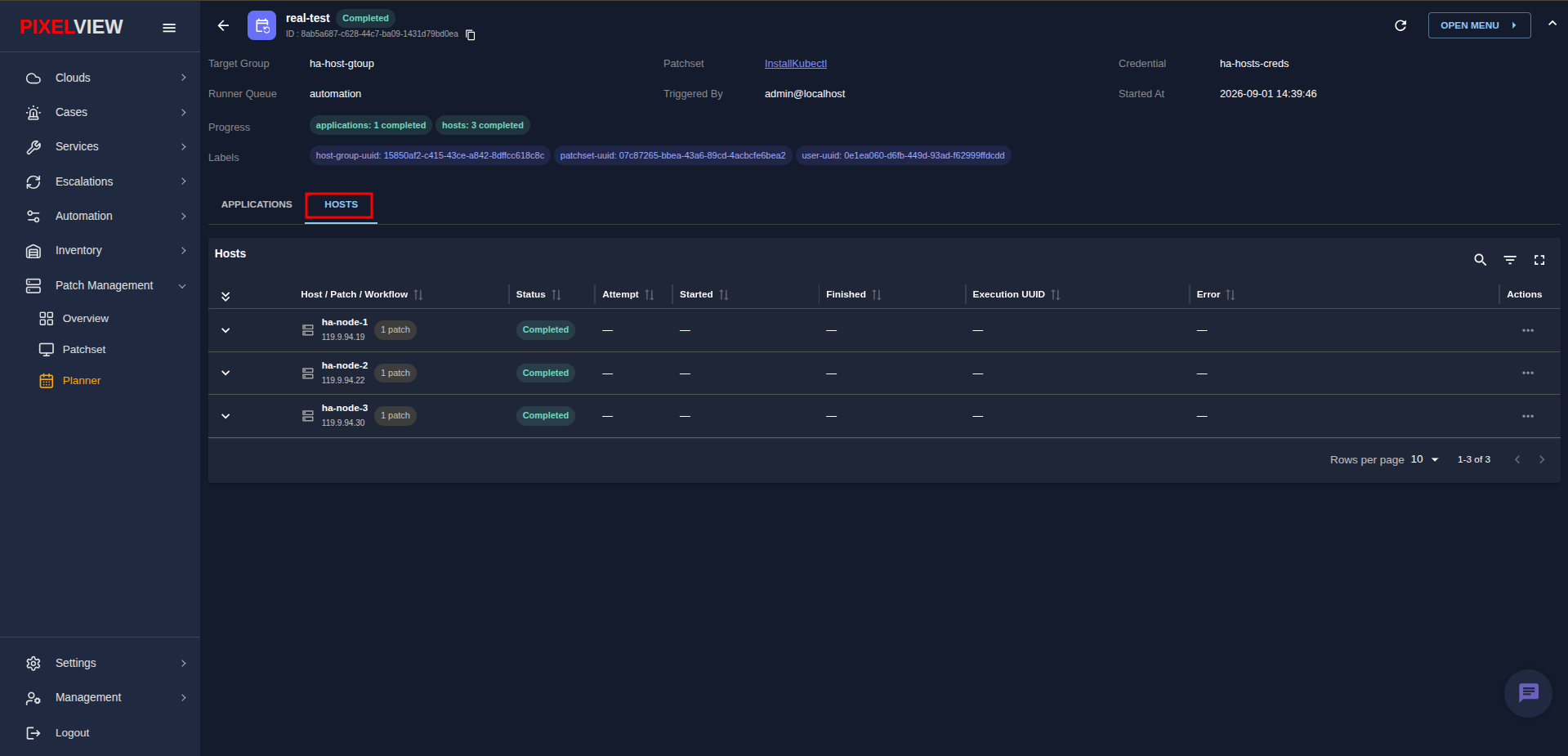
The table provides a three-tiered collapsible tree:
- Host Tier:
- Displays target host name (
ha-node-1,ha-node-2,ha-node-3) and management IP address (119.9.94.19). - Total patch count chip (
1 patch). - Overall host status badge (
Completed).
- Displays target host name (
- Patchset Tier:
- Displays attached patchset packages and total workflow count (
1 workflow). - Tracks attempts, start/finish timestamps, and execution UUIDs.
- Displays attached patchset packages and total workflow count (
- Workflow Tier:
- Tracks individual workflow steps and sequences (e.g.,
#0). - Displays underlying Ansible Execution UUIDs linking directly into raw playbook execution logs.
- Displays actionable error traces if any failure occurs during execution.
- Tracks individual workflow steps and sequences (e.g.,
Planner Administrative Actions
Click the OPEN MENU > button in the top-right header to access planner management controls:
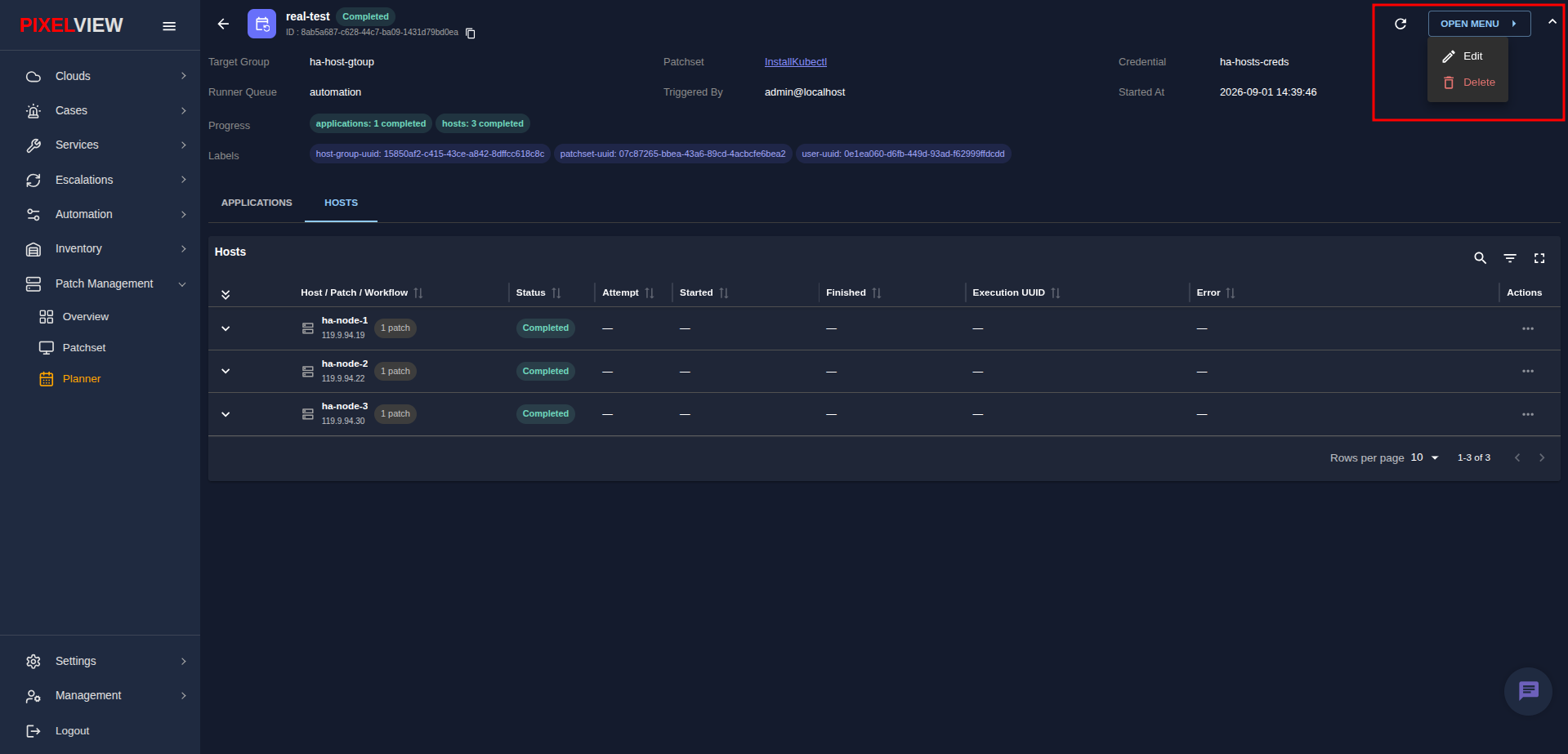
- Edit: Opens the configuration modal to update labels, annotations, or execution properties.
- Delete: Permanently removes the planner execution record from PixelView.
Handling Manual Interventions
When a planner run is configured with the Waiting Intervention failure policy and a workflow fails on a target host:
- The planner status changes to Waiting Intervention (Orange badge).
- Administrators can click the row action menu (
...) or the Take Action button. - In the Workflow Action dialog, choose from:
- Retry: Re-attempts the failed workflow on the affected host.
- Skip: Bypasses the failed workflow and advances to subsequent steps.
- Abort: Terminates the planner rollout immediately.
- Enter optional operator notes explaining the remediation decision and click Submit to resume execution.