Packages (OS Package Lists)
The Packages module (/patch-management/packages) under Patch Management provides a centralized catalog for managing per-operating-system, version-pinned software package lists in PixelView.
By defining explicit package baselines per operating system and release (e.g., Ubuntu 22.04, RHEL 9, Debian 12), infrastructure teams can guarantee deterministic environments across cloud servers, bare-metal instances, and container hosts. Each package list is linked to an Automation Workflow for automated provisioning and patching, while also tracking full historical audits for every package version bump.
Navigating to Packages
To access the package lists catalog:
- In the left navigation sidebar under Patch Management, click Packages:
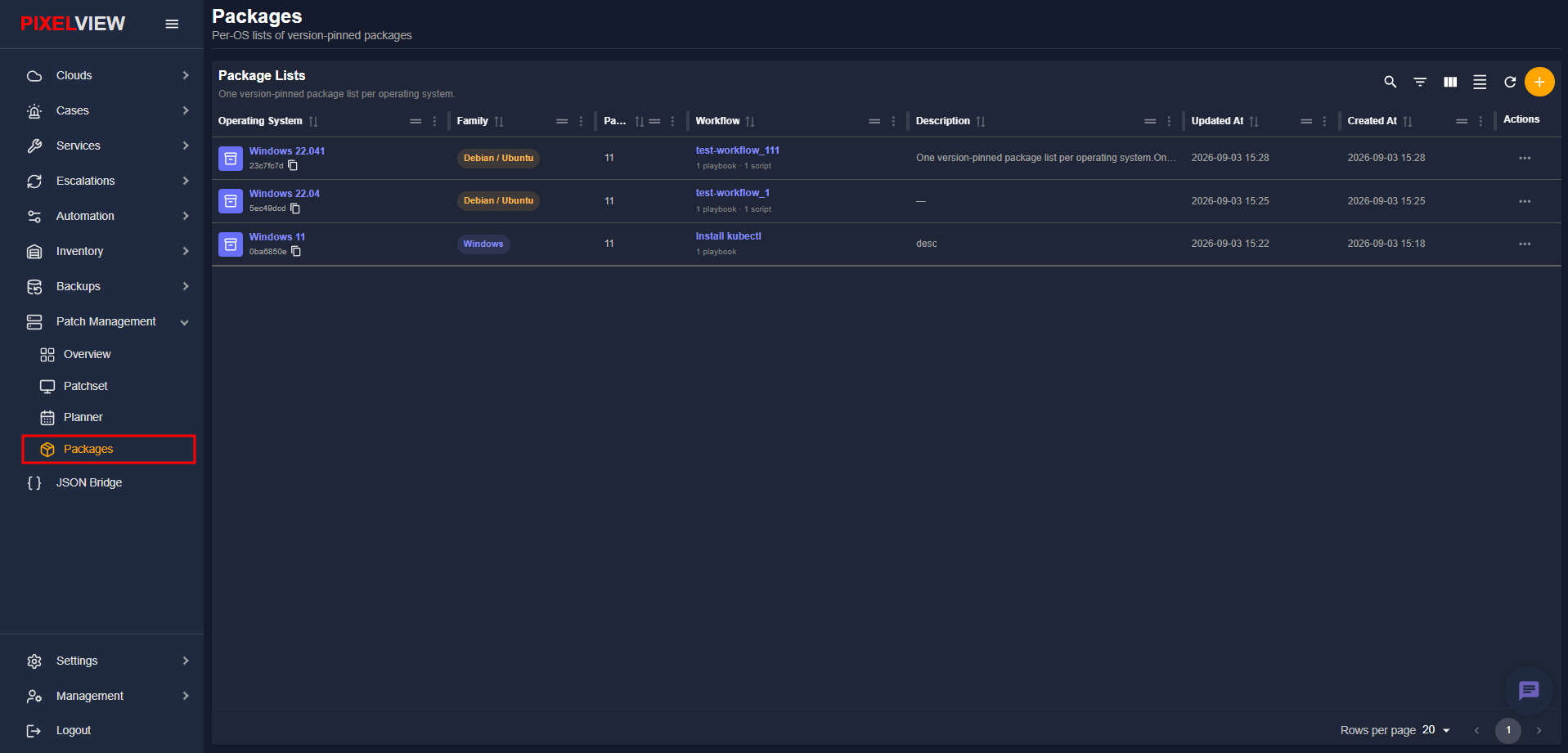
Packages Table Overview
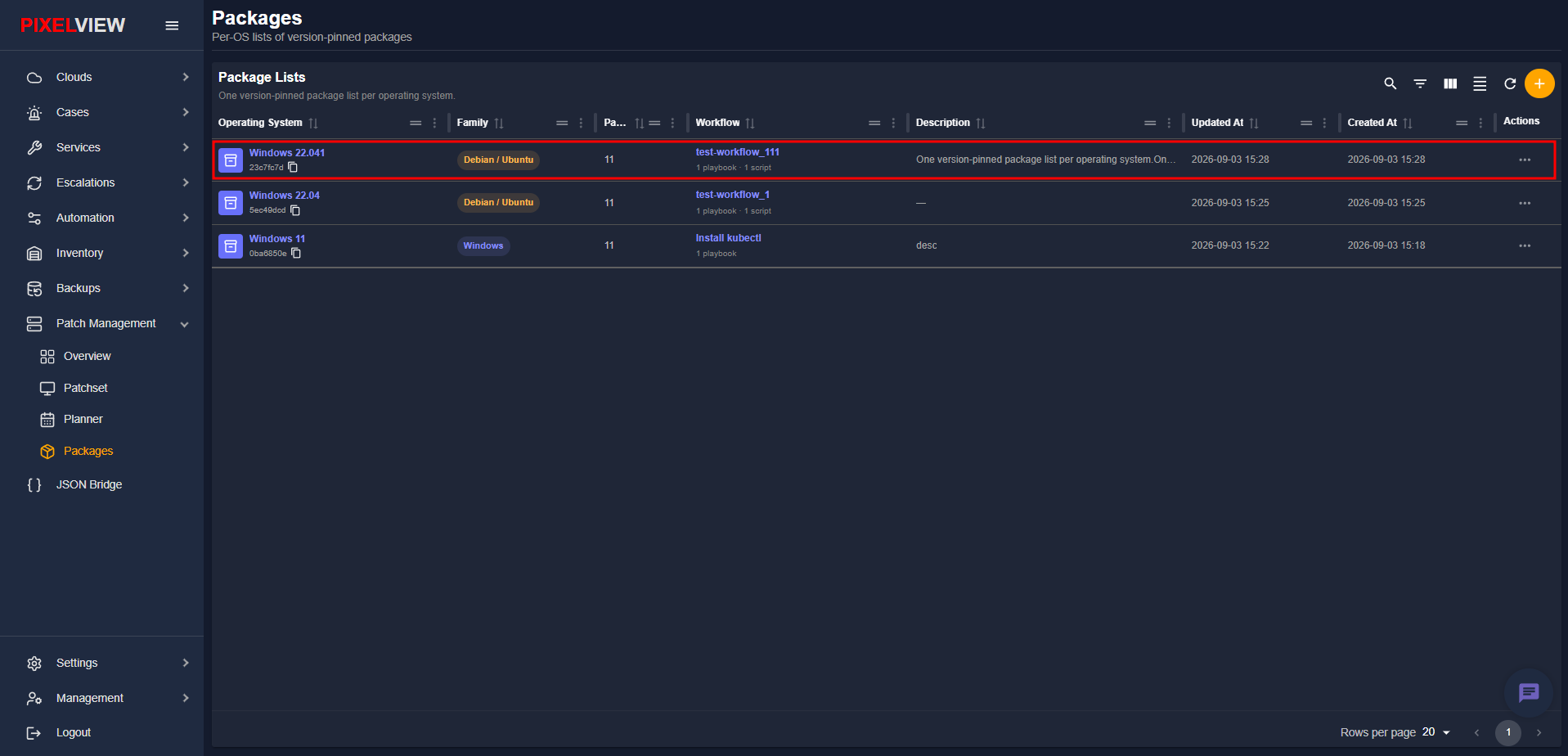
The Package Lists table displays all configured OS package definitions registered in PixelView:
| Column | Description |
|---|---|
| Operating System | OS name and version release (e.g., Ubuntu 22.04, Windows 22.041). Clicking the title navigates directly to the Package Detail view. Also displays an 8-character system UUID with a quick-copy utility. |
| Family | Distribution family badge (Debian / Ubuntu, RHEL, Arch, SUSE, Windows, or Other) color-coded to identify the upstream package manager (apt, yum/dnf, pacman, zypper, choco). |
| Packages | Total count of software packages defined and pinned within the list (e.g., 11). |
| Workflow | Linked Automation Workflow associated with the package list. Hovering displays a tooltip breakdown of all attached Ansible playbooks and Python scripts. Clicking navigates directly to the expanded workflow pipeline. |
| Description | Operational notes, target node roles, or compliance baseline descriptions. |
| Updated At | Timestamp indicating the last modification date and time (YYYY-MM-DD HH:mm). |
| Created At | Timestamp indicating initial catalog registration (YYYY-MM-DD HH:mm). |
| Actions | Context menu (...) providing quick shortcuts to Edit or Delete the package list. |
Table Toolbar Controls
- Search / Global Filter: Perform full-text search queries across operating systems, UUIDs, descriptions, and workflow names.
- Column Filters: Filter records by distribution family, package counts, or creation dates.
- Show/Hide Columns: Customize table visibility to show only relevant attributes.
- Density Toggle: Toggle between standard and compact table row spacing.
- Refresh: Instantly fetch the latest package lists from the backend API.
- Add Package List (
+): Open the package creation modal.
Creating a Package List
To register a new operating system package baseline:
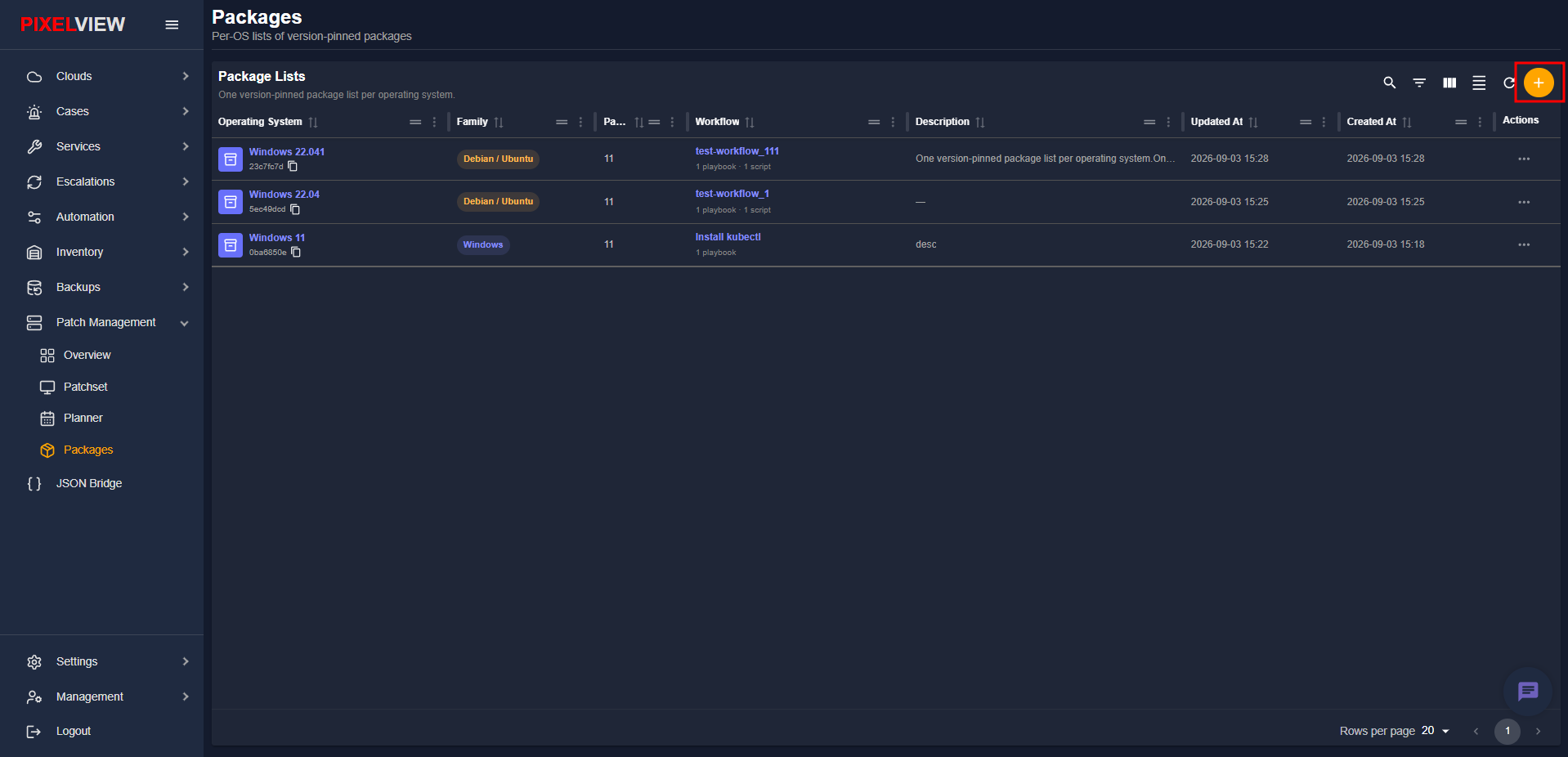
- Click the orange
+(Create package list) button located in the top-right toolbar above the table:
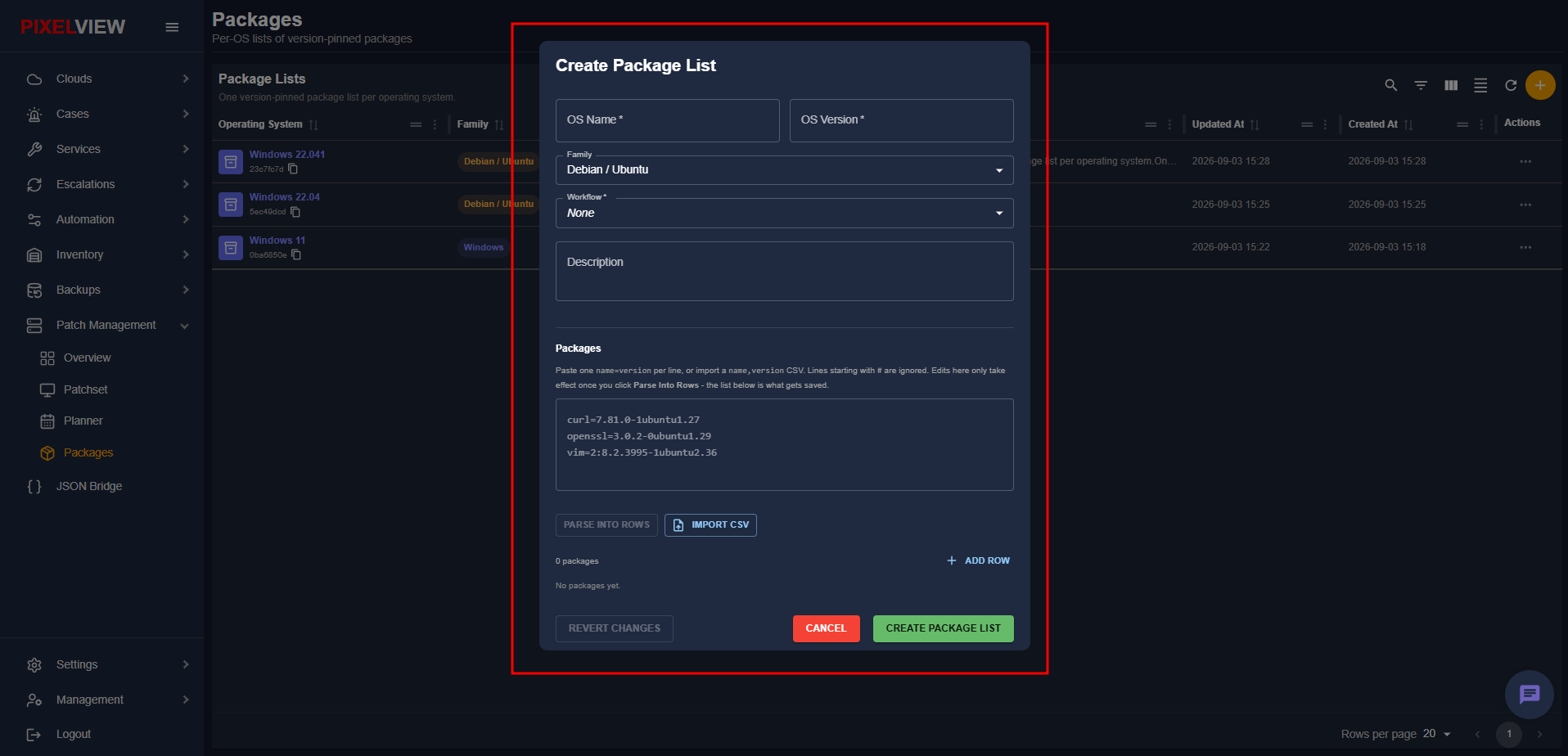
- The Create Package List modal dialog will open:
Configuration Parameters
Configure the following fields in the modal:
- OS Name (Required): Enter the distribution title (e.g.,
Ubuntu,Debian,RedHat,Rocky Linux). - OS Version (Required): Enter the release version identifier (e.g.,
22.04,9.2,11). - Family (Dropdown): Select the distribution family (
Debian / Ubuntu,RHEL,Arch,SUSE,Windows, orOther). This automatically drives native installation syntax and command helpers. - Workflow (Required Dropdown): Select the registered automation workflow responsible for executing or validating these packages across target hosts.
- Description (Optional): Provide operational details, intended environment tiers (e.g.,
Production Web Tier baseline), or change request references.
Package List Input & Synchronization
PixelView provides two synchronized methods to input and manage package definitions:
Bulk Input (Paste Box or CSV Import)
- Textarea Input: Paste raw package lines using the standard
name=versionformat: - Parse Into Rows: Click PARSE INTO ROWS to validate and automatically convert the bulk lines into the structured table rows below.
- Import CSV: Click IMPORT CSV to upload an existing package inventory containing package names and version strings.
Interactive Row Editor
- Add Row (
+ ADD ROW): Append individual package rows directly into the list. - Package Name: Specify the package binary or library identifier.
- Pinned Version: Set the exact version string to pin, or leave blank to track unpinned latest packages.
- Delete (
Trash Icon): Remove individual package entries from the list.
Note
The row editor and bulk text area remain dynamically synchronized. Edits made in the row editor update the text representation in real time.
- Click CREATE PACKAGE LIST to save and persist the package baseline.
Inspecting Package List Details
Clicking the operating system name on any table row opens the Package Detail console (/patch-management/packages/:id):
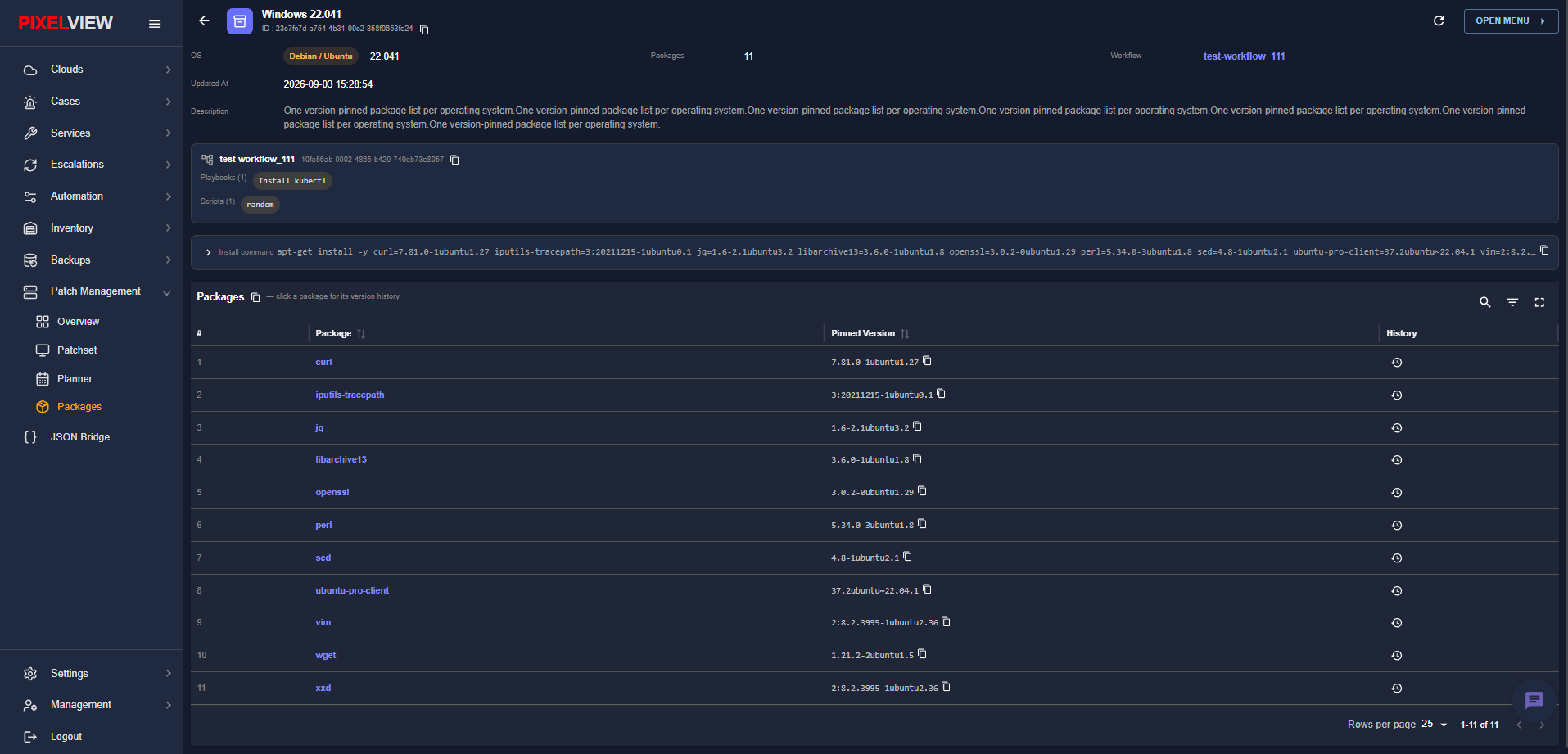
Console Features
- Header Controls:
- Back Button (
<-): Return to the main Packages table. - Distribution Info: OS Name, version badge, copyable system UUID, family tag, and total package count.
- Open Menu (
OPEN MENU): Action menu providing options to Edit or Delete the package list. - Refresh Button: Instantly refresh the package list details from the server.
- Associated Workflow Card: Shows the linked pipeline name, UUID, and the total count of included playbooks and scripts (e.g.,
Install kubectlplaybook andrandomscript). - Manual Installation Command Helper:
- An expandable helper accordion that dynamically compiles a ready-to-run installation command formatted for the target OS family:
- Debian / Ubuntu:
apt-get install -y curl=7.81.0-1ubuntu1.27 iputils-tracepath=3:20211215-1ubuntu0.1 ... - RHEL / CentOS / Rocky:
yum install -y curl-7.81.0 ... - Windows:
choco install curl openssl ...
- Debian / Ubuntu:
- Includes a single-click copy button on the right edge to paste directly into remote terminals or SSH sessions.
Pinned Packages Table
The detail table lists all individual packages defined within the list:
| Column | Description |
|---|---|
| # | Numerical sequence index. |
| Package | Name of the software package (e.g., curl, openssl, jq, vim). |
| Pinned Version | Exact pinned version string in monospace with a copy utility button, or an unpinned indicator chip. |
| History | Clock icon triggering the version history audit modal. |
Workflow Integration & Pipeline Redirection
Every package list is directly tied to an automation workflow pipeline:
- In the Package Detail view, the linked workflow name is highlighted in the header:
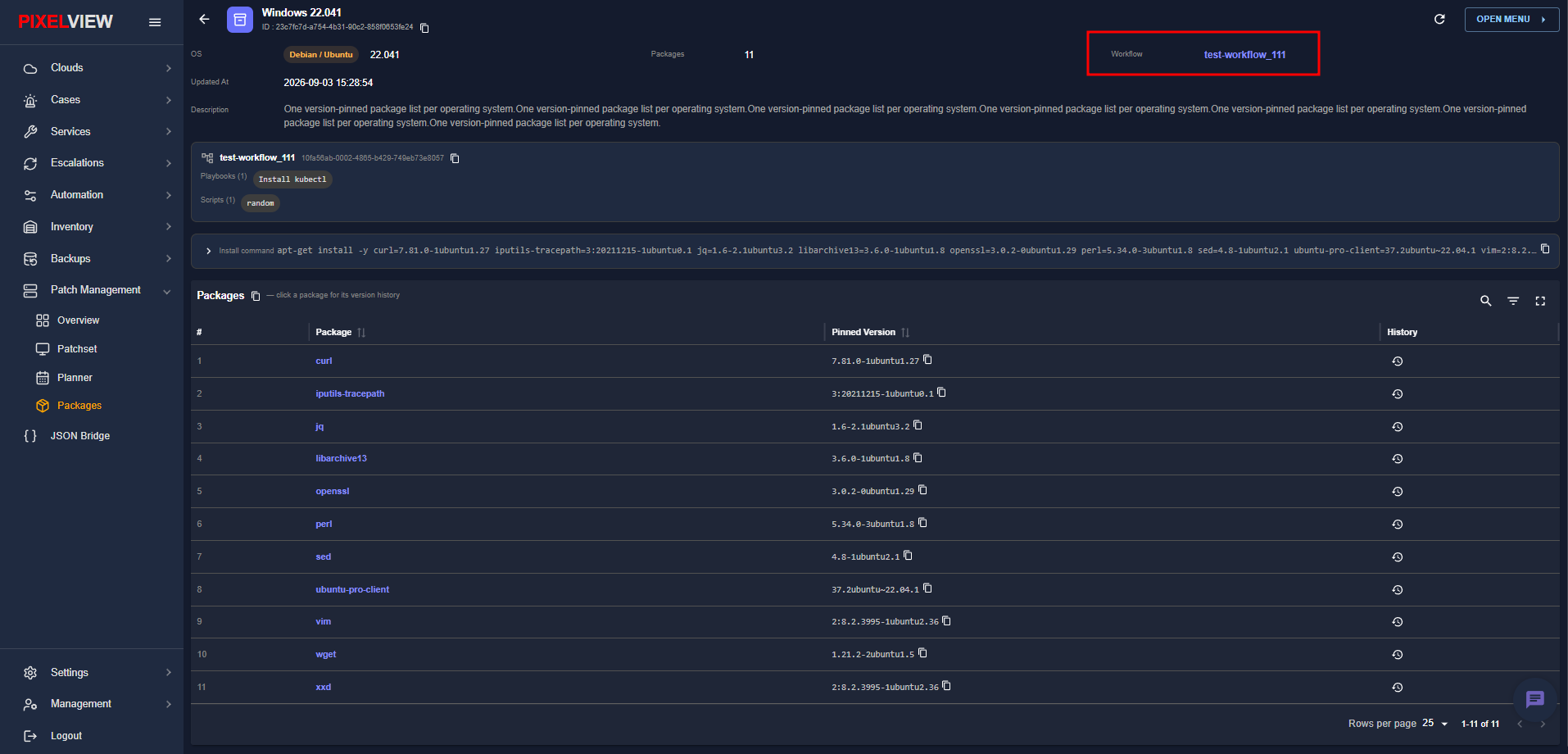
- Clicking the workflow title (or the workflow link in the main table) redirects directly to the Workflows management console (
/workflows?expand=<uuid>) with the target workflow automatically expanded:
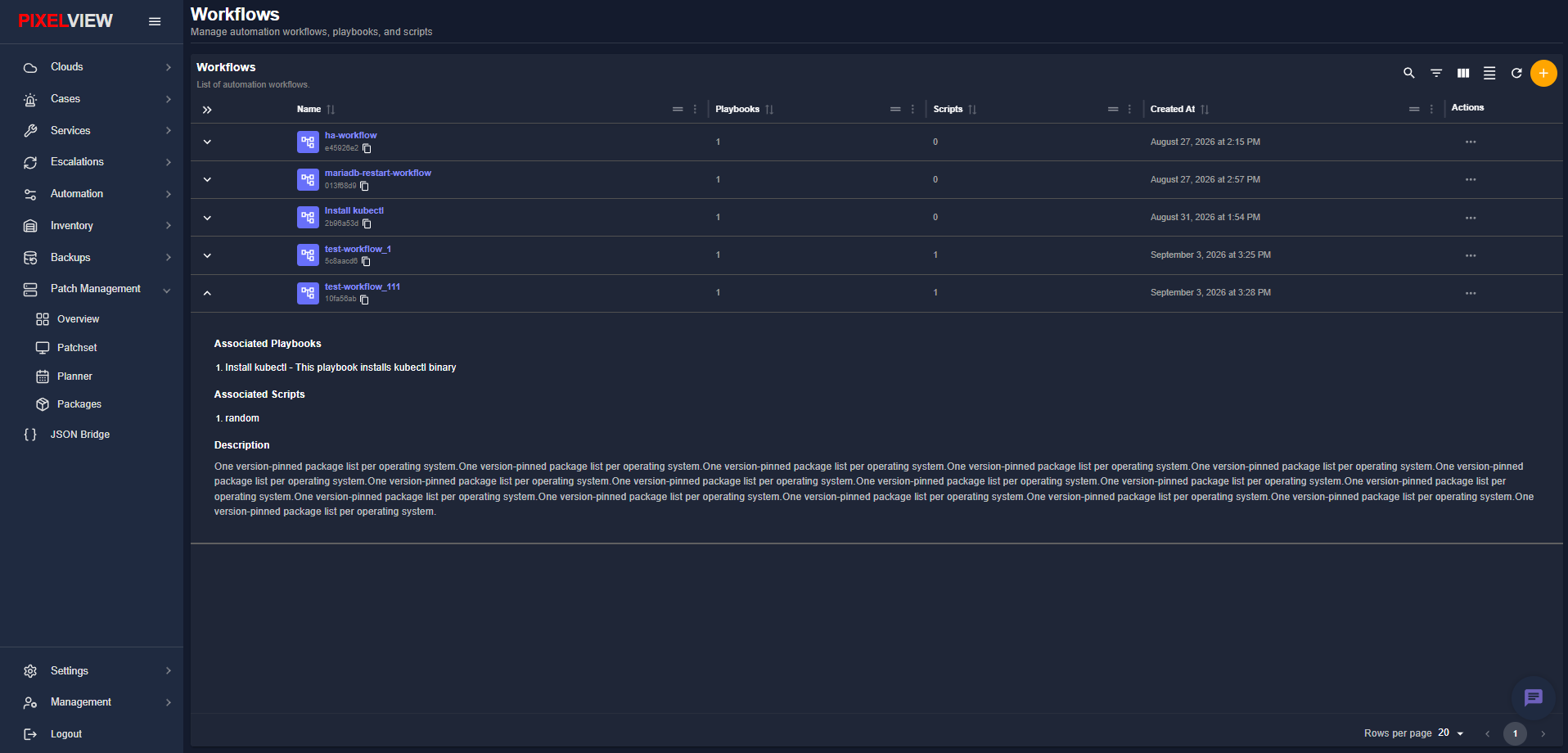
Here you can inspect the exact sequence of Associated Playbooks, Associated Scripts, and the pipeline's operational Description.
Editing and Deleting Package Lists
Accessing Package Actions
To modify or delete a package list from the detail view:
- Click OPEN MENU in the top-right corner of the Package Detail page:
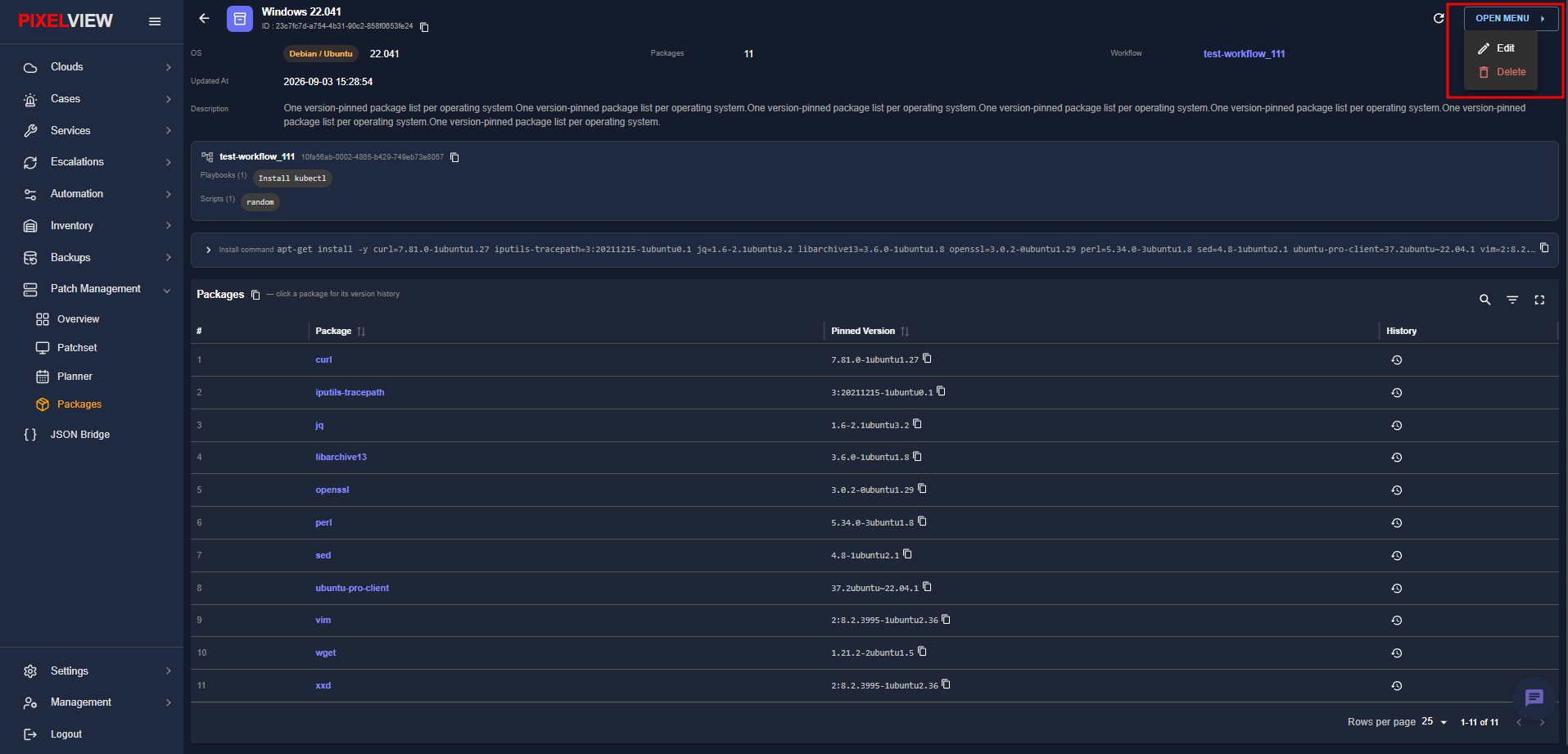
- Select Edit or Delete.
Editing a Package List
Selecting Edit opens the Edit Package List modal dialog pre-populated with current settings:
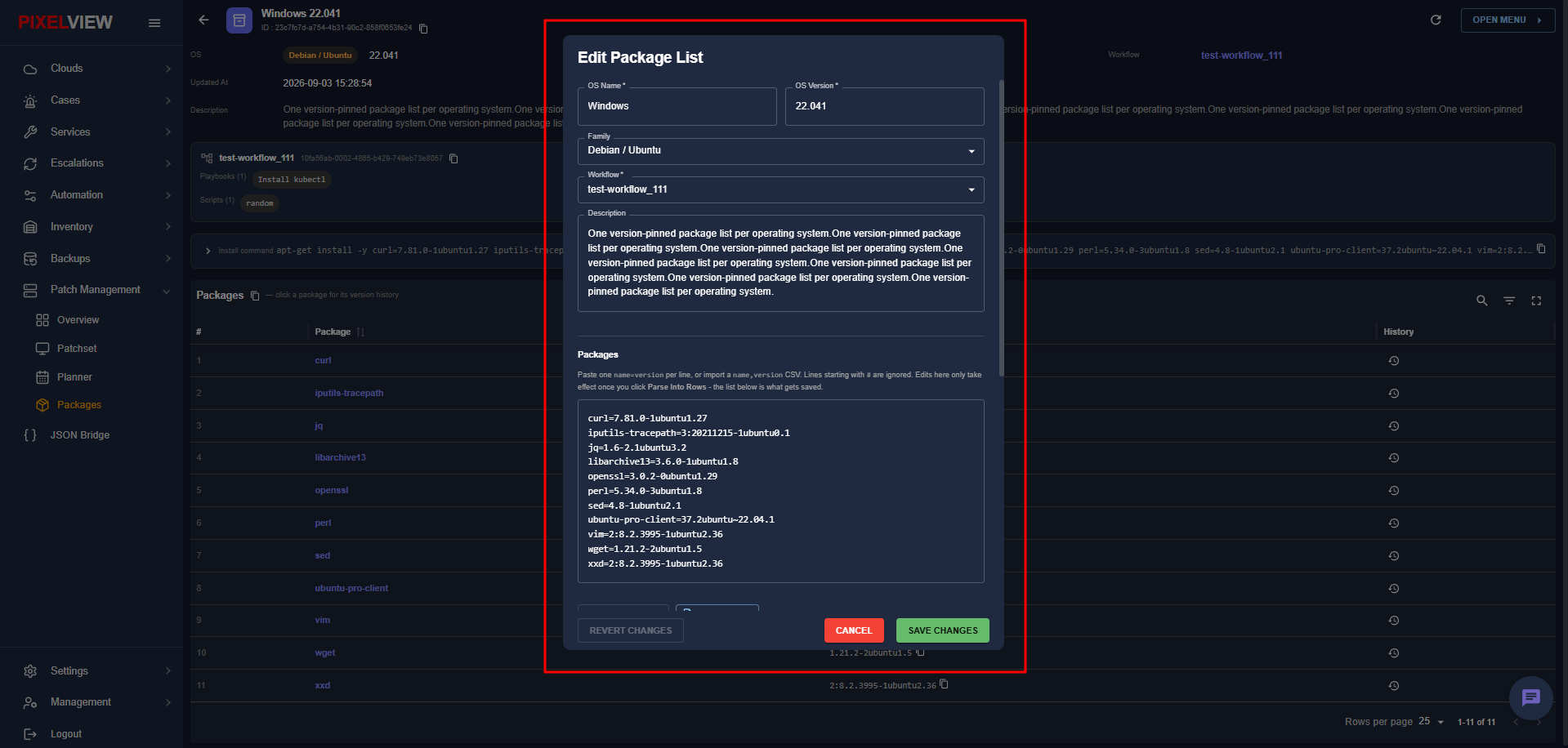
- Update the OS Name, OS Version, Family, Workflow, or Description.
- Modify version pins in the paste box or using the row editor below.
- Click REVERT CHANGES at any time to discard uncommitted edits and restore the saved baseline.
- Click SAVE CHANGES to apply the updates.
Deleting a Package List
- From the main table or the OPEN MENU on the detail page, click Delete.
- A confirmation prompt will appear:
- Confirm deletion to permanently remove the package list from PixelView.
Warning
Deleting a package list permanently removes the version-pinned baseline from the catalog. Any active automation jobs or patch planners expecting this package list will no longer receive updates.