Automation Scripts
The Scripts section (/scripts) under Automation catalogs and manages custom Python automation scripts registered within PixelView.
While Ansible playbooks are ideal for idempotent configuration management and provisioning, custom Python scripts provide operators with full programming flexibility—allowing complex API integrations, custom data transformations, database health checks, and cleanup tasks to be executed seamlessly across runner environments.
Architecture & GitOps Script Mounts
Similar to Ansible playbooks, Python scripts are not stored inside PixelView's database. PixelView operates as an orchestration catalog and execution dispatcher rather than a source code repository.
How Script Execution Works
- External Storage: Python script files (
.py) are hosted externally on your runner host's filesystem or storage volume. - Container Volume Mounting: When an Ansible Runner daemon container starts up, the host's script directory is volume mounted into the container under the
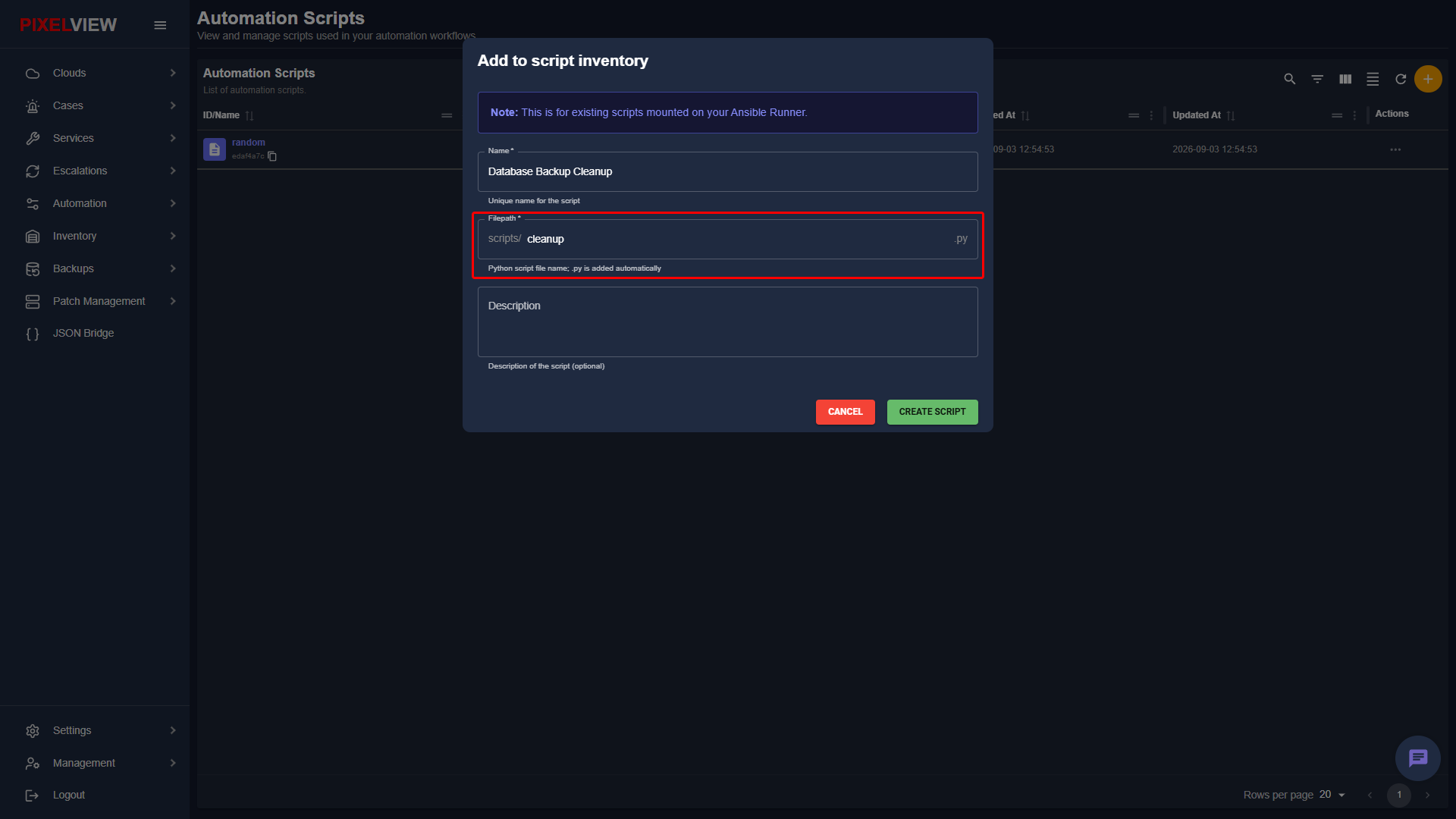
/scripts/directory (for example,/opt/pixelvirt/scriptsmounted to/scripts). - Catalog Pointer in PixelView: Registering a script in PixelView creates a reference definition that points to the mounted file on the runner. As shown in the modal above, the Filepath field automatically prefixes the
scripts/directory and appends the.pyextension (for example, enteringcleanupdirects the runner to execute/scripts/cleanup.py).
Architectural Rationale & Benefits
Maintaining scripts outside of PixelView provides significant architectural advantages:
- Version Control & GitOps: Scripts are versioned in GitHub or GitLab with full commit histories, branch protection, peer code reviews, and CI test pipelines.
- Zero Database Bloat: Keeps the PixelView database clean and fast, avoiding storage of raw application binaries or Python code.
- Instant Updates Without Platform Restarts: You can update, patch, or refactor a script via standard
git pullon the host, and all runner workers immediately have access to the latest code without restarting PixelView. - Security & Auditing: Code modifications are strictly tracked in Git, ensuring every execution references an audited, review-approved version.
Recommended Deployment Pattern (GitOps Setup)
To establish an automated, version-controlled script repository:
Step: Prepare the Host Directory
Create a dedicated storage directory on the host machine running your runner daemon:
Step: Clone Your Git Repository
Clone your team's custom scripts repository from GitHub into the host directory:
Step: Mount Directory into the Runner Container
In your runner's docker-compose.yml or container startup command, mount the host directory into /opt/scripts:
services:
  ansible-runner:
    image: ghcr.io/pixelvirt/ansible-runner:latest
    container_name: ansible-runner
    environment:
      - AGENT_ID=runner-2-py3asdf
      - RABBITMQ_HOST=localhost
      - RABBITMQ_PORT=5672
      - RABBITMQ_USER=alertagility
      - RABBITMQ_PASSWORD=dcW41MPUlM54uw2
      - JOB_INPUT_QUEUE=automation
      - JOB_OUTPUT_QUEUE=ansible_output
      - PREFETCH_COUNT=1
      - HEARTBEAT_INTERVAL=60
      - DEFAULT_MAX_RETRIES=3
      - LOG_LEVEL=INFO
      - ANSIBLE_HOST_KEY_CHECKING=false
      - STATIC_AUTH_KEY=6c673f51-6045-47b0-8745-eef9d165a310
    volumes:
      - ./playbooks:/opt/playbooks
      - ./inventory:/opt/inventory
      - ./scripts:/opt/scripts
      - ./logs:/var/log/ansible-runner
    restart: unless-stopped
    network_mode: host
Step: Synchronize Updates
To pull new script updates or bug fixes, simply run git pull on the runner host:
Navigating to Scripts
To view and manage your registered Python automation scripts:
- In the left navigation sidebar under Automation, click Scripts:
Scripts Table Overview
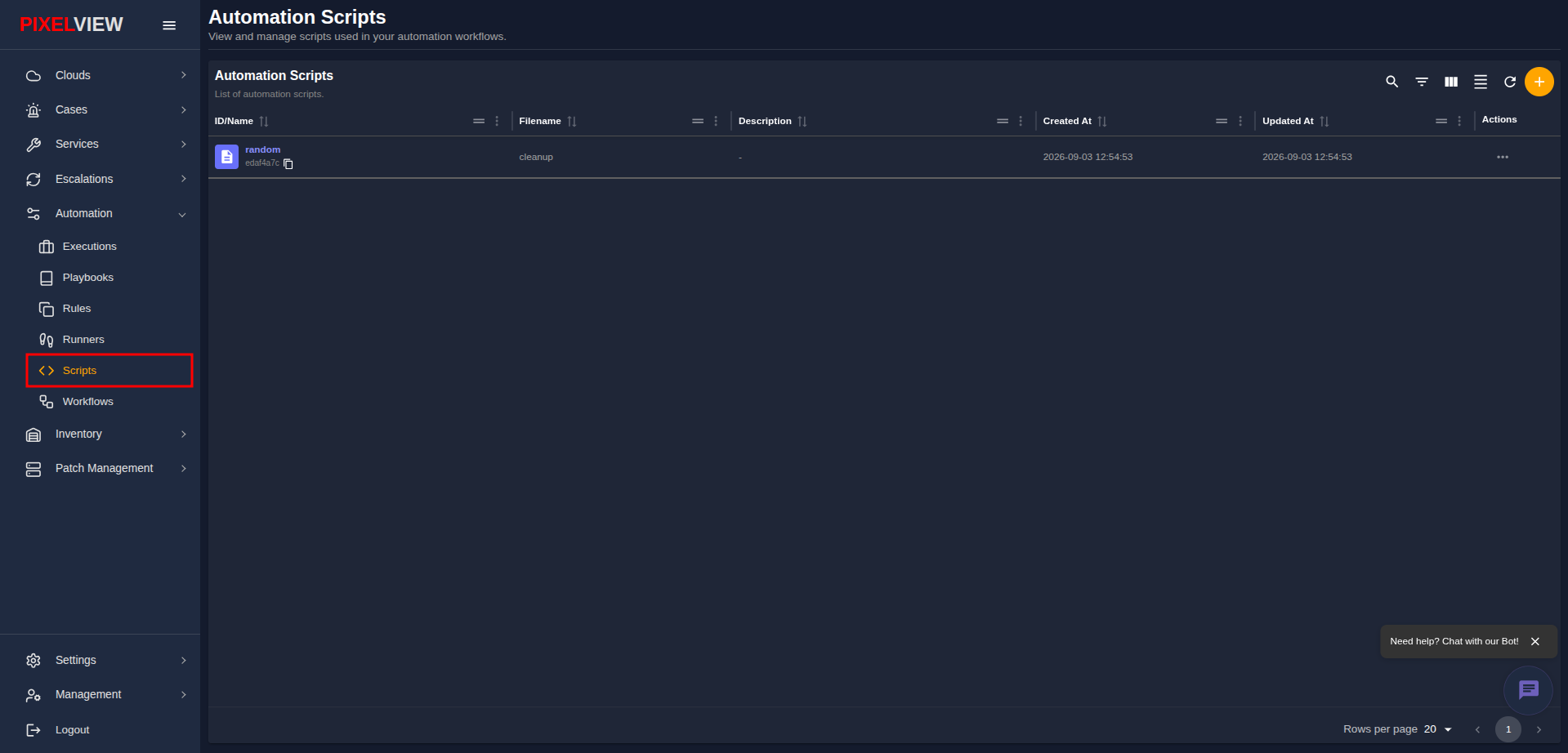
The main table lists all registered Python scripts:
| Column | Description |
|---|---|
| ID/Name | Script display name (e.g., random) with an icon and an 8-character copyable UUID chip with clipboard utility. |
| Filename | Base filename of the script residing in runner storage (e.g., cleanup). |
| Description | Contextual description of the script's operational task, or - if omitted. |
| Created At | Timestamp marking initial script registration (YYYY-MM-DD HH:mm:ss). |
| Updated At | Timestamp marking the most recent metadata update (YYYY-MM-DD HH:mm:ss). |
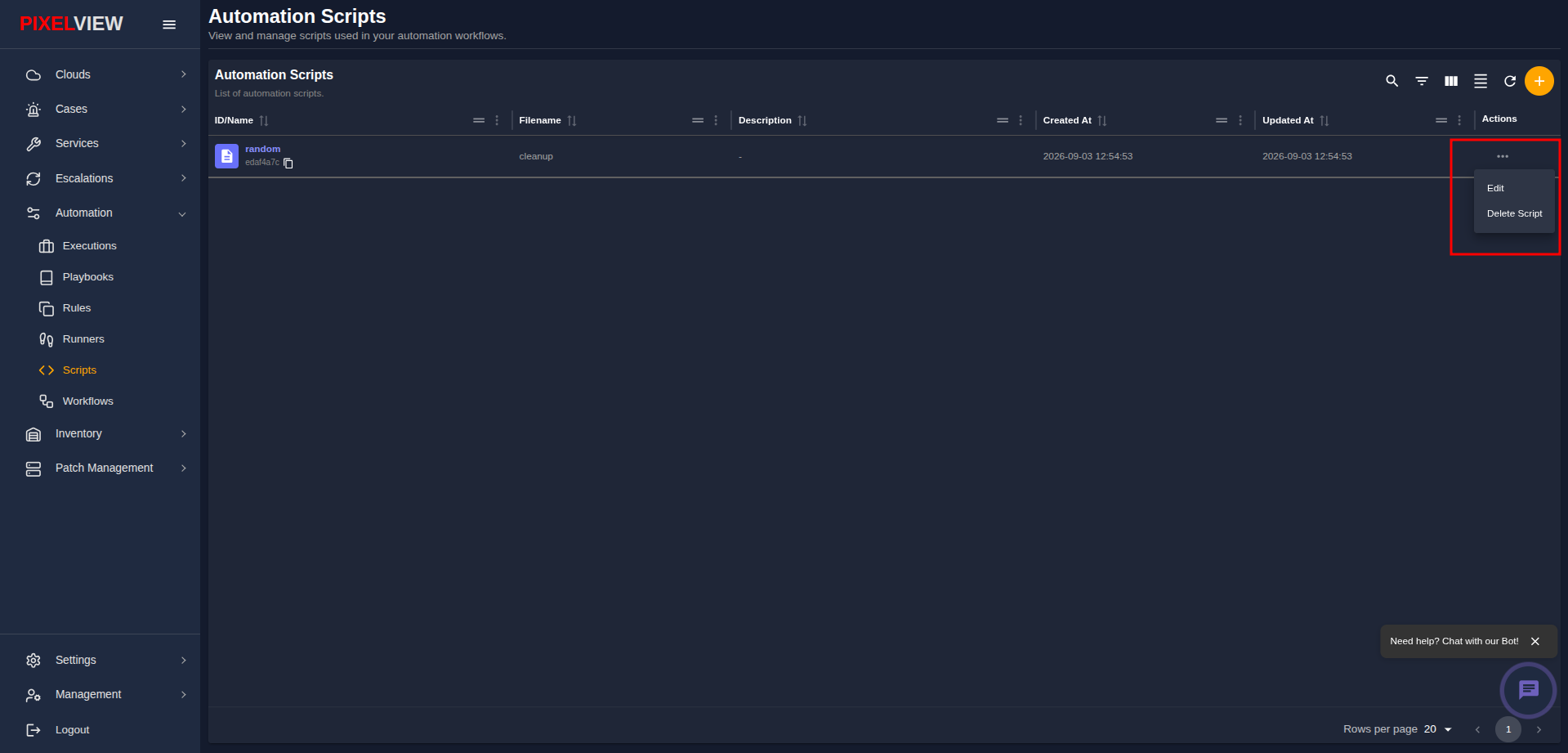
| Actions | Context action menu (...) providing editing and deletion options. |
Table Toolbar Controls
- Search / Global Filter: Instant full-text search across script names, filenames, and descriptions.
- Column Filters: Filter rows by specific attribute criteria.
- Show/Hide Columns: Customize visible table headers.
- Density Toggle: Toggle between compact and spacious row padding.
- Refresh: Re-fetch the scripts catalog from the backend API.
- Add Script (
+): Open the script inventory registration modal.
Adding a Script (Add to Script Inventory)
To register an existing runner Python script into PixelView's catalog:
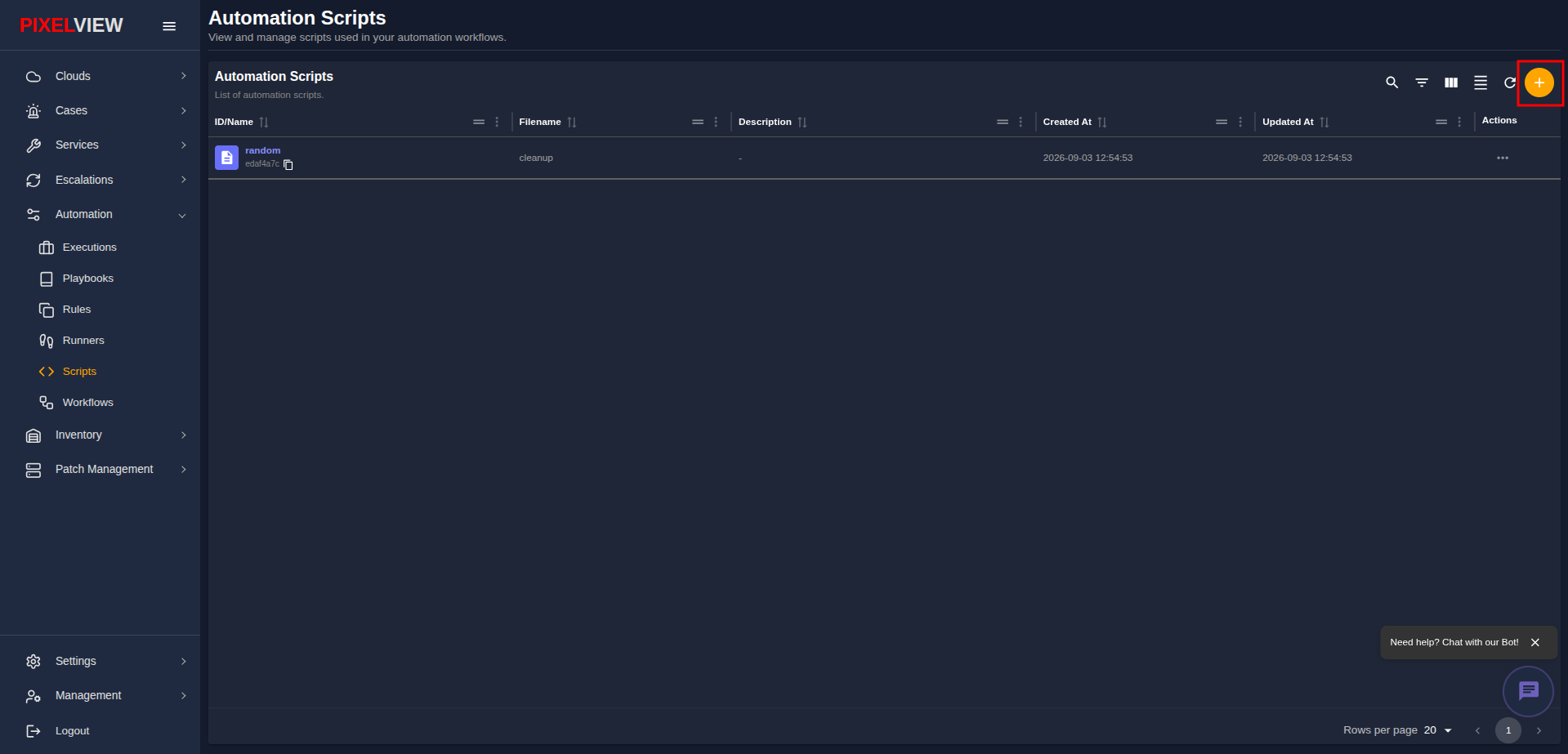
- Click the orange
+(Add Script) button in the top-right table toolbar:
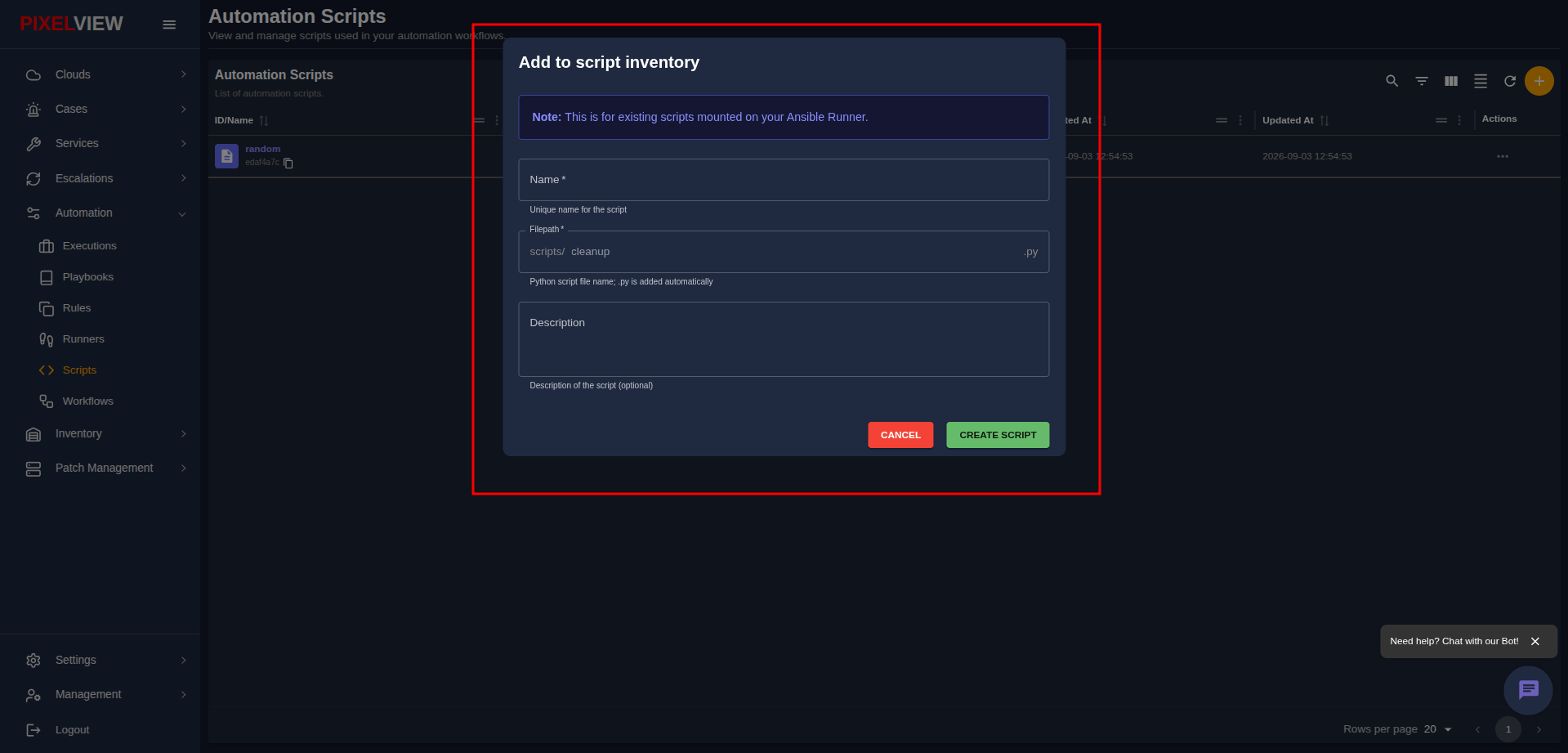
- The Add to script inventory modal dialog will open:
Configuration Fields
- Name (Required): A unique, descriptive title identifying the script (e.g.,
cleanup-temp-files,random). - Filepath (Required): The filename of the Python script inside the runner's
scripts/directory. !!! tip Enter only the base file name (e.g.,cleanup). PixelView automatically provides thescripts/prefix and appends.pyautomatically. - Description (Optional): Explanatory notes documenting the script arguments, expected behavior, or environment requirements.
Dialog Actions
- CANCEL: Dismiss the dialog without saving.
- CREATE SCRIPT: Register the script into PixelView's automation catalog.
Managing Scripts (Edit & Delete)
To update metadata or remove an obsolete script:
- Click the Actions menu (
...) on the target script row:
Editing Script Metadata
- Click Edit from the actions menu:
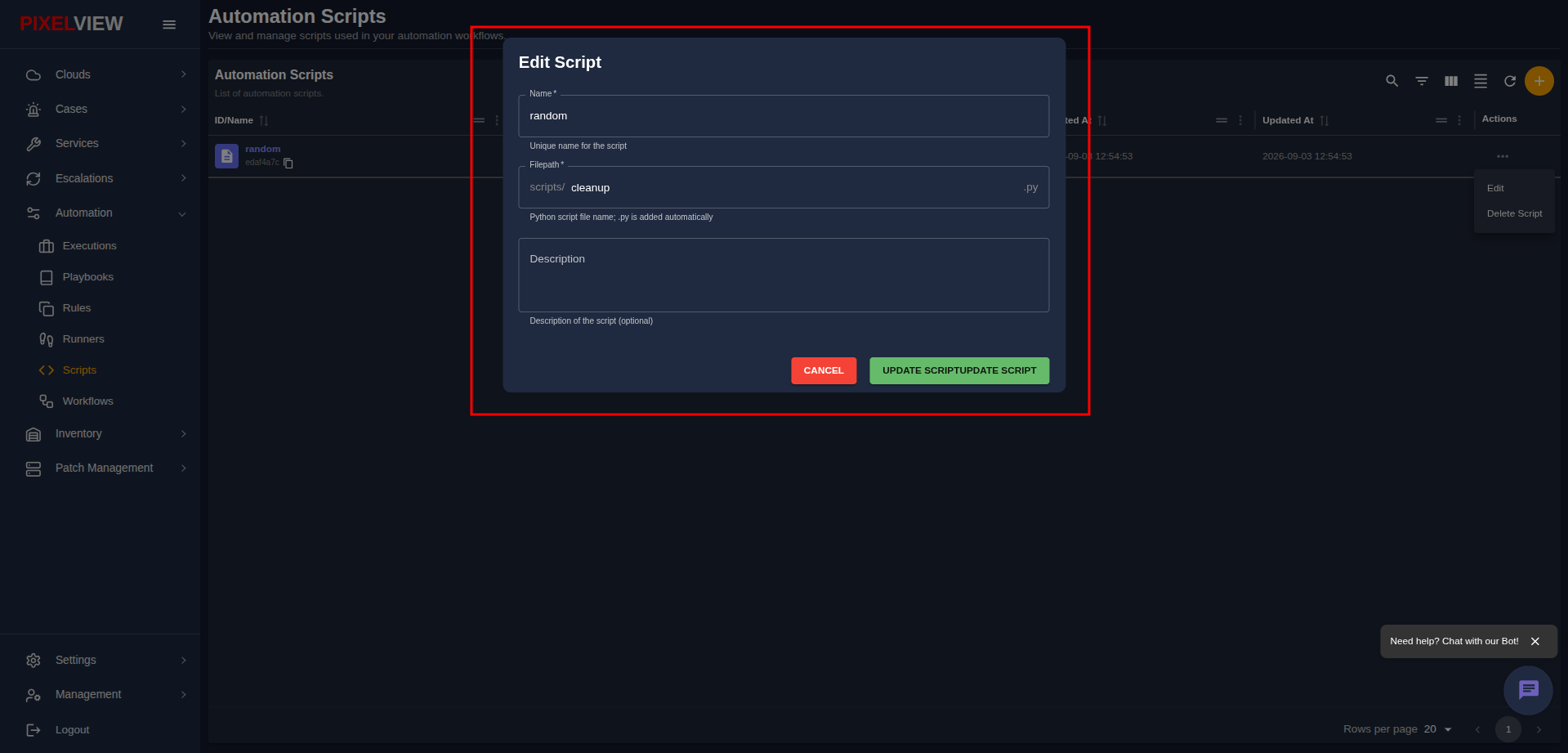
- Update the script Name, target Filepath, or Description.
- Click UPDATE SCRIPT to save your modifications.
Deleting a Script
- Click Delete Script from the actions menu.
- A browser confirmation dialog will prompt:
- Click OK to confirm. The script record will be permanently deleted from the inventory.
Warning
Deleting a script removes its reference from PixelView. Any scheduled workflows or automated jobs that invoke this script will fail to execute.
Runtime Environment & Script Standards
Custom Python scripts executed by PixelView runners operate under a standardized execution contract:
- Execution Runtime: Runner worker containers provide a pre-configured Python 3.10+ environment bundled with core enterprise modules (including
requests,urllib3,psutil,boto3, and standard JSON parsing libraries). - CLI Parameter Passing: When dispatching jobs in Executions, operators supply CLI arguments via
script_args. These arguments are passed directly tosys.argv[1:]during runner invocation. - Exit Code Contracts:
sys.exit(0): Indicates successful execution. PixelView marks the task asCompletedand proceeds to subsequent pipeline steps.sys.exit(1)(or non-zero): Signals an operational error. PixelView marks the step asFailed, streams stdout/stderr to the console, and triggers the configured retry policy (script_max_retries).
- Stdout/Stderr Telemetry Capture: All standard output and error messages printed to console streams are captured in real-time by the runner daemon and relayed to the execution dashboard via Server-Sent Events (SSE).
Production Script Template: Database Health & Query Latency Probe (db_health_check.py)
The following diagnostic script tests database port connectivity, measures query roundtrip latency, and outputs structured status metrics:
#!/usr/bin/env python3
"""
PixelView Automation Script: Database Health & Latency Probe
Usage: python3 db_health_check.py --host <DB_HOST> --port <PORT> --timeout <SECONDS>
"""

import sys
import time
import socket
import argparse

def parse_arguments():
    parser = argparse.ArgumentParser(description="Probe database port connectivity and latency.")
    parser.add_argument("--host", required=True, help="Database target IP or hostname")
    parser.add_argument("--port", type=int, default=3306, help="Database target port (default: 3306)")
    parser.add_argument("--timeout", type=float, default=5.0, help="Connection timeout in seconds")
    return parser.parse_args()

def probe_database(host, port, timeout):
    print(f"[*] Probing database endpoint {host}:{port} (timeout: {timeout}s)...")
    start_time = time.perf_counter()
    sock = socket.socket(socket.AF_INET, socket.SOCK_STREAM)
    sock.settimeout(timeout)

    try:
        sock.connect((host, port))
        latency_ms = (time.perf_counter() - start_time) * 1000
        print(f"[OK] Connection established successfully in {latency_ms:.2f} ms")
        return True, latency_ms
    except socket.timeout:
        print(f"[FAIL] Connection timed out after {timeout} seconds")
        return False, None
    except Exception as exc:
        print(f"[FAIL] Connection error: {exc}")
        return False, None
    finally:
        sock.close()

def main():
    args = parse_arguments()
    success, latency = probe_database(args.host, args.port, args.timeout)

    if success:
        print(f"[SUCCESS] Database endpoint {args.host}:{args.port} is healthy.")
        sys.exit(0)
    else:
        print(f"[ERROR] Database endpoint {args.host}:{args.port} failed health checks.")
        sys.exit(1)

if __name__ == "__main__":
    main()