Ansible Runners
The Runners section (/runners) under Automation provides real-time visibility, capacity monitoring, and lifecycle management for the distributed execution workers running Ansible playbooks and automation tasks in PixelView.
Runners act as worker daemons that consume automation jobs from assigned message queues, execute playbooks against target infrastructure, stream real-time logs back to the platform, and report ongoing health and availability.
Architecture & Worker Queues
PixelView uses a distributed queue-based worker architecture designed for high scalability and security:
- Dynamic Registration: Rather than being manually provisioned via the web interface, Ansible Runners register dynamically when their daemon container or service starts up, announcing their unique
Agent IDand designatedQueue Name. - Queue Isolation: Workloads can be partitioned across different queues (e.g.,
automation,admin-admin,ha-nodes-queue), allowing organizations to isolate tasks by network boundaries, compute capacity, or security clearance. - Heartbeat & Status Monitoring: Active runners continuously emit periodic heartbeats (synchronized every 30 seconds in the UI) to signal whether they are
Idle,Busy, orOffline.
Runner Volume Mounts & External Playbook / Script Storage
PixelView decouples the automation platform from the physical files being executed:
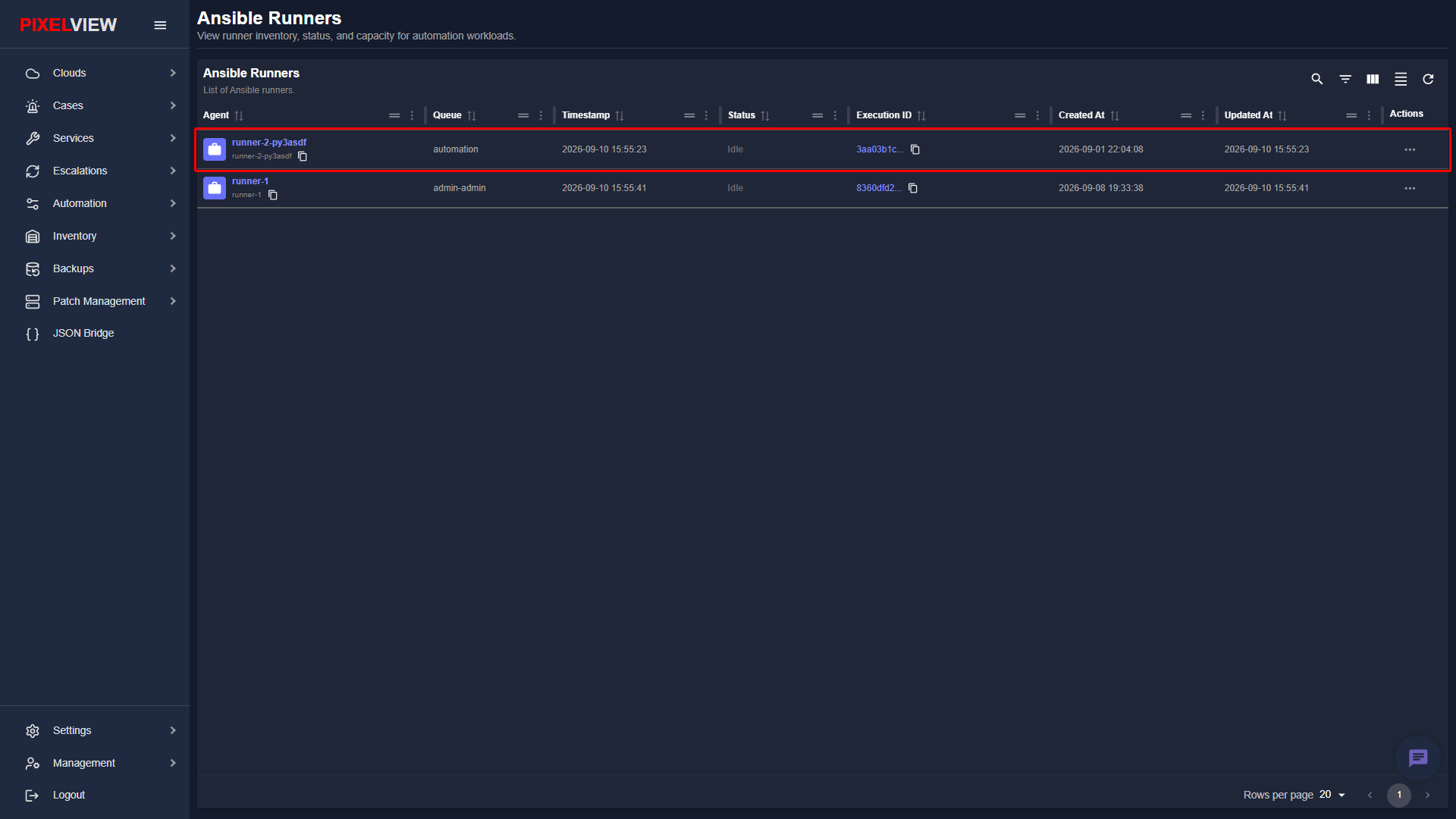
- No Code Stored in Database: Neither Ansible playbooks nor Python scripts are stored directly in PixelView.
- Host Volume Mounting: Automation files are maintained externally in a version-controlled Git repository (e.g., GitHub, GitLab) and cloned onto the runner host machine. When the runner container starts up, these directories are mounted into the container:
/opt/pixelvirt/playbooks→/opt/playbooks/opt/pixelvirt/scripts→/opt/scripts
- Execution by Reference via Queues: When a job is dispatched from PixelView, the platform sends a message containing the catalog reference (e.g.,
install-kubectl.yamlorcleanup.py) over the designated message queue (such as theautomationqueue highlighted above). The assigned runner locates the file directly within its local container mount and executes it.
Example Runner Deployment Configuration
Here is a production-grade Docker Compose configuration showing how playbooks, scripts, and credentials are mounted into the runner container:
services:
  ansible-runner:
    image: ghcr.io/pixelvirt/ansible-runner:latest
    container_name: ansible-runner
    environment:
      - AGENT_ID=runner-1
      - RABBITMQ_HOST=localhost
      - RABBITMQ_PORT=5672
      - RABBITMQ_USER=alertagility
      - RABBITMQ_PASSWORD=dcW41MPUlM54uw2
      - JOB_INPUT_QUEUE=admin-admin
      - JOB_OUTPUT_QUEUE=ansible_output
      - PREFETCH_COUNT=1
      - HEARTBEAT_INTERVAL=60
      - DEFAULT_MAX_RETRIES=3
      - LOG_LEVEL=INFO
      - ANSIBLE_HOST_KEY_CHECKING=false
      - STATIC_AUTH_KEY=6c673f51-6045-47b0-8745-eef9d165a310
    volumes:
      - ./playbooks:/opt/playbooks
      - ./inventory:/opt/inventory
      - ./logs:/var/log/ansible-runner
    restart: unless-stopped
    network_mode: host

  ansible-runner2:
    image: ghcr.io/pixelvirt/ansible-runner:latest
    container_name: ansible-runner2
    environment:
      - AGENT_ID=runner-2-py3asdf
      - RABBITMQ_HOST=localhost
      - RABBITMQ_PORT=5672
      - RABBITMQ_USER=alertagility
      - RABBITMQ_PASSWORD=dcW41MPUlM54uw2
      - JOB_INPUT_QUEUE=automation
      - JOB_OUTPUT_QUEUE=ansible_output
      - PREFETCH_COUNT=1
      - HEARTBEAT_INTERVAL=60
      - DEFAULT_MAX_RETRIES=3
      - LOG_LEVEL=INFO
      - ANSIBLE_HOST_KEY_CHECKING=false
      - STATIC_AUTH_KEY=6c673f51-6045-47b0-8745-eef9d165a310
    volumes:
      - ./playbooks:/opt/playbooks
      - ./inventory:/opt/inventory
      - ./scripts:/opt/scripts
      - ./logs:/var/log/ansible-runner
    restart: unless-stopped
    network_mode: host
Tip
Mounting playbooks and scripts as read-only (:ro) ensures the runner cannot accidentally alter or corrupt the underlying Git repository during execution.
Navigating to Runners
To inspect runner health, queues, and active workloads:
- In the left navigation sidebar under Automation, click Runners:
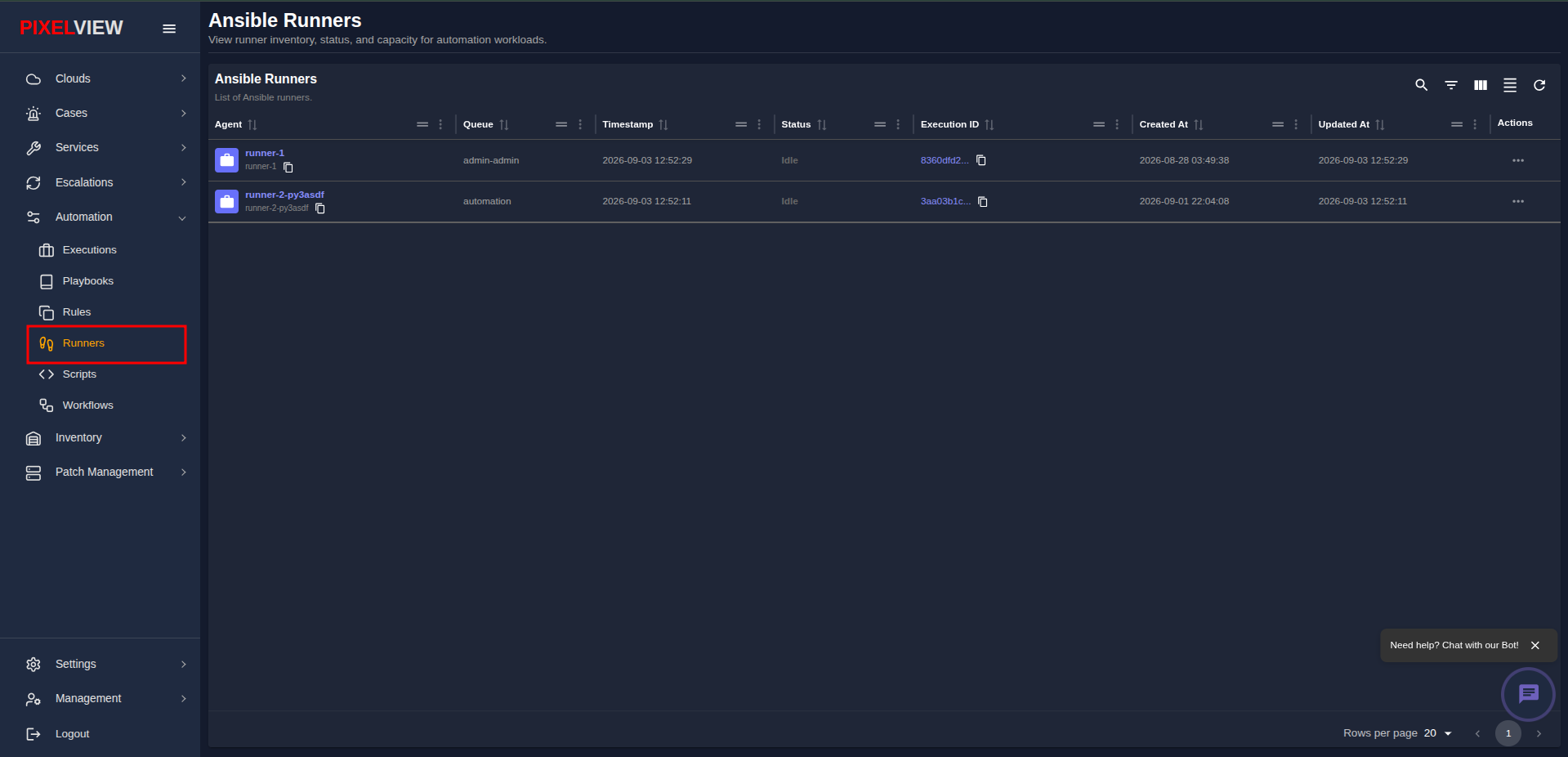
Runners Table Overview
The main table lists all registered runner instances with 30-second automated polling:
| Column | Description |
|---|---|
| Agent | Unique runner agent identifier (e.g., runner-1, runner-2-py3asdf) with a briefcase icon and an 8-character copyable UUID chip. |
| Queue | Name of the task queue consumed by this worker (e.g., admin-admin, automation). |
| Timestamp | Most recent heartbeat timestamp received from the runner (YYYY-MM-DD HH:mm:ss). |
| Status | Real-time operational state of the runner worker (Idle, Busy, Online, or Offline). |
| Execution ID | Clickable link with quick-copy utility pointing directly to the currently assigned or most recent execution run in Executions. |
| Created At | Initial registration timestamp when the runner first connected to PixelView. |
| Updated At | Timestamp marking the runner's last state or heartbeat synchronization. |
| Actions | Context action menu (...) for managing the runner record. |
Table Toolbar Controls
- Search / Global Filter: Perform full-text filtering across agent names, queues, and execution IDs.
- Column Filters: Filter rows by specific status, queue, or timestamp ranges.
- Show/Hide Columns: Customize visible column headers.
- Density Toggle: Adjust table row padding between compact and relaxed spacing.
- Refresh: Instantly re-fetch runner statuses and heartbeats from the API.
Workload Observability
When an automation job is dispatched from Executions, Playbooks, or Rules, PixelView routes the task to the designated queue:
- Active Job Assignment: The runner consuming that queue picks up the execution, transitioning its status to active/busy.
- Direct Execution Inspection: The Execution ID column displays the active run's UUID. Clicking this link navigates straight to
/executions/:executionIdwhere operators can view live Server-Sent Events (SSE) terminal output. - Completion & Idle State: Once all playbook tasks complete, the runner reports return codes, duration, and returns to
Idleready for subsequent tasks.
Network Segmentation & Distributed Queue Topologies
PixelView runners eliminate the need to open inbound SSH or management ports from the central PixelView platform into protected enterprise networks:
- Outbound-Only Worker Connectivity: Runner daemons establish secure, outbound-only AMQP connections to the platform's RabbitMQ message broker. They pull assigned execution tasks from their subscribed queues and stream execution telemetry outward, allowing deployment inside private VPCs, behind NAT gateways, or within air-gapped enclaves.
- Queue-Based Workload Partitioning:
automation: The default general-purpose queue for routine maintenance, diagnostics, and non-privileged operations.admin-admin: A restricted high-privilege queue dedicated to root-level platform provisioning, hypervisor management, and kernel upgrades.- Custom Enclave Queues (e.g.,
pci-dss-runners,dmz-edge-runners): Isolate execution workers strictly to specific network subnets or regulatory compliance zones.
- Health Heartbeats & Automatic Failover:
- Runners transmit a heartbeat every 30 seconds confirming resource availability and active daemon status.
- If a runner misses consecutive heartbeats, its status transitions from
IdleorBusytoOffline, alerting operators to worker node degradation.
Managing Runners (Decommissioning)
If a runner node has been permanently taken offline, scaled down, or decommissioned, its stale record can be cleaned up from the inventory:
- Click the Actions menu (
...) on the target runner row:
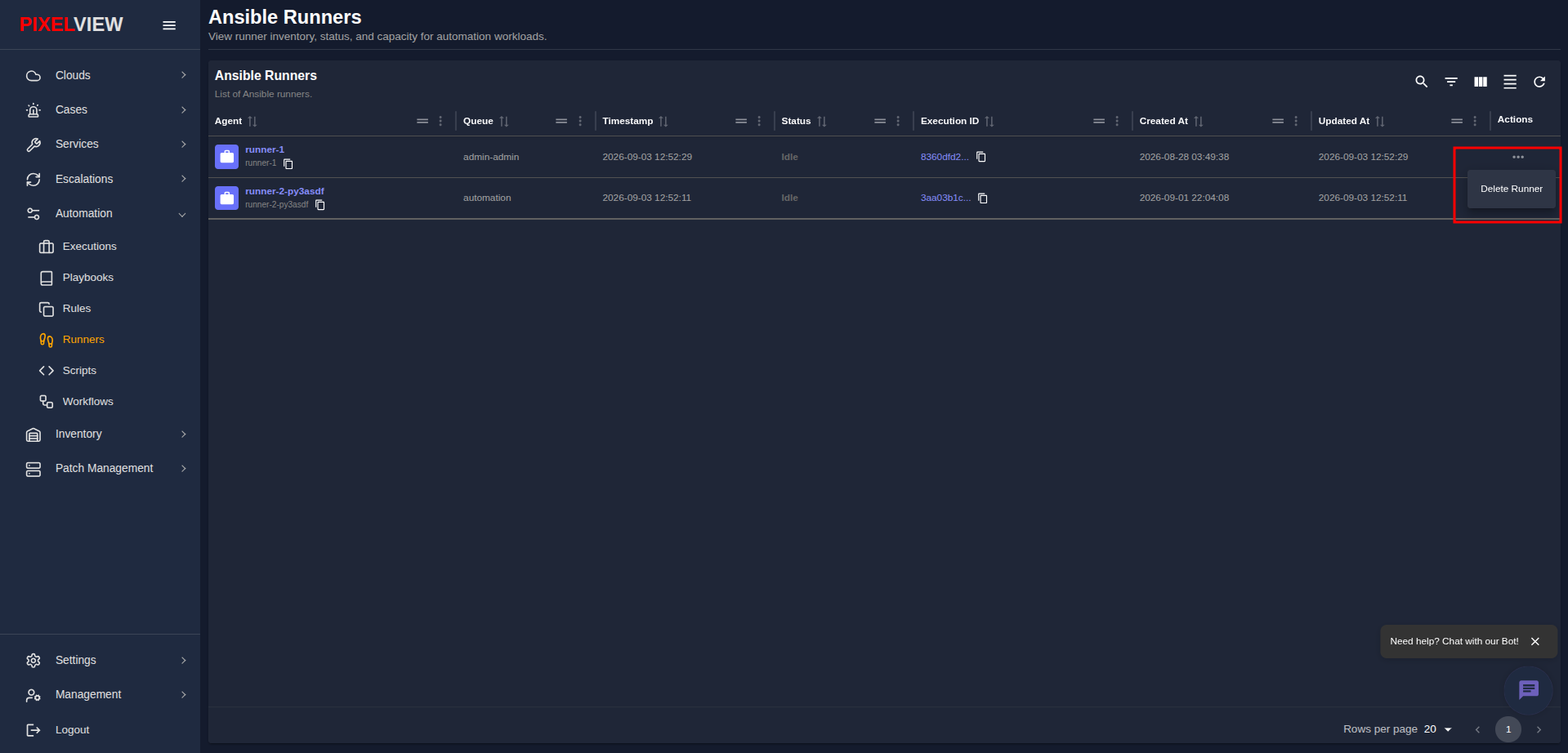
- Click Delete Runner.
- A confirmation prompt will appear:
- Click OK to remove the runner from the inventory.
Note
Deleting a runner removes its historical registration record from the dashboard. If the runner daemon container is still running and re-connects, it will automatically register itself again upon its next heartbeat.