Host Groups Management
The Host Groups section (/host-groups) under Inventory enables operators to logically group servers and compute instances across clouds and regions. Host groups serve as the targeting mechanism for batch patch execution in Planner Management and automated playbook runs.
Navigating to Host Groups
To access stored host groups:
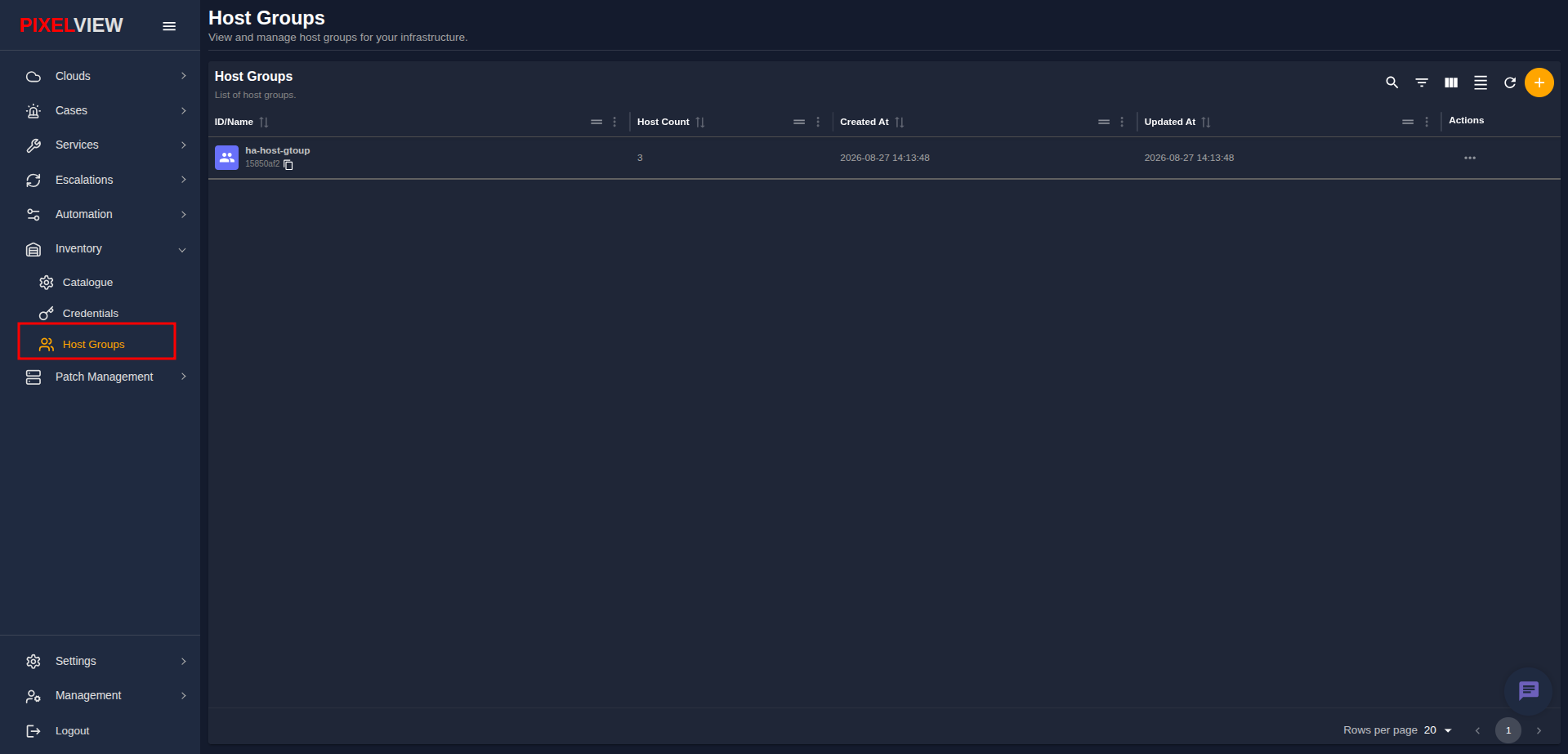
- In the left navigation sidebar under Inventory, click Host Groups:
Host Groups Table Overview
The main table lists all configured host groups with 60-second background polling for synchronized state tracking:
| Column | Description |
|---|---|
| ID/Name | Group display name (e.g., ha-host-gtoup) with a purple group icon, a link to the detail view, and a copyable UUID chip. |
| Host Count | Total number of servers currently assigned to the group. |
| Created At | Timestamp marking when the host group was created (YYYY-MM-DD HH:mm:ss). |
| Updated At | Timestamp tracking the most recent modification. |
| Actions | Context action menu (...) for editing or deleting host groups. |
Table Toolbar Controls
- Search / Global Filter: Perform instant full-text searches across all host groups.
- Column Filters: Filter records by specific field attributes.
- Show/Hide Columns: Toggle table column visibility.
- Density Toggle: Adjust row spacing between standard and dense layouts.
- Refresh: Manually re-fetch the latest host group listings.
- Add Host Group (
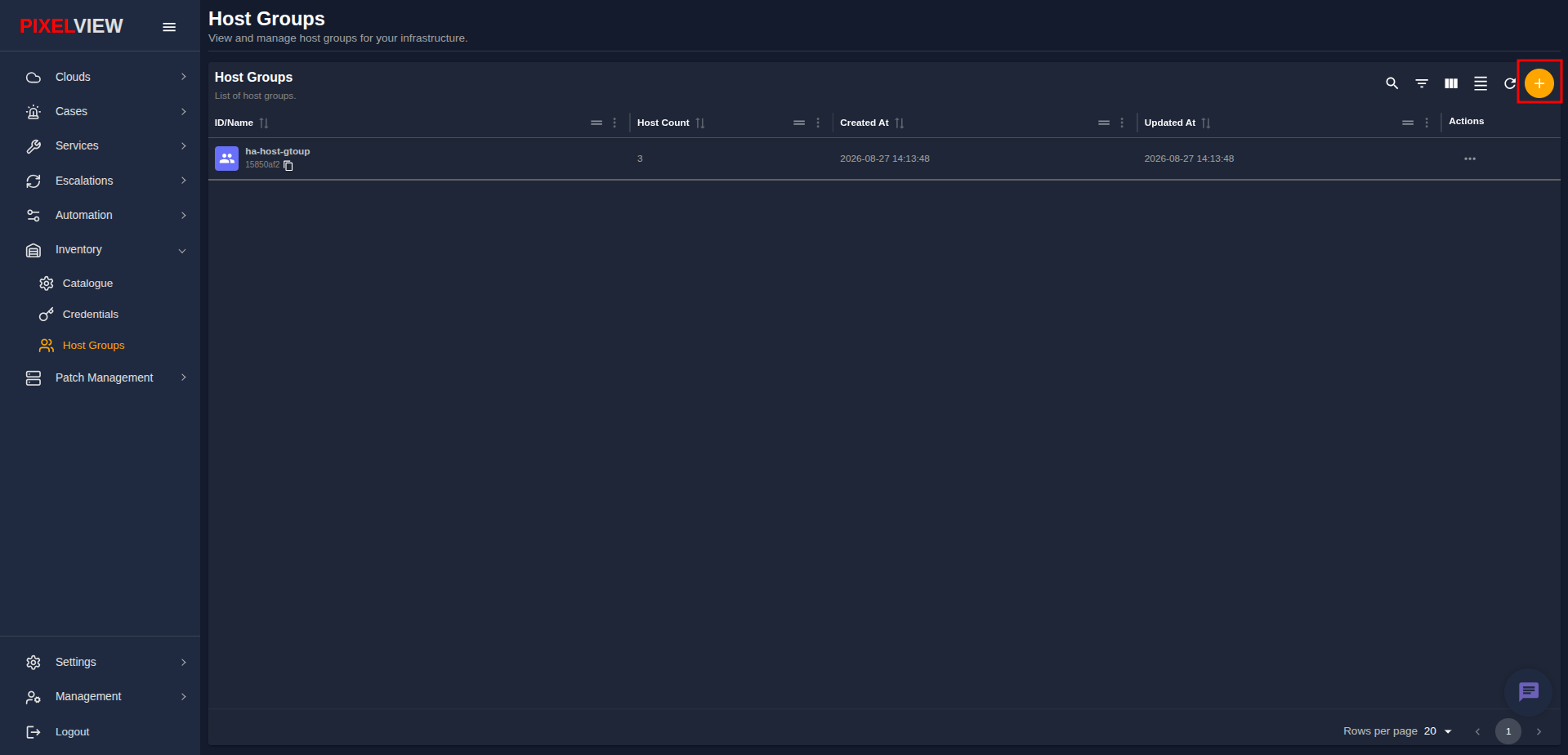
+): Launch the host group creation modal.
Creating a Host Group
To group servers for coordinated operations:
- Click the orange
+(Add Host Group) button on the table toolbar:
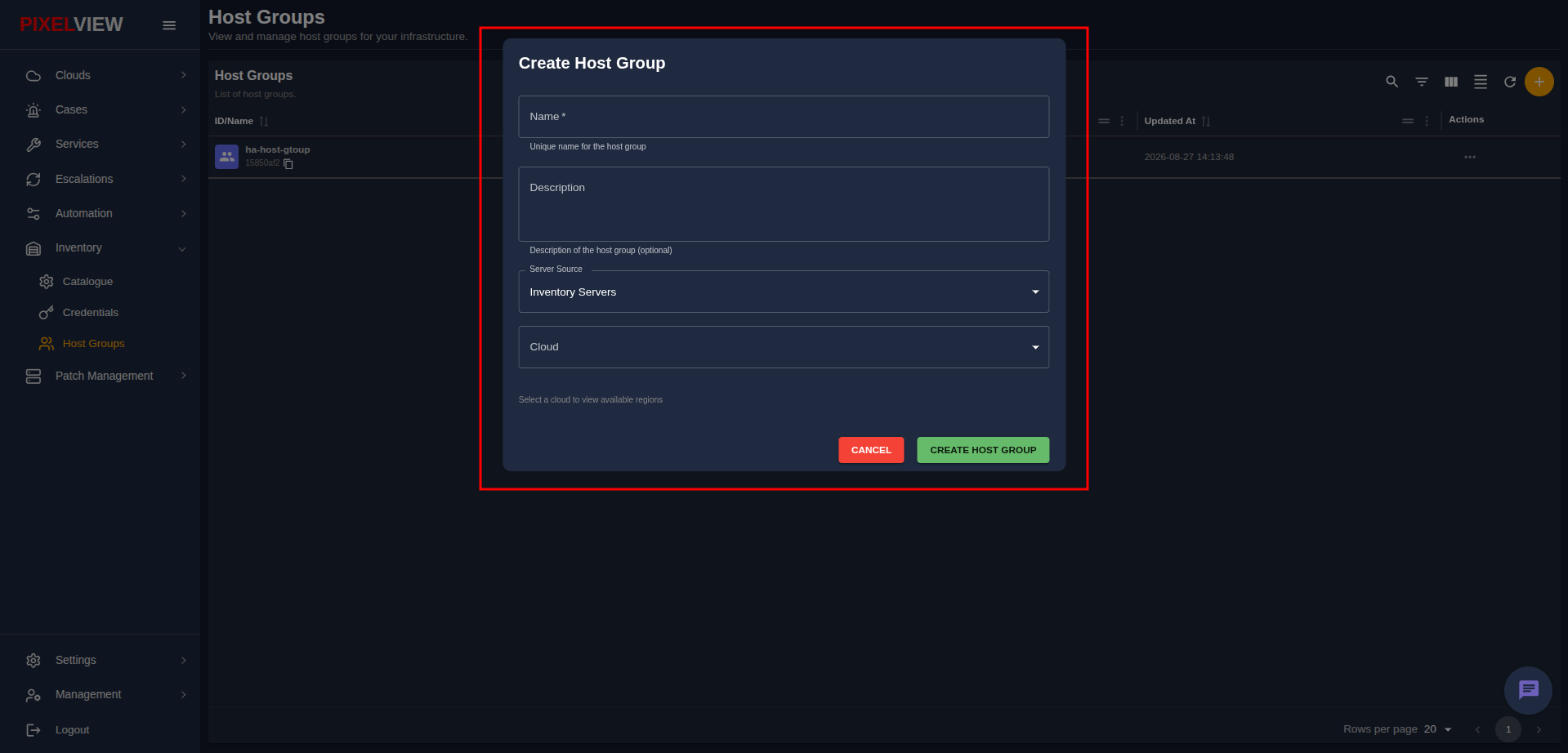
- The Create Host Group dialog will appear:
Configuration Fields
- Name (Required): Unique display name identifying the host group (e.g.,
ha-host-gtoup,production-k8s-nodes). - Description (Optional): Operational notes describing the role or maintenance schedule of this cluster.
- Server Source: Choose the inventory origin:
- Inventory Servers: Target servers cataloged within PixelView's Cloud Inventory.
- Cloud Servers: Query live instances directly from integrated cloud providers (such as OpenStack).
- Cloud & Region Filters: Select target Cloud and Region to load the member servers list.
- Server Selection Table:
- Interactive multi-select table displaying
Server Name,IP Address,Cloud, andRegion. - Checkbox selectors to include individual servers or select all in bulk.
- Real-time selection counter (
X of Y row(s) selected) and CLEAR SELECTION control.
- Interactive multi-select table displaying
- Click CREATE HOST GROUP to save the cluster.
Inspecting Host Groups & Server Members
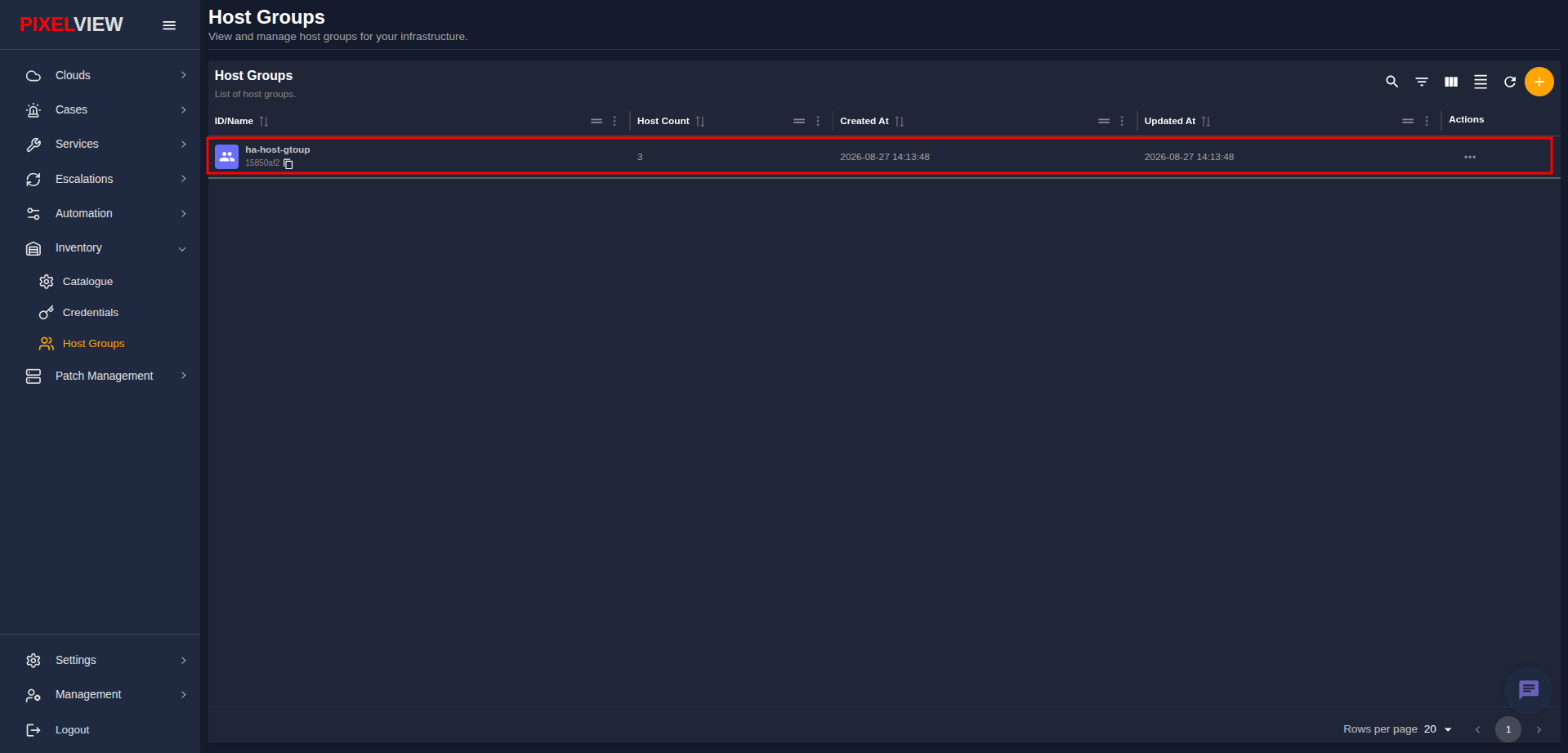
- Locate the target host group row in the table (e.g.,
ha-host-gtoup):
- Click on the host group name to open the Host Group Details dashboard:
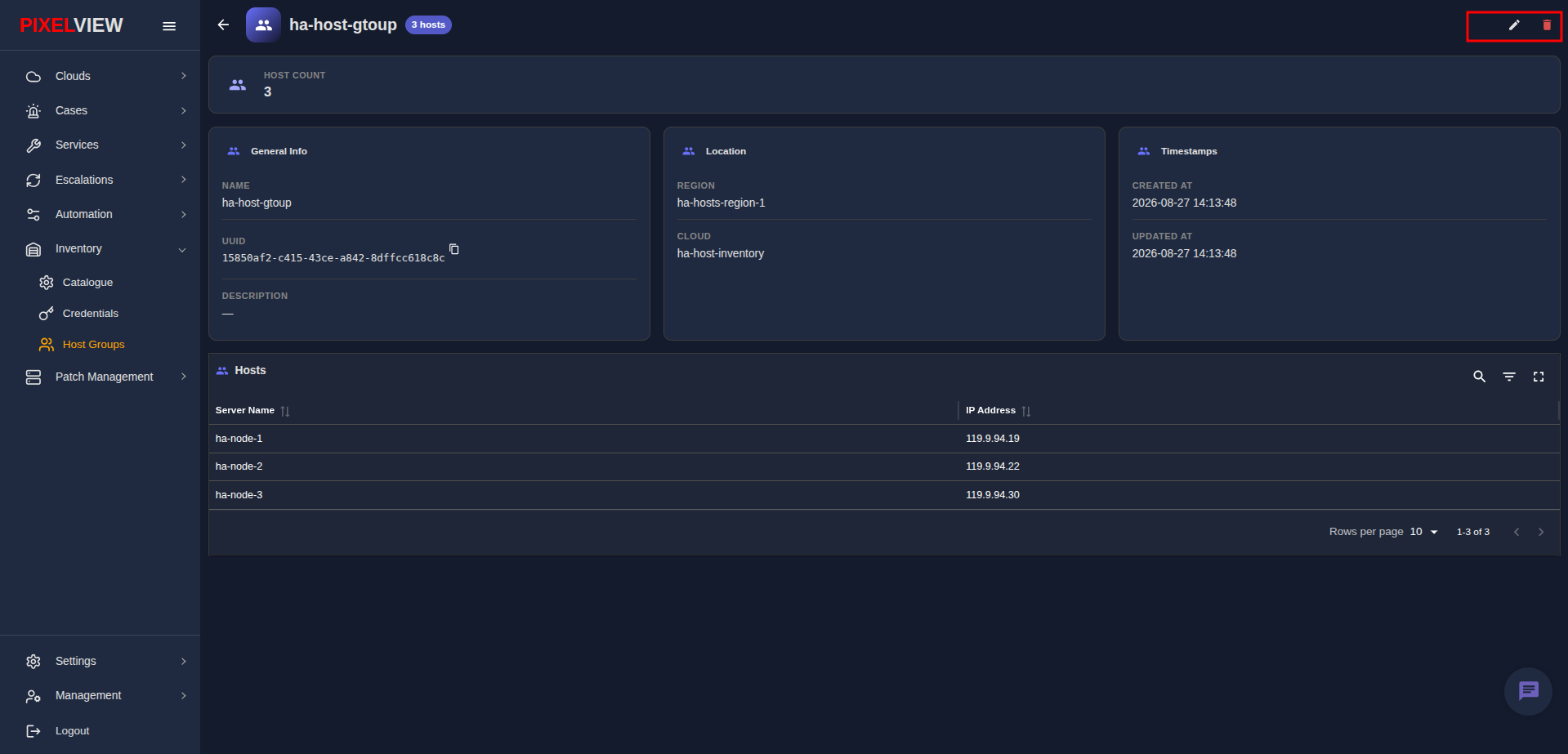
Host Group Details Overview
- Host Count Ribbon: High-level badge showing the total number of assigned instances (
3 hosts). - General Info Card: Displays the Group Name, unique UUID (with quick-copy button), and Description.
- Location Card: Identifies the primary Region (
ha-hosts-region-1) and Cloud (ha-host-inventory) containing the hosts. - Timestamps Card: Records creation and last modification timestamps.
- Hosts Membership Table:
- Server Name: Lists all assigned host nodes (
ha-node-1,ha-node-2,ha-node-3). - IP Address: Displays management network addresses (
119.9.94.19,119.9.94.22,119.9.94.30).
- Server Name: Lists all assigned host nodes (
- Header Actions:
- Edit (Pencil): Modify group metadata or adjust server membership.
- Delete (Trash): Remove the host group.
Editing Host Groups
To adjust member servers or modify group details:
- Click the Edit (Pencil) button on the details page, or select Edit from the table row context menu (
...). - The Edit Host Group modal will open:
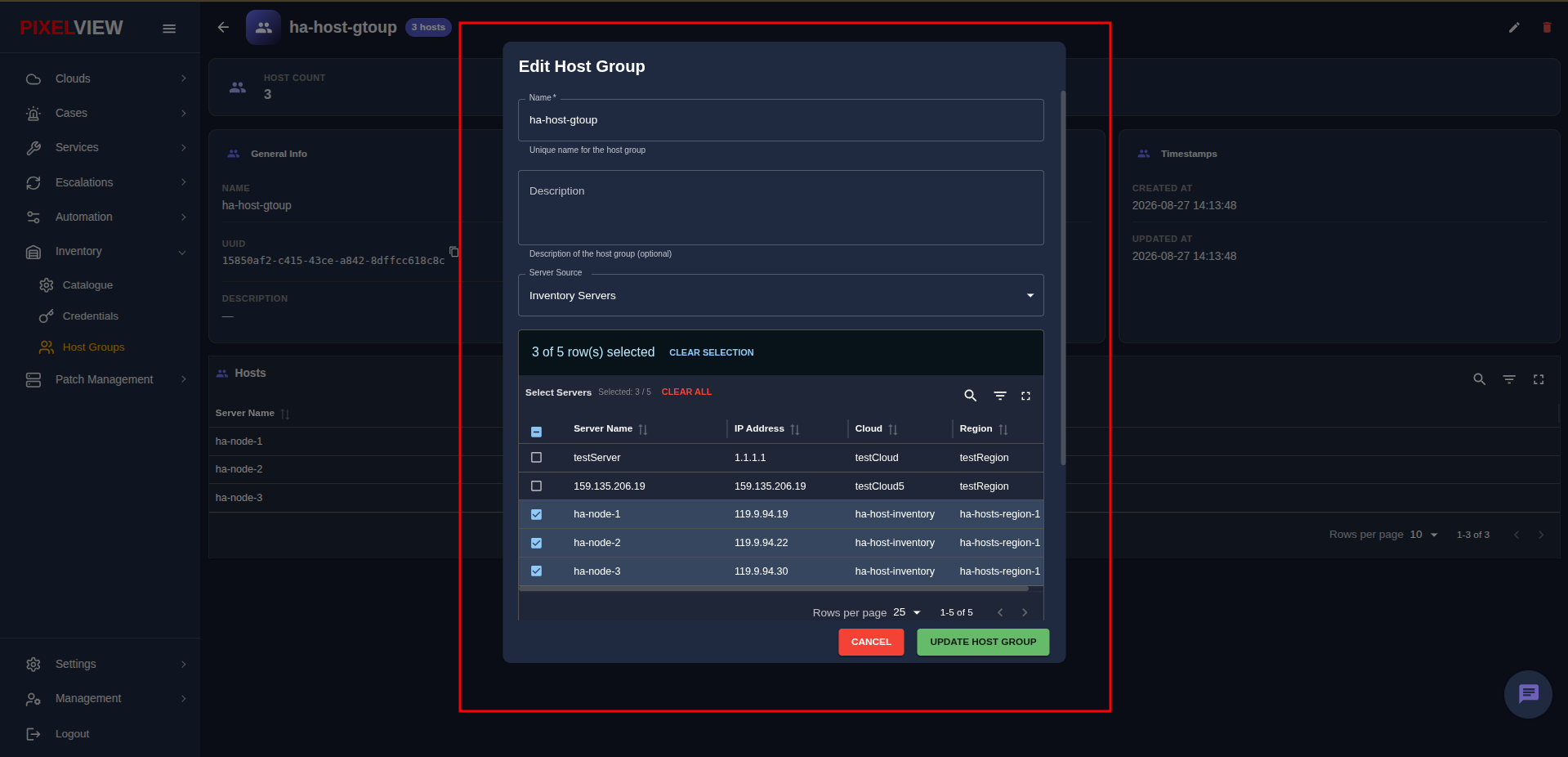
- Update the group Name or Description.
- In the Select Servers table, check or uncheck individual servers to add or remove them from the group.
- Use search, column filtering, or fullscreen expansion for managing large fleets of servers.
- Click UPDATE HOST GROUP to persist changes.
Operational Targeting in Patching & Automation
Host groups are the primary deployment targets for orchestration, compliance enforcement, and coordinated patching across PixelView:
- Patch Management & Canary Rollouts: In Planner Management, operators select host groups as the base scope for patch plans. PixelView allows partitioning groups into staggered execution batches (such as a 10% canary batch followed by two 45% batches) with failure intervention gates to safeguard high-availability services.
- Automation Playbook Runs: Target operational Ansible playbooks (such as system upgrades, security agent rollouts, or configuration baselines) across entire host groups simultaneously with configurable concurrency parameters.
- Hybrid Cloud Clustering: Combine bare-metal servers, on-premises virtualization hypervisors, and dynamic OpenStack cloud instances into unified functional tiers (e.g.,
production-database-cluster,edge-ingress-proxies).
Deleting Host Groups
- Click the Delete (Trash) icon on the Host Group Details page, or choose Delete Host Group from the table actions menu (
...). - Confirm the confirmation prompt to remove the group definition.
Note
Deleting a host group only removes the grouping reference; the underlying compute servers remain unaffected in Cloud Inventory.