Authentication & Login
PixelView provides a secure authentication portal supporting local database credentials and enterprise Single Sign-On (SSO).
Default Credentials
On a freshly deployed PixelView instance, use the initial administrative credentials to log in:
- Email / Username:
admin@localhost - Password:
password
Change Default Password
Using default credentials in production introduces security risks. Immediately after your initial login, navigate to Settings > Profile > Change Password to establish a secure, unique password.
Standard Login
To log into PixelView using your email and password:
- Open your browser and navigate to your PixelView host URL (e.g.,
https://pixelview.yourdomain.com/login). - Enter your registered Email address.
- Enter your Password. Click the eye icon to toggle password visibility if needed.
- Click Log In.
Upon successful authentication, PixelView establishes a secure session and redirects you to your operational dashboard.
Single Sign-On (SSO)
If your organization has integrated an enterprise identity provider (such as Keycloak, Okta, Microsoft Entra ID, or Google Workspace):
- On the login page, locate the Continue with SSO section beneath the login form.
- Click the SSO Login button.
- Your browser will redirect to your organization's identity provider portal.
- Authenticate using your corporate credentials and multi-factor authentication (MFA) prompts.
- Upon successful verification, you are redirected back to PixelView with an active authenticated session.
For identity provider setup details, refer to the SSO Integration Guide.
Password Recovery
If you have forgotten your account password, you can reset it via self-service recovery:
Requesting a Password Reset
- On the login page, click the Forgot password? link located below the password field.
- In the Forgot Password view (
/forgot-password), enter your registered account email address. - Click Send Reset Link.
- A confirmation message will appear, and PixelView will dispatch a secure reset link to your email inbox.
Setting a New Password
- Open the recovery email and click the password reset link.
- In the Reset Password screen (
/reset-password), enter your New Password. - Re-enter the password in Confirm Password to verify matching entries.
- Click Reset Password to apply your new credential.
- Once saved, you are redirected to the login page to sign in with your updated password.
Logging Out
To end your active operational session:
- Click the Logout button located at the bottom of the left navigation sidebar:
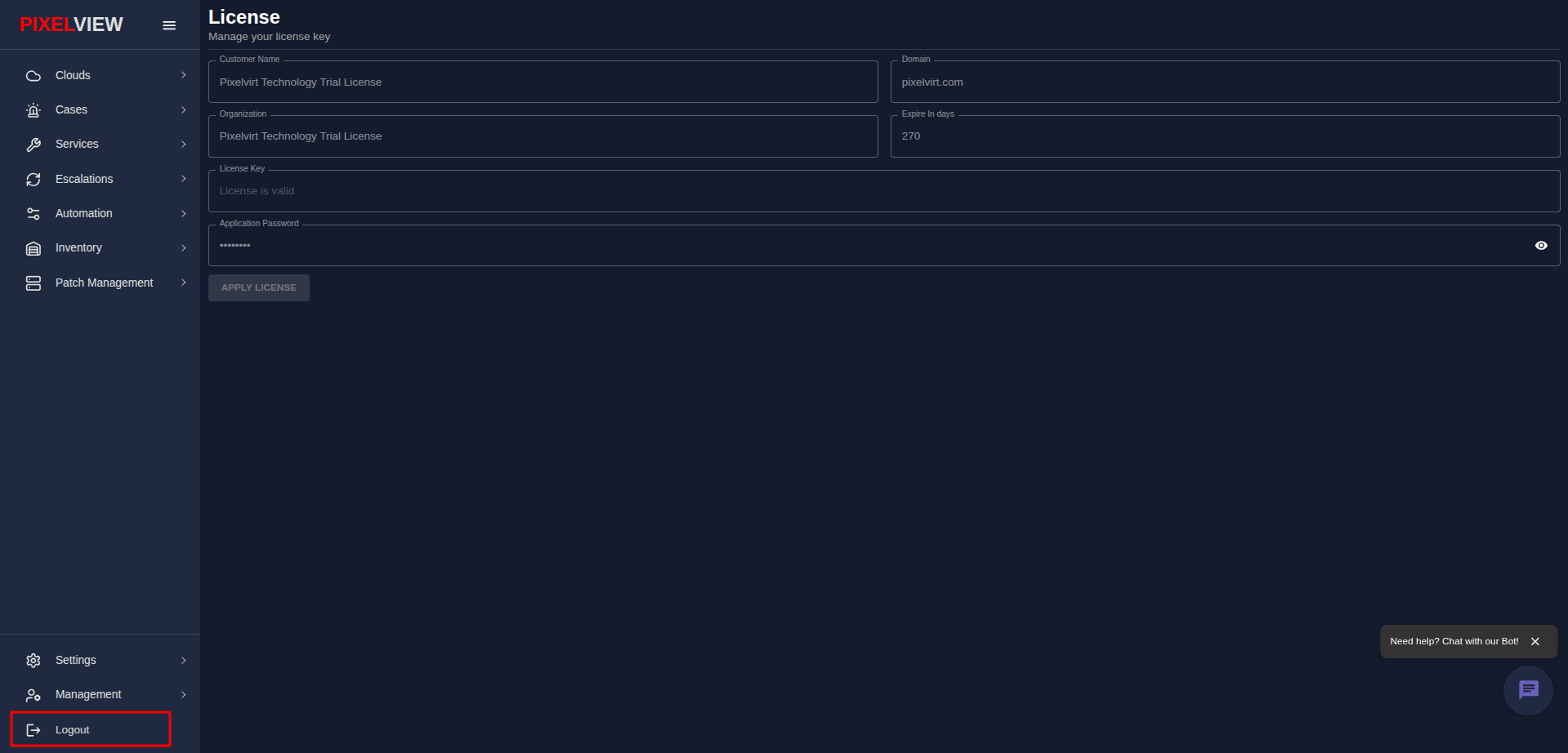
- Logging out immediately invalidates your session, clears temporary cached application state from your browser, and returns you safely to the login screen.
Account Security Best Practices
- Use Strong Passwords: Ensure passwords contain at least 8 characters with a mix of uppercase letters, lowercase letters, numbers, and special symbols.
- Log Out on Shared Machines: Always use the sidebar Logout button when finishing work on shared workstations or lab environments.
- Keep Contact Information Current: Verify your email address under Settings > Profile so password reset and incident alert notifications reach you reliably.