Cinder (CBS) Setup & Troubleshooting Guide
This guide details how to:
- Provision and configure OpenStack Cinder storage backend pools on additional storage nodes.
- Configure compute hypervisors (Libvirt/QEMU) for seamless online/live Cloud Block Storage (CBS) volume migrations.
- Register storage pools in PixelView Inventory and execute cross-backend migrations via Migration Manager.
- Troubleshoot stuck volumes, authentication timeouts, Libvirt locking conflicts, and network issues.
Environment Placeholders
The hostnames (e.g., controller-01, storage-node-01), IP addresses (e.g., 10.0.0.x), passwords, and storage pool names used throughout this guide are illustrative examples. Always replace them with the actual values corresponding to your cloud environment.
Architecture & Storage Pool Addressing
In OpenStack Cinder, storage pools are addressed using the canonical format:
Example Cluster Architecture
| Host Role | Hostname (Example) | Network IP (Example) | Target Cinder Storage Pool | Volume Type |
|---|---|---|---|---|
| Controller Node | controller-01 |
10.0.0.10 |
controller-01@lvmdriver-1#lvmdriver-1controller-01@lvmdriver-2#lvmdriver-2 |
lvmdriver-1lvmdriver-2 |
| Compute Hypervisor 1 + Storage Node | compute-01 |
10.0.0.21 |
compute-01@lvmdriver-1#lvmdriver-1 |
lvmdriver-1 |
| Compute Hypervisor 2 + Storage Node | compute-02 |
10.0.0.22 |
compute-02@lvmdriver-1#lvmdriver-1 |
lvmdriver-1 |
- Storage Protocol: iSCSI via Linux Target (
lioadm) on TCP port3260.
Storage Node Provisioning
Log into your target storage node via SSH:
Installing Storage & Volume Services
Install the required LVM and Cinder packages:
Preparing LVM Volume Group (cinder-volumes)
Dedicated Secondary Disk (Production)
If a dedicated physical or virtual disk (e.g., /dev/sdb) is attached to the server:
Loopback Backing File (Development / Testing)
For test or proof-of-concept environments without a secondary drive:
sudo mkdir -p /var/lib/cinder
sudo fallocate -l 50G /var/lib/cinder/cinder-volumes-backing.img
sudo losetup -f /var/lib/cinder/cinder-volumes-backing.img
LOOP_DEV=$(sudo losetup -j /var/lib/cinder/cinder-volumes-backing.img | cut -d: -f1)
sudo pvcreate $LOOP_DEV
sudo vgcreate cinder-volumes $LOOP_DEV
Verify that the volume group exists and has available capacity:
Configuring Cinder Volume Service
Edit /etc/cinder/cinder.conf on the storage node:
Add or update the following sections, replacing the placeholder variables with your cluster's actual values:
[DEFAULT]
my_ip = <STORAGE_NODE_IP>
rootwrap_config = /etc/cinder/rootwrap.conf
api_paste_config = /etc/cinder/api-paste.ini
auth_strategy = keystone
state_path = /var/lib/cinder
lock_path = /var/lock/cinder
volumes_dir = /var/lib/cinder/volumes
enabled_backends = <BACKEND_NAME>
glance_api_servers = http://<CONTROLLER_IP>:9292
transport_url = rabbit://<RABBIT_USER>:<RABBIT_PASSWORD>@<CONTROLLER_IP>:5672/

[database]
connection = mysql+pymysql://<DB_USER>:<DB_PASSWORD>@<CONTROLLER_IP>/cinder?charset=utf8

[<BACKEND_NAME>]
target_ip_address = <STORAGE_NODE_IP>
volume_backend_name = <BACKEND_NAME>
volume_driver = cinder.volume.drivers.lvm.LVMVolumeDriver
volume_group = cinder-volumes
target_protocol = iscsi
target_helper = lioadm
volume_clear = zero
volume_clear_size = 50

[oslo_concurrency]
lock_path = /var/lib/cinder/tmp

# MANDATORY FOR IN-USE (LIVE) VOLUME MIGRATIONS:
# Cinder volume nodes must authenticate to Nova to coordinate live disk swaps.
# Without [nova], live migrations will fail with "Expecting to find domain in project (HTTP 400)".
[nova]
region_name = <REGION_NAME>
project_domain_name = Default
project_name = service
user_domain_name = Default
password = <NOVA_SERVICE_PASSWORD>
username = nova
auth_url = http://<CONTROLLER_IP>/identity
interface = public
auth_type = password

[service_user]
project_domain_name = Default
project_name = service
user_domain_name = Default
password = <CINDER_SERVICE_PASSWORD>
username = cinder
auth_url = http://<CONTROLLER_IP>/identity
interface = public
auth_type = password
send_service_user_token = True
Enable and restart the Cinder volume service:
sudo systemctl restart cinder-volume
sudo systemctl enable cinder-volume
sudo systemctl status cinder-volume
Network & Firewall Port Requirements
Ensure the following ports are accessible across your cluster nodes:
| Direction | Port / Protocol | Service | Required For |
|---|---|---|---|
| Compute → Storage | 3260/tcp |
iSCSI (lioadm) |
Hypervisors attaching disks for VMs & live volume swaps |
| Storage → Controller | 5672/tcp |
RabbitMQ | RPC messaging between Cinder services |
| Storage → Controller | 3306/tcp |
MySQL / MariaDB | Cinder database state synchronization |
| Storage → Controller | 80/tcp / 5000/tcp |
Keystone & Nova API | Authenticating & requesting live attachment swap |
| Storage → Controller | 9292/tcp |
Glance Image API | Image-to-volume operations |
Verifying the Backend in OpenStack
On your OpenStack controller or management workstation, verify that the newly provisioned backend is active and healthy:
source <PATH_TO_ADMIN_OPENRC>

# Verify the cinder-volume service is active and UP:
openstack volume service list

# Verify storage pools, thin provisioning, and capacity:
cinder get-pools --detail
Hypervisor & Libvirt Tuning for Live Volume Migrations
Mandatory Configuration for Compute Hypervisors
Compute nodes must configure Libvirt to disable owner remembering (remember_owner = 0) to allow reliable live disk swaps on active virtual machines.
The Root Cause: Why Live In-Use Volume Swaps Fail
When migrating an in-use volume attached to a running instance across different backend hosts, OpenStack orchestrates a live volume swap:
- Nova attaches the destination volume via iSCSI (assigned e.g.
/dev/sdaor/dev/sdbby Linux SCSI subsystem). - Nova instructs Libvirt to perform a live block copy / rebase (
virDomainBlockCopy). - Once mirrored, the VM pivots to the new storage backend, and the old iSCSI session is detached.
The Bug:
When the old SCSI disk is disconnected, the Linux kernel immediately destroys the device node (e.g. /dev/sda). Libvirt's DAC (Discretionary Access Control) driver attempts to restore permissions to /dev/sda, fails with Unable to restore security label on /dev/sda, and leaves an orphaned lock in its tracking table.
The next time a volume is swapped and the kernel reuses /dev/sda, Libvirt crashes the migration with:
libvirt.libvirtError: Requested operation is not valid: Setting different DAC user or group on /dev/sdX which is already in use
nova.exception.VolumeRebaseFailed: Volume rebase failed
Permanent Resolution: remember_owner = 0
On all compute hypervisors, edit /etc/libvirt/qemu.conf:
sudo sed -i 's/#remember_owner = 1/remember_owner = 0/' /etc/libvirt/qemu.conf
sudo systemctl restart libvirtd
Verify that the setting is applied:
Why remember_owner = 0 is Safe:
dynamic_ownership = 1remains enabled: Libvirt continues automatically grantinglibvirt-qemupermissions to access VM disks and volumes.- Orphaned device locks are eliminated: Libvirt will not try to write or restore extended attributes to ephemeral device nodes in
/dev/. - Zero impact on VM operations: Existing running VMs and future instances operate normally without permission conflicts.
Volume Migration Mechanics: In-Use vs. Available
Understanding how Cinder handles volume migrations determines how operations should be planned:
Unattached (Available) Volumes
- Mechanism: Cinder performs a direct block-to-block copy between storage backends (via host dd / iSCSI attach on storage nodes).
- Hypervisors: Nova compute and Libvirt are not involved.
- Reliability: Fast, atomic, and zero risk of hypervisor lock contention.
Attached (In-Use) Volumes
- Mechanism: Requires Nova-assisted live volume swap. Cinder creates a temporary volume on the target backend, Nova attaches it to the running hypervisor, QEMU performs an active block-mirror while the guest continues reading/writing, pivots the virtual disk device, and detaches the original backend.
- Requirements:
- Compute node must have
remember_owner = 0in/etc/libvirt/qemu.conf. - Target storage backend port
3260must be accessible from the compute node. - Offline Alternative: If a hypervisor cannot support live block mirroring, stop the VM (
openstack server stop <vm>), run the migration cleanly asavailable, and restart the VM.
Retype vs. Direct Migration Behavior
OpenStack Cinder handles cross-backend migrations differently depending on whether the storage volume types match:
Different Volume Types: Retype Required
When migrating from one volume type to another (e.g., ssd-tier to hdd-tier):
- A direct host migration is rejected by Cinder's
CapabilitiesFilter. - Migration must be initiated via Cinder Retype:
- Chained Migrations: If the destination storage pool has multiple hosts under the same volume type, PixelView Migration Manager automatically chains:
- Retype to convert the volume type.
- Direct Migrate to relocate the volume to the specific target host pool.
Matching Volume Types: Direct Migrate
When migrating between hosts within the same volume type:
- Cinder directly executes host migration:
Registering in PixelView Inventory
Once backends and hypervisors are enabled in OpenStack, register them in PixelView so that Migration Manager can discover them as valid sources and evacuation targets. For comprehensive details on managing catalogue assets, see the Cloud Inventory & Catalogue Guide.
Register Storage Devices (CBS Pools)
- Open the PixelView UI.
- Navigate to Inventory -> Catalogue -> [Cloud] -> [Region] -> [Cell] -> STORAGE DEVICES.
- Click the orange
+(Add a new storage device) button:
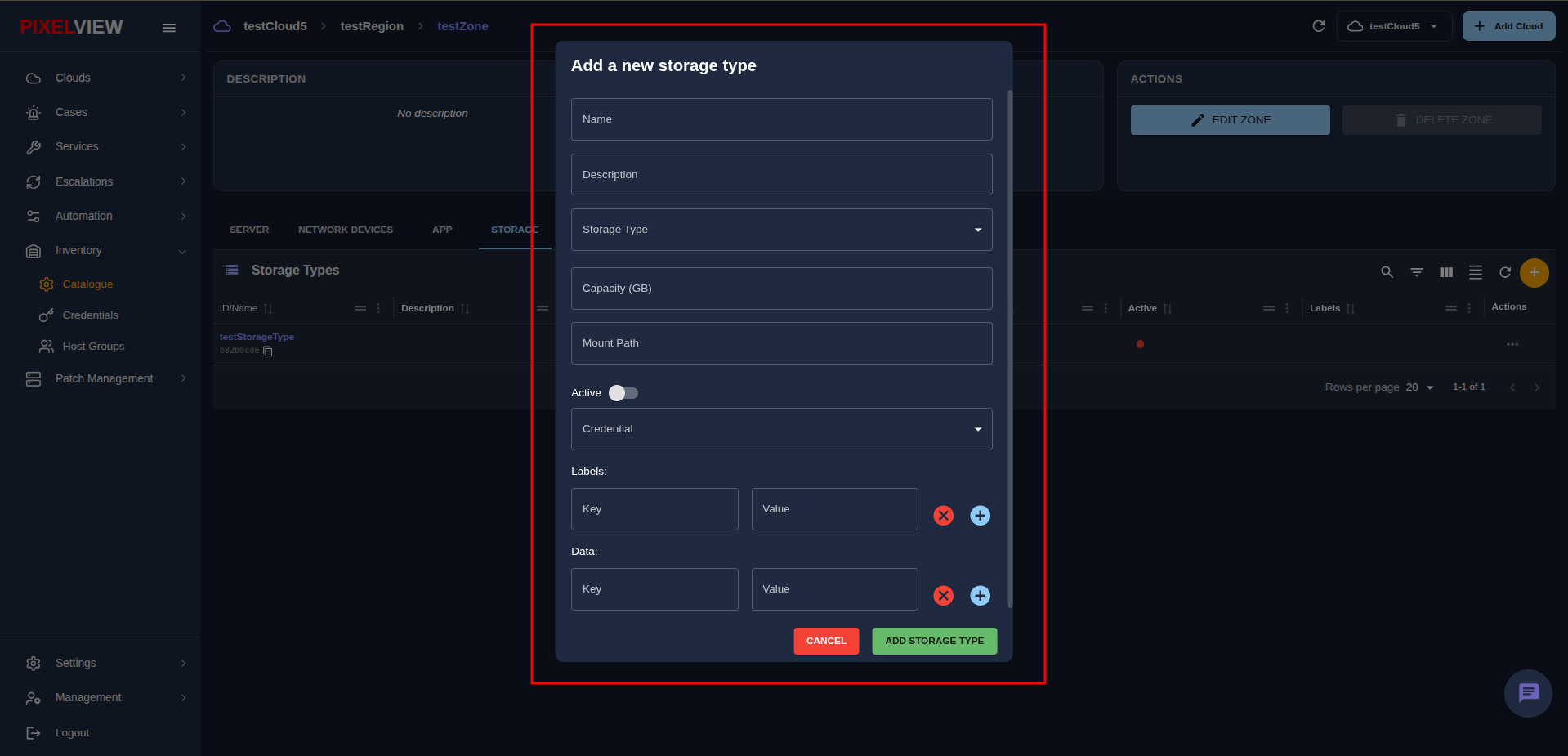
- Fill in the dialog:
- Name: Enter your Cinder pool identifier:
<hostname>@<backend_name>#<pool_name>(e.g.,compute-02@lvmdriver-1#lvmdriver-1). - Storage Device:
storageType - Active: Toggle ON (Green)
- Click ADD STORAGE DEVICE.
Register Compute Servers (Hypervisors)
- In the same cell/zone, switch to the SERVER tab.
- Click the orange
+(Add a new server) button:
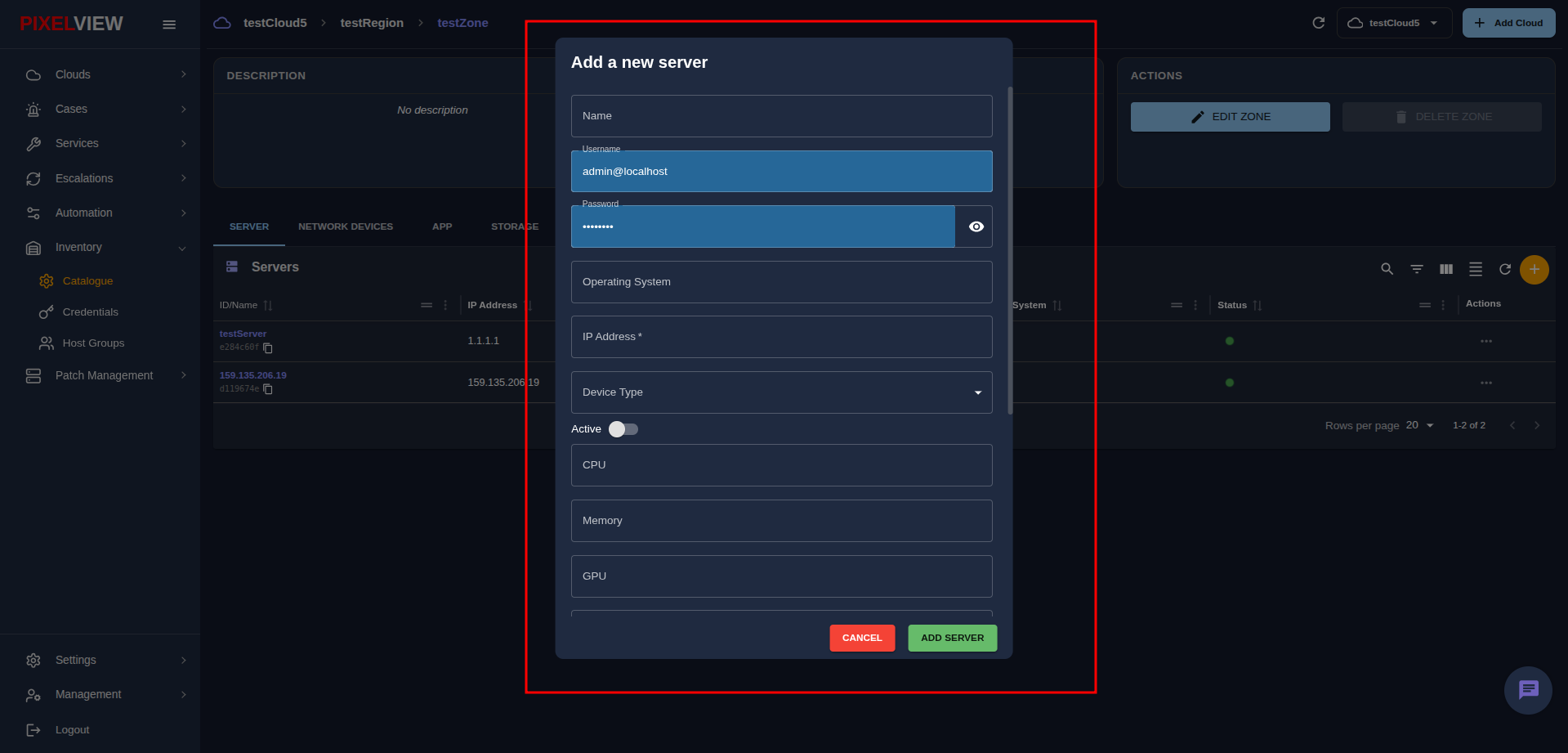
- Fill in the dialog:
- Name: Enter the server hostname (must match the OpenStack hypervisor hostname exactly).
- IP Address: Enter the server's management IP address.
- Device Type:
Bare Metal Server - Operating System:
Linux - Click ADD SERVER.
Full Inventory Documentation
For advanced asset management, cloud credentials, host groups, and zone topology configuration, refer to the Cloud Inventory & Catalogue Documentation.
Errors You Might Face & Troubleshooting
Volume Migration Rejected or Timed Out (Nova Authentication)
-
Symptom / Runner Message:
-
Root Cause: In
/var/log/cinder/cinder-volume.logon the source storage node:When performing an in-use volume migration, Cinder must coordinate with Nova to perform a live disk swap on the hypervisor. IfFailed to copy volume <volume-id> to <temp-id>: keystoneauth1.exceptions.http.BadRequest: Expecting to find domain in project. (HTTP 400)/etc/cinder/cinder.confon the storage node lacks the[nova]and[service_user]sections, Cinder fails to authenticate with Nova, aborts the migration, and destroys the temporary target volume. -
Resolution:
- Add the
[nova]and[service_user]credentials to/etc/cinder/cinder.confon the storage node. - Restart Cinder volume:
- Reset the migration status on the controller:
Libvirt DAC Locking Error on Hypervisors
-
Symptom / Nova Compute Log:
-
Root Cause: Libvirt remembers the original DAC owner (
remember_owner = 1) on dynamic SCSI device paths (/dev/sd*). When an old iSCSI disk is detached, the device node is removed from the kernel; when a new volume is attached and recycled into the same/dev/sd*name, Libvirt's cached metadata triggers a locking conflict. -
Resolution:
- Set
remember_owner = 0in/etc/libvirt/qemu.confon all compute hypervisors:
Cleaning Up Stuck Volume States & Orphaned Temporary Volumes
If a migration is abruptly interrupted, canceled, or fails prior to Cinder's cleanup routine, the volume may remain locked in maintenance, retyping, or migrating, and a temporary volume may linger.
Identifying Orphaned Temporary Volumes
During live migration, Cinder creates a temporary volume with migration_status = target:<orig-id>.
source <PATH_TO_ADMIN_OPENRC>
openstack volume list --all-projects --long -c ID -c Status -c "Migration Status"
Deleting Orphaned Temporary Target
Resetting the Original Volume State
To return the original volume to a healthy, usable status:
# If the volume is attached to an active VM:
cinder reset-state --state in-use --reset-migration-status <volume-id>

# If the volume is detached:
cinder reset-state --state available --reset-migration-status <volume-id>
Direct Migration Fails with No Valid Backend (CapabilitiesFilter)
-
Symptom / Error Message:
-
Root Cause: When attempting a direct host migration (
cinder migrate) between backends associated with different volume types, Cinder'sCapabilitiesFilterenforces type affinity and rejects the request. -
Resolution:
- Use Retype instead of direct migrate:
- In PixelView Migration Manager, this is handled automatically through the CBS migration pipeline.
iSCSI Connection Refused or Timeout (TCP Port 3260)
-
Symptom / Error Message:
-
Root Cause: The compute hypervisor cannot establish an iSCSI session with the target storage node on TCP port 3260 due to firewall rules or an inactive target service.
-
Resolution:
- Check if port 3260 is listening on the storage node:
- Verify the Linux Target service:
- Allow iSCSI traffic through the firewall:
Cinder Volume Backend Shows State Down in Service List
-
Symptom:
-
Root Cause: The storage node cannot send periodic heartbeats to the Cinder database or RabbitMQ message broker on the controller.
-
Resolution:
- Verify network reachability from the storage node to the controller:
- Check the storage logs:
- Confirm credentials and IP addresses in
/etc/cinder/cinder.confand restart the service:
Migration Runner Database Connection Refused ([Errno 111])
-
Symptom / Error Message:
-
Root Cause:
- Port Mismatch & Docker Host Networking: On the PixelView production appliance, all services run in
network_mode: hostconnecting to MySQL on standard port3306with passwordjson_bridge. In local developer environments (os-migration/docker-compose.yaml), MySQL runs on an internal Docker bridge and maps to host port3307with passwordroot. -
If the migration runner daemon runs on host networking and attempts to connect to
127.0.0.1:3306, it is refused because MySQL is listening on port3307. -
Resolution:
- For local development environments: Set
MIGRATION_DB_CONN_STR="mysql+pymysql://root:root@127.0.0.1:3307/migrations"inmigration-runner-rax/docker-compose.yaml. - For production / appliance environments: Ensure
MIGRATION_DB_CONN_STR="mysql+pymysql://root:json_bridge@127.0.0.1:3306/migrations"and verify MySQL is active:
MySQL JSON Bridge Database Identifier Not Found (HTTP 404 / 500)
-
Symptom / Error Message:
-
Root Cause:
- Migration Manager uses
mysql-json-bridgefor fast direct querying of instance and volume metadata. The bridge dynamically matches database configurations from YAML files in itsconf.d/directory based on the requested identifier string. -
If an onboarding region has no corresponding YAML file, or if the port is misconfigured (the bridge runs on port
5000internally and maps to5001on the host), queries return 404. -
Resolution:
- Verify
JSON_BRIDGE_URL:http://127.0.0.1:5001(host network) orhttp://mysql-json-bridge:5000(Docker internal bridge). - Add universal wildcard database configurations in
mysql-json-bridge/conf.d/:conf.d/global-nova.yaml:identifier: '*.global.nova'(database:nova_cell1)conf.d/global-cinder.yaml:identifier: '*.cinder.*'(database:cinder)
- Restart the bridge service:
Storage Device vs. Server Name Lookup Failures (HostNotFoundError)
-
Symptom / Error Message:
-
Root Cause:
- PixelView Inventory differentiates between Storage Devices and Compute Servers:
- Storage Devices must be registered with their canonical Cinder pool string:
<hostname>@<backend_name>#<pool_name>(e.g.,openstack-01@lvmdriver-1#lvmdriver-1). - Compute Servers must be registered with the bare physical hostname:
<hostname>(e.g.,openstack-01).
- Storage Devices must be registered with their canonical Cinder pool string:
-
If a storage pool is registered under the server tab or a server is registered with the
@backendsuffix, the inventory lookup fails during migration group creation. -
Resolution:
- Check Inventory -> Catalogue -> [Cloud] -> [Region] -> [Cell]:
- Under STORAGE DEVICES: Verify the device name matches
openstack volume list --all-projects -c Host. - Under SERVER: Verify the server name matches
openstack hypervisor list -c "Hypervisor Hostname".
- Under STORAGE DEVICES: Verify the device name matches
RBAC Permission Denied (HTTP 403) on Read-Only or Revoked Accounts
-
Symptom / User Alert:
-
Root Cause:
- Migration Manager enforces Role-Based Access Control (RBAC):
- Read endpoints (
GET,HEAD) allowread_onlyandread_write. - Mutating endpoints (
POST,PUT,PATCH,DELETE) requireread_write.
- Read endpoints (
-
Users with
read_onlypermissions can inspect migration groups, workload tables, and streaming logs, but cannot create migrations, delay instances, resume workloads, or cancel migrations. -
Resolution:
- An administrator must open PixelView -> Management -> Users, select the account, and change the Migration Manager (or umbrella OpenStack) permission from
Read-OnlytoRead/Write.
Stale In-Memory Permissions Cache (Role Changes Not Taking Effect)
- Symptom:
-
A user's role or permissions were updated in PixelView IAM, but Migration Manager continues denying or granting access based on the previous permissions.
-
Root Cause:
-
To minimize latency and avoid flooding the central PixelView auth API, user permissions are cached in-memory using SHA-256 key hashes with a 5-minute (300-second) TTL.
-
Resolution:
- Wait 5 minutes for the cache entry to expire automatically, or
- Trigger immediate cache invalidation via the internal webhook:
- Or invalidate all cached sessions simultaneously:
MySQL 8.0 caching_sha2_password Authentication Error
-
Symptom / Error Message:
-
Root Cause:
-
MySQL 8.0 defaults to
caching_sha2_password. Certain Python database drivers and older client libraries requiremysql_native_password. -
Resolution:
- In
docker-compose.yaml, configure MySQL to use native password authentication: - Or update existing database users in MySQL:
Compute Live Migration Pre-Check Failures (Capacity or Ports)
-
Symptom / Instance Log Message:
-
Root Cause:
-
Prior to transferring VM state, OpenStack Nova verifies that the destination compute hypervisor has sufficient unreserved CPU and RAM, and checks that all virtual network interfaces (Neutron ports) can bind to the destination host's physical network bridges.
-
Resolution:
- Verify destination hypervisor capacity:
- Confirm that Open vSwitch or Linux Bridge agents are healthy on the destination host:
Multi-Region Onboarding & Configuration Guide
When onboarding an on-premise OpenStack environment or adding a new region, two integration configurations must be provided on the Pixelvirt appliance:
OpenStack API Credentials (clouds.yaml)
Provides Keystone authentication for Nova, Cinder, Glance, and Neutron APIs.
- In PixelView UI: Navigate to Settings -> OpenStack (or Configs -> Clouds), click Add, and provide:
- Region Name:
<YOUR_REGION> - Auth URL:
http://<KEYSTONE_HOST>/identity/v3 - Username / Password: OpenStack admin credentials
- Project Name / Domain:
admin/Default - Or via File: Add to
/etc/openstack/clouds.yaml:
MySQL JSON Bridge Acceleration (conf.d/)
Migration Manager queries OpenStack's MySQL databases directly for high-speed indexing of instances, cell topologies, and volumes.
For each distinct region / database host, create two configuration files in mysql-json-bridge/conf.d/:
- Compute Database File (
conf.d/<region>-nova.yaml): - Storage Database File (
conf.d/<region>-cinder.yaml): - Restart the bridge container to load the new databases:
Single-Cluster Wildcard Optimization
If all regions in an environment share the same database server, you can replace individual per-region files with universal wildcards:
- Compute:
identifier: '*.global.nova'(matches any region fornova_cell1) - Storage:
identifier: '*.cinder.*'(matches any region forcinder)
This allows users to add arbitrary region names in PixelView without creating new YAML files.
Registering the Region and Nodes in Inventory
Once credentials are in place:
- Open PixelView -> Inventory -> Catalogue -> [Cloud].
- Click
+(Add Region): Enter your Region name (e.g.,<YOUR_REGION>). - Click into the region and click
+(Add Zone): Enter your cell name (e.g.,cell1). - Register your nodes:
- Under STORAGE DEVICES: Click
+and enter your pool name:<hostname>@<backend_name>#<pool_name>. - Under SERVER: Click
+and enter the hypervisor hostname and management IP. - Open Migration Manager to execute migrations across hosts and storage pools!